Find a Candidate
There are two methods for locating a Candidate, use these instructions on finding a specific record.
Look-up Candidate via Fast Find
-
Select People from the Fast Find drop down menu on the main navigation bar.
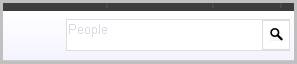
- Enter the first and/or last name of the person you wish to find, i.e. “Smith”. The system will search both first name and last name of people (candidate, contacts) in your database, i.e. “Smith” will return results such as “Smithson Jones” and “John Smith”. If you only know the beginning of a name, enter an asterisk (*) after the letters you enter. For example, "Hart*" (without the quotes) will return "Hartline", "Hartford", etc.
- All people records that match any or part of the text used to search will display. The results will be separated by their roles. Click on the person’s name to access the record.
-
Mouse over the
 icon to open a menu with workflows that can be run without opening the record:
- Log a Call
- Find Jobs
- Add to Talent Pool
- Create a Candidate
-
Click on the
 icon to add / remove the candidate record from your favorites. When the Candidate is added as a Favorite, the icon turns blue.
Look-up Candidate via Advanced Lookup
- Mouse over People on the main navigation bar and select the General link from the drop down menu.
-
The Advanced Lookup segment will open to display Attribute fields that can be used to look up a specific Person.
- Through this look up you can look up Candidates, Contacts, Supplier Candidates, and Supplier Contacts.
- If you do not have specific criteria, click Find to display all People in the system.
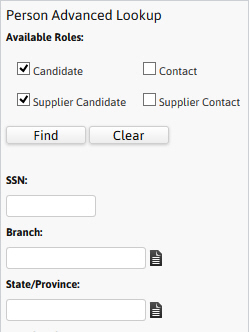
-
The Lookup Results will display all People that match the criteria entered.
- The first column is the role of the record. Once you find the Candidate you are looking for click on the role to view the record.
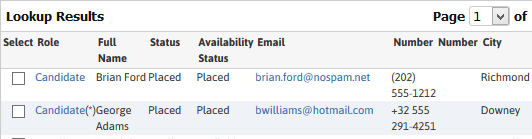
-
The Adapt screen will refresh to display the Summary Segment of the selected Candidate and click Edit to change the candidate name.
The eSignature setting in Compass is cleared when a candidate name is changed in Compass or Adapt.The candidate must update their eSignature settings before eSign future documents.
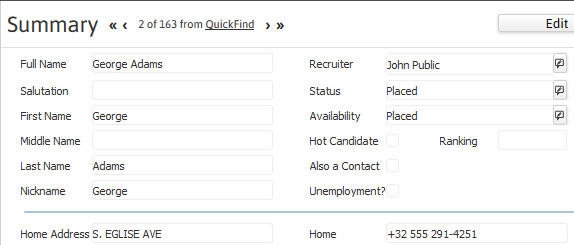
- Click on the arrows to page through the record listing from the Advanced Lookup Results.
-
Click on the QuickFind link to return to the Advanced Lookup Results list.
