Employer Costing Register
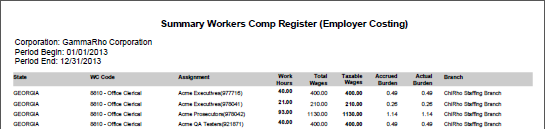
This report provides data needed for balancing employer costing. You can choose between 2 formats and 6 types of output (see below). This report is only available if the system has a back office license.
In order for this report to display any data, you need to have already run an Employer Costing Process. (See Employer Costing Process.)
- Access Reporting > Reporting & Analytics > System Reports > Government or Financials > Financial Processing > Employer Costing> Activities > Reports.
- Select Employer Costing Register to open the workflow view in a new window.
- While updating the form, fields marked in red are required to complete the workflow. Click on the buttons to the right of certain fields to open a new window which will allow you to search and select options related to that specific field or choose a date.
-
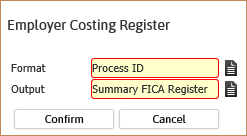
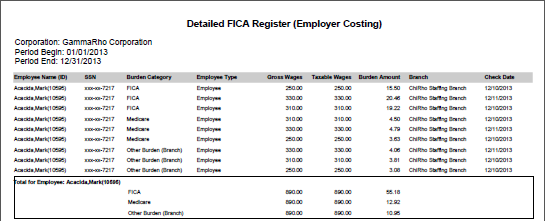
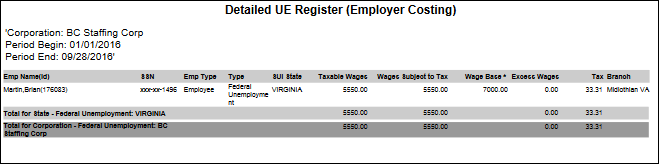
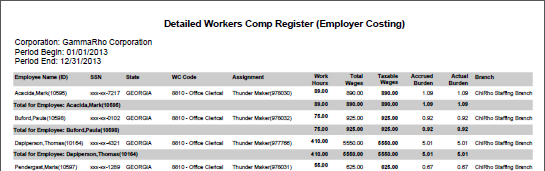
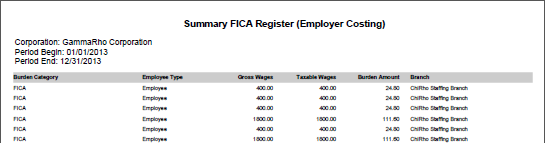
The initial workflow window allows you to select the Format (Process ID or Reporting Period) and Output (Detailed FICA Register, Detailed UE Register, Detailed Workers Comp Register, Summary FICA Register, Summary UE Register, Summary Workers Comp Register). Your selection of Format determines the contents of the second workflow window. Your selection of Output determines the contents of the report.
-
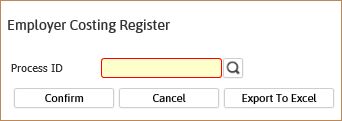
If you select the Process ID format, the next screen prompts for the process ID. The process ID is the one that was created when you ran the Employer Costing Process. If you know the ID, you can type it in and click Confirm to get a report or Export to Excel to get a spreadsheet. You can also use the lookup icon to search for the process by corporation, submitted by and /or submitted from/to dates.
Any process ID that has been cleared is filtered out of look up results. Entering a process number gives you totals for everything captured in the Employer Costing Process.
-
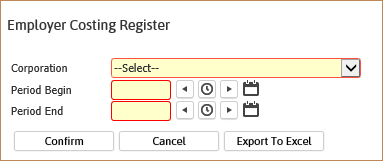
If you select the Reporting Period format, the next screen prompts you for a corporation and period begin/end dates. Once this information has been entered, click Confirm to get a report or Export to Excel to get a spreadsheet. The Period Begin and End Dates allow you to filter the data collected by the Process itself. For example, you might have run a process that created a data pool for all transactions with a period ending date between 1/1/14 and 3/31/14. However, you might want this report to only show those transactions with a period ending date between 3/1/14 and 3/31/14. By entering 3/1/2014 in the Period Begin field and 3/31/2014 in the Period End field, you only get information for that time period.
Full Report
Detailed FICA Register
Detailed UE Register
Detailed Workers Comp Register
Summary FICA Register
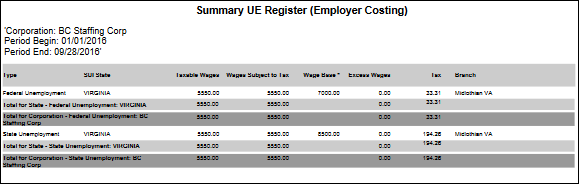
Summary UE Register
Summary Workers Comp Register