OFCCP Applicant Demographics Report
This report provides a detailed listing of the race, gender, disposition status of all returned applicants.
- Access Reporting > Reporting & Analytics > System Reports > Management.
- Double-click onOFCCP Applicant Demographics to open the workflow view in a new window.
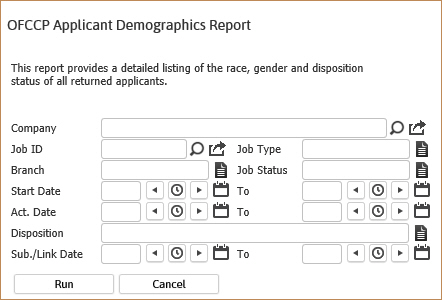
- While updating the form, click on the buttons to the right of certain fields to open a new window which will allow you to search and select options related to that specific field or choose a date.
-
Selecting any of the following criteria to filter the report results:
- Company will report demographics for all Job Orders associated with this Client.
- Job ID will report the demographics for only the Job Order number entered.
- Job Type will report demographics for only the Job Type selected.
- Branch will report all demographics for all Job Orders within that Branch.
- Job Status will report demographics for all Job Orders with the chosen status.
- Start Date fields will report demographics for all Job Orders whose start dates fall within the chosen date range.
- Act. Date fields will report applicants for all Job Orders created within the date range.
- Disposition will report demographics for all Candidate Submittals that match the chosen disposition.
- Sub./Link. Date will report applicants linked or submitted within the date range.
-
Click Run to generate the report.
-
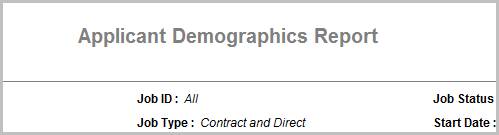
The header displays the report name, and the criteria used to generate the report.
-
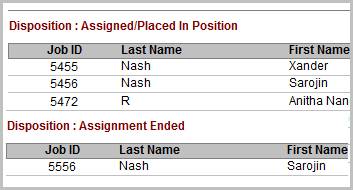
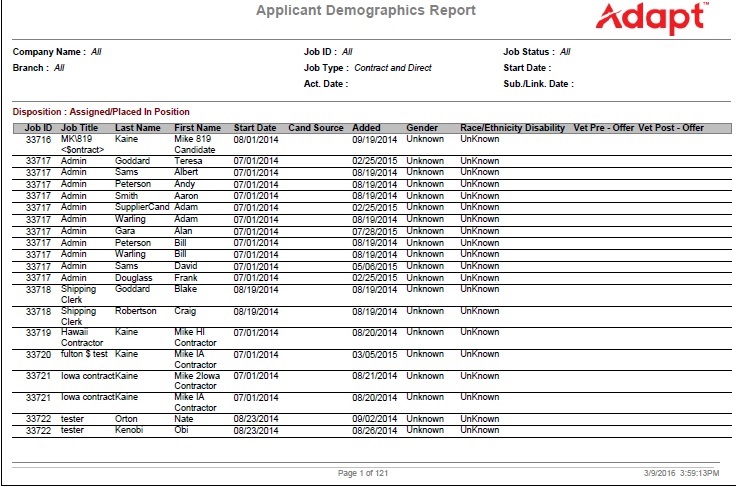
The data is then sorted by Disposition and Job Order.
Full Report
Workflows that Update Report
The following workflows will update the OFCCP Applicant Demographics report:
-
Submit Internally (Contract or Direct) from:
-
Make Offer from:
- Dashboards
- Job Order
-
Assign Candidate from:
- Assignment > Re-assign and Replace workflows
- Batch
- Dashboards
- Job Order
-
Place Candidate from:
- Dashboards
- Job Order
- Placement > Replace workflow
Was this helpful?