Batch Send a Letter (Candidates)
Use these instructions to send a letter to all Candidates within the selected search result(s).
- Hover over Searching on the navigator and then select Saved Results.
- After selecting Saved Results, select a search that matches the corresponding Batch Activity category. For this workflow your search should be a Candidate Search.
-
In the Activities drop-list, select Batch Processes > Candidates > Calls & Emails > Send a Letter.
You can also open the saved search, select individual records then run the workflow from the Batch menu inside the search.
- The Send a Letter workflow will open in a new window. You can select a custom template. Click here for information concerning custom templates.While updating the form notice that fields marked in red are required to complete the workflow; and that by clicking on the buttons to the right of certain fields, a new window will open, allowing you to search and select options related to that specific field, or choose a date.
-
Click Confirm to complete the workflow.
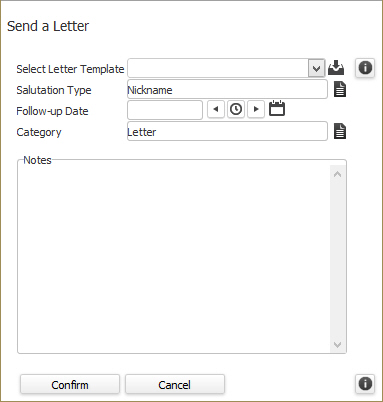
- After clicking Confirm, an alert will appear at the completion of the activity; click Ok to complete the workflow. The letters are saved to your Document Library under the Correspondence >Letters to People category.
-
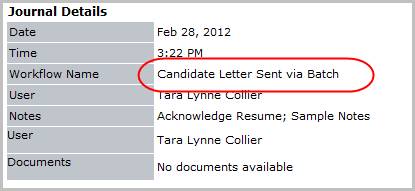
Verify the workflow completed by viewing the Candidate Letter Sent via Batch entry and notes entered during the workflow are posted to the record’s journal.
-
Verify the batch activity completed by viewing a document in the Adapt Document Library.
Was this helpful?