Amplify Overview
You need Bullhorn Amplify Edition to use this feature.
The Amplify Overview is your personalized homepage for tracking key activity and managing tasks across all your records. From here, you can
If you need to focus on activity for a single Candidate, Contact, or Job, switch to the Amplify Tab instead.
Accessing Amplify Overview
-
Click the Amplify icon at the top of your Bullhorn screen.

-
If you don’t see this icon, go to Menu > Amplify instead.
-
-
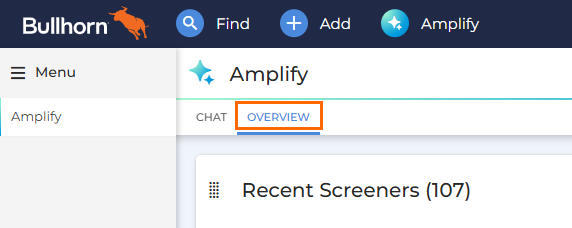
Select the Overview tab.
Customizing Your Dashboard
The Amplify Overview dashboard is fully customizable, giving you control over which cards appear and how they’re arranged.
All customization choices, including card layout, column selections, filters, and tabs, are automatically saved to your user profile. Your preferred setup loads each time you log in, so you can design a workspace that matches your workflow.
Adding and Arranging Cards
-
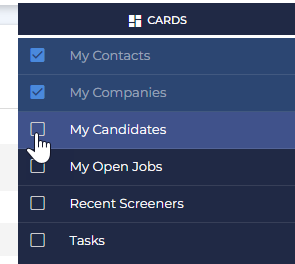
Click Layout at the top right of the page.

-
Select or deselect cards to add or remove them from your dashboard.
-
After adding cards, you can drag and reposition them anywhere on your dashboard to match your workflow.
Available Cards for Amplify Overview
You can add the following cards to the Amplify Overview. Each card is designed to give you fast, actionable insight into an important part of your day.
Tasks
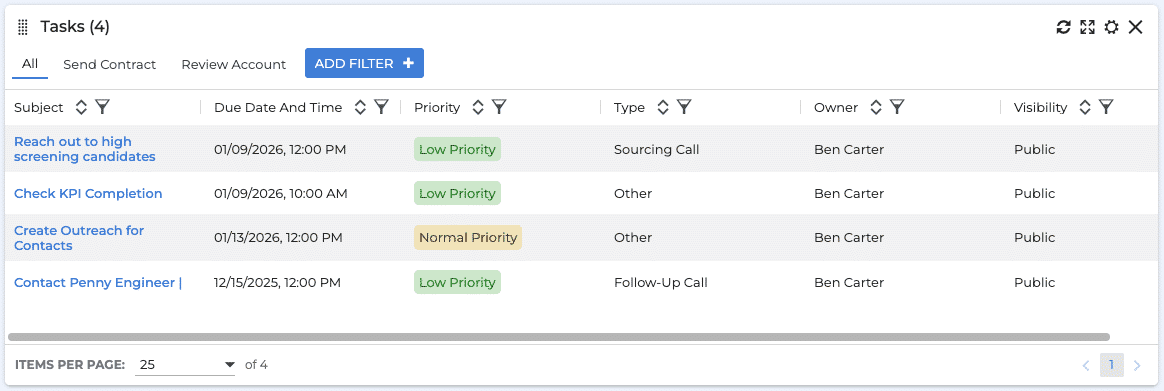
The Tasks card centralizes all your Amplify-related tasks so nothing is overlooked. It’s a single place to monitor upcoming work and track items already in motion. Your tasks are organized into tabs: To Do, In Progress, Completed, and All. Each task includes its description, associated record, due date, priority, and a quick link for immediate action.
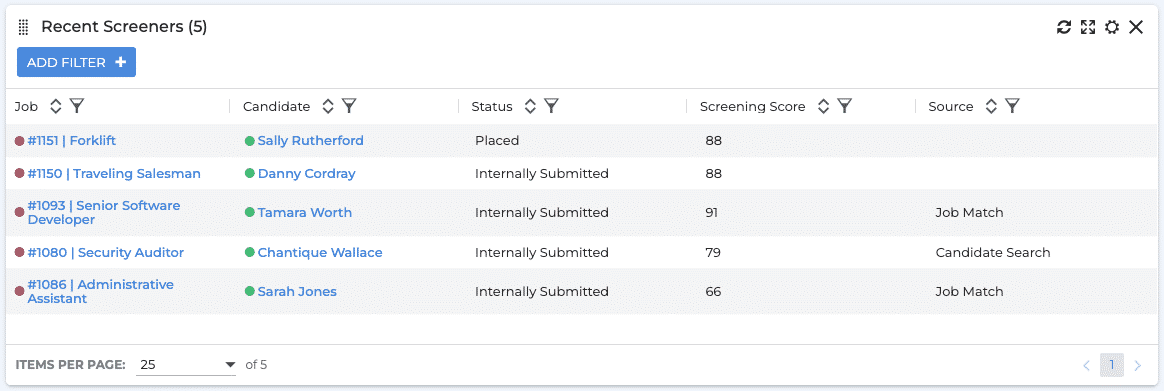
Recent Screeners
The Recent Screeners card aggregates completed Amplify screenings across all your jobs, making it easy to identify top talent. Each entry displays the candidate’s name, the job they were screened for, their score, screening status, completion date, and their current ATS status. This helps you spot strong matches early and follow up without searching through individual jobs.
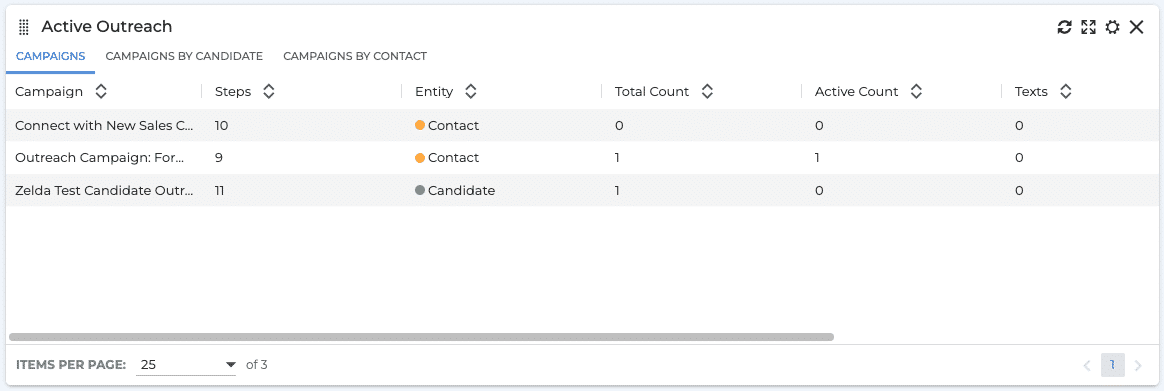
Active Outreach
The Active Outreach card gives you real-time visibility into how your Amplify Outreach campaigns are performing. It shows which campaigns are active, how many records are enrolled, and how many messages have been sent.
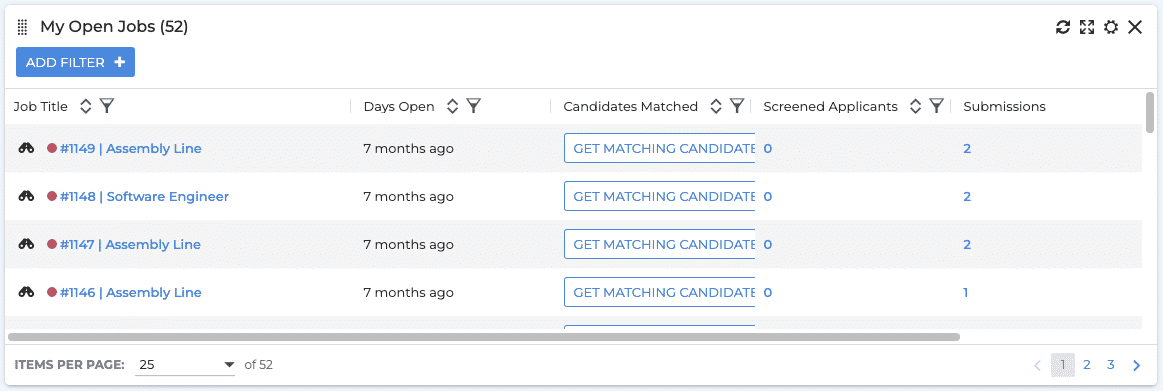
My Open Jobs
The My Open Jobs card provides a complete view of your open job portfolio in a single place. You’ll see key details such as job title, company, days open, candidates
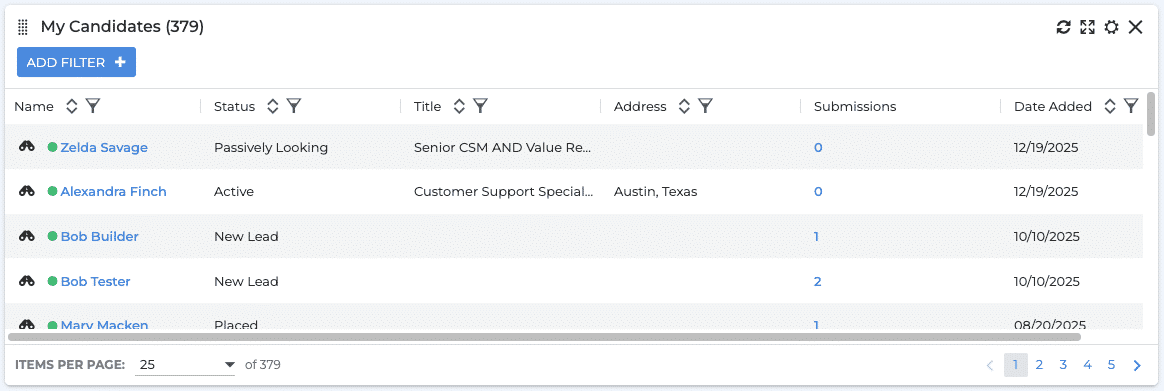
My Candidates
The My Candidates card gives you instant visibility into your talent pipeline without running reports or building lists. It’s a filterable, customizable table with columns such as candidate name, status, last contact date, associated jobs,
My Companies
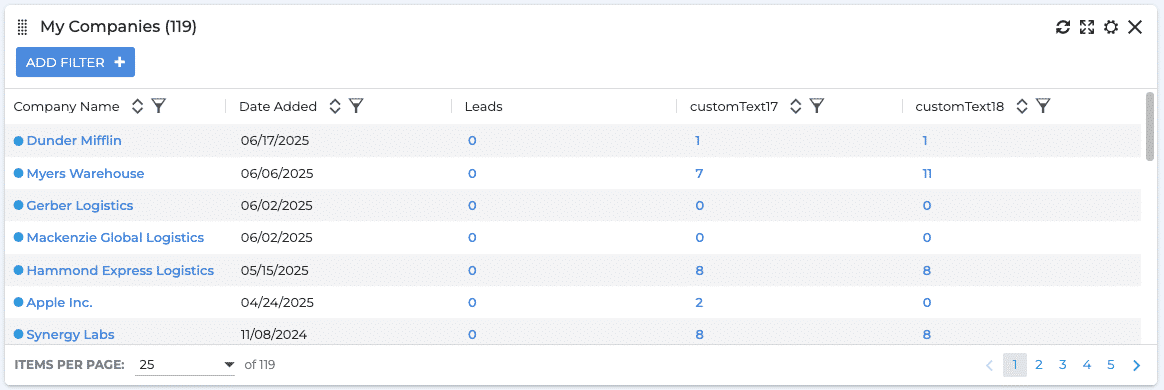
The My Companies card displays the companies you’re actively working with and helps you keep track of account health. Each row shows the company name, number of active or open jobs, recent placements, last activity date, primary contacts, and account status. It’s designed to help you monitor account health and identify growth opportunities.
My Contacts
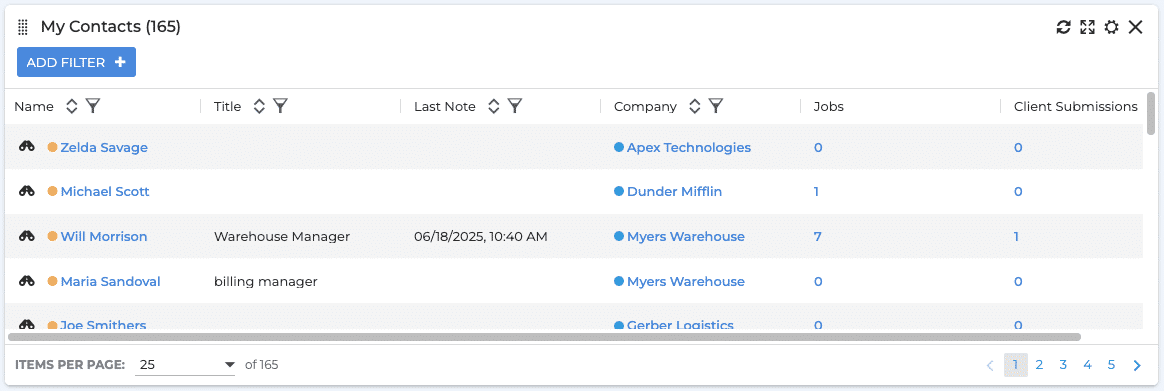
The My Contacts card is a filterable list of your client contacts. You’ll see the contact’s name, company, title, last contact date, active jobs, and relationship status. This makes it easier to stay connected with key stakeholders, identify contacts who may need outreach, and prevent important relationships from cooling off.
Configuring Card Settings
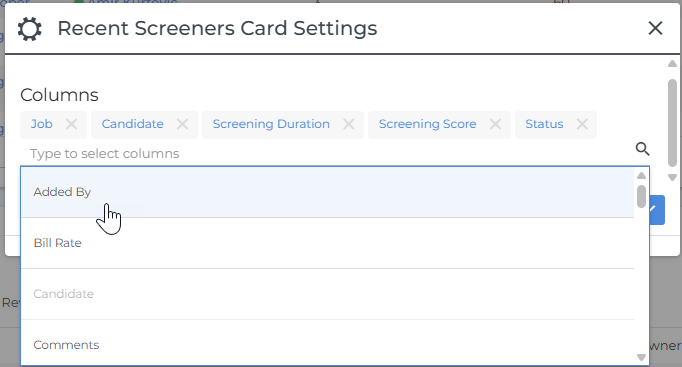
Each card includes a Settings cog icon ( ), where you can customize the information that appears.
You can:
-
Add or Remove Columns: Choose which data fields appear on the card.
-
Arrange Columns: Remove and re-add columns in your preferred order to prioritize important information.
Filtering Card Data
Filters refine what records appear on each card. You can create temporary filters or pin filters to keep them active permanently.
Filtering options include:
-
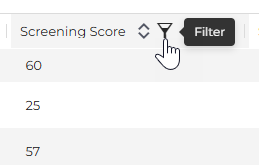
Column Filters: Click the filter icon in a column header to filter by that field.
-
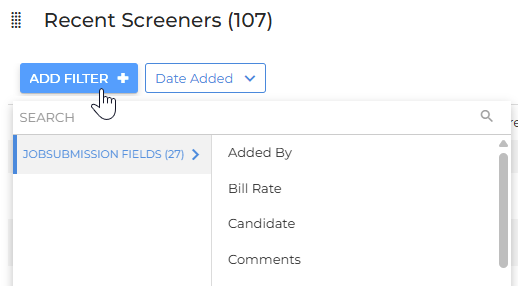
Add Filter: Click the Add Filter button to create custom filters across multiple fields.
-
Pin Filters: Keep frequently used filters active when you return to the Overview page.
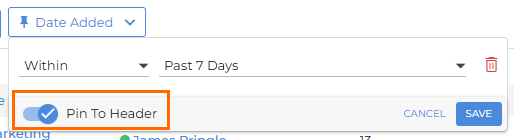
All filters are automatically saved to your user account.
Creating Tabs on the Tasks Card
The Tasks card supports tabbed views to help you organize tasks by type. Tabs let you switch between categories without having to adjust filters every time.
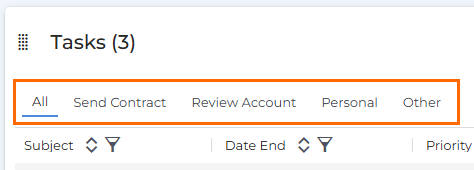
To create a new tab:
-
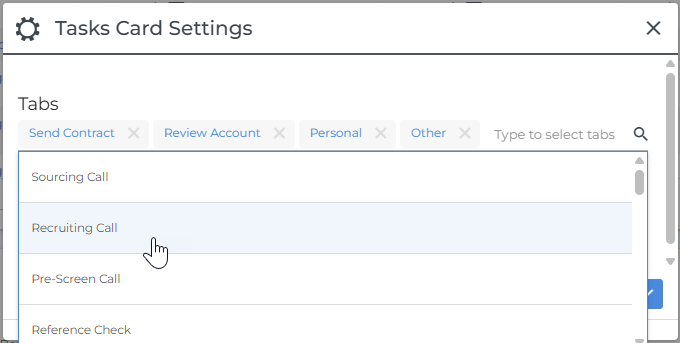
Click the Settings cog icon (
) on the Tasks card. -
Click into the Tabs field.
-
Choose a task type (for example, Phone Call, Follow Up, or another category).