Amplify Summary Cards
Amplify Summary Cards display AI-generated insights directly on Candidate, Contact, and Job records in Bullhorn. Cards can automatically run prompts as soon as the record loads, giving you quick, context-rich summaries without opening Amplify Chat. You can also open card content in Amplify Chat to continue the conversation.
Amplify Cards appear in the following locations:
-
Overview tab: A movable card that loads automatically
-
Notes tab: A collapsible card summarizing recent Notes
-
Emails tab: A collapsible card summarizing recent Emails
-
Candidate Slideout: A static summary card for quick review
Admins can configure default prompts for each card type and enable or disable cards per entity in Amplify Admin.
How Amplify Summary Cards Work
Overview Cards
When you open a Candidate, Contact, or Job record, the Amplify Card on the Overview tab automatically runs the default prompt for that entity type. The card title reflects the name of the prompt being used.
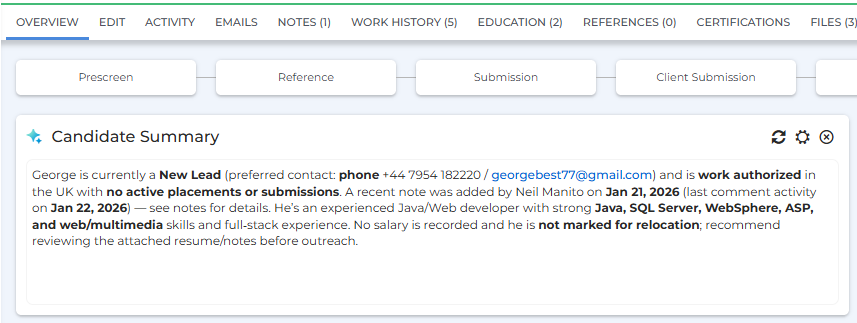
You can interact with Overview Cards in several ways:
-
Refresh (
 ): Re-run the prompt to update the summary
 -
Open Amplify: Move the card content into Amplify Chat so you can ask follow-up questions

-
Change Prompt (
 ): If you select a different prompt, Amplify remembers your choice and applies it as you navigate to other records of the same type.
 -
Close (
 ): Remove the card from your layout (you can re-add it through layout settings)
Notes and Emails Cards
The Notes and Emails tabs each include their own Amplify Cards. These cards summarize the activity on that tab using prompts designed specifically for Notes or Emails.
Click Generate Summary to run the summary on demand. Results are cached until new notes or emails arrive, then a Regenerate button appears to refresh the summary.
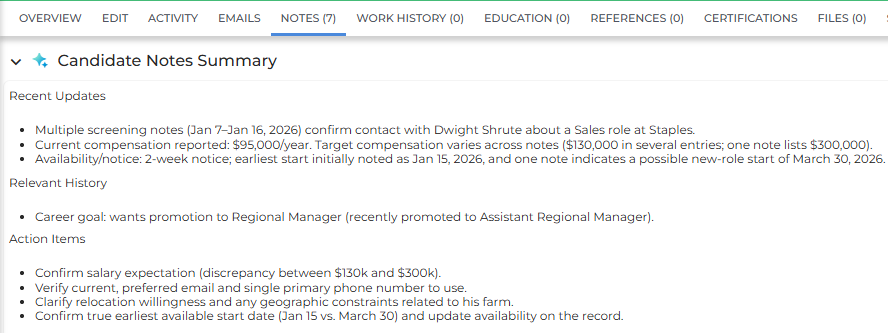
Default prompts are provided for both types, but admins can replace them or choose different ones in Amplify Admin.
Configuring Amplify Summary Cards
Admins can enable or disable cards summary for each entity and control which prompts run for each card type through Amplify Admin > Entity Settings.
Admin Configuration Steps
-
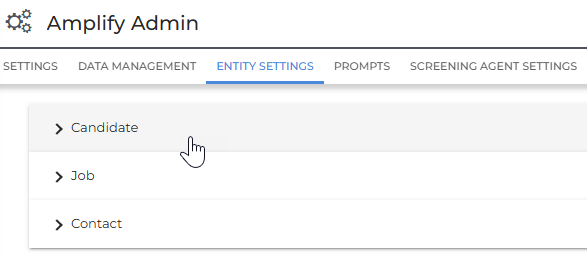
Go to Menu > Admin > Amplify Admin
-
Open the Entity Settings tab
-
Expand the section for the entity you want to configure (Candidate, Contact, or Job)
-
Under Card Settings, toggle Enable Cards on or off.
-
This setting applies to all users in your corporation.
-
-
For each card, select the prompt that should run automatically (if cards are enabled).
-
Click Save.
The prompt selected for each card sets the default experience for all users viewing that entity. Individual users can still override the prompt on their own cards without affecting others.
Prompt Requirements
Not all prompts can be used with Amplify Cards. To appear in the selection list, a prompt must:
-
Be enabled for that entity type (Candidate, Contact, or Job)
-
Not require a secondary entity (for example, prompts that need both a Candidate and a Job cannot be used on Candidate Overview cards)
Prompts that do not meet these requirements will not appear in the dropdown.
Default Prompts
Amplify includes several default prompts designed for quick, scannable summaries.
Record Overview
This prompt generates a 3–4 sentence snapshot of the record. It highlights:
-
Current Status and Availability: A quick overview of where the candidate stands
-
Recent Communication: Notes and emails from the last 30 days
-
Active Submissions and Placements: Any open submissions or placements
-
Key Skills and Flags: Important details that may impact next steps
Summarize Notes
This prompt summarizes the notes on the record and includes:
-
Recent Updates: Highlights from the last 30 days
-
Relevant History: Older notes that provide useful context
-
Action Items: Any follow-ups or next steps mentioned
If no notes exist, the card will indicate that.
Summarize Emails
This prompt summarizes logged email activity and includes:
-
Recent Updates: Key communication within the last 30 days
-
Relevant History: Older messages that add context
-
Action Items: Any open requests or follow-ups
If no emails exist, the card will indicate that.
FAQ
Which records support Amplify Cards?
Amplify Cards are available on Candidate, Contact, and Job records. The Candidate Slideout also includes a Summary card.
Can I use different prompts for different record types?
Yes. Each entity type has its own settings in Amplify Admin so you can configure different prompts for each record type.
What happens if I close a card?
Closing a card removes it from your layout. You can re-enable it using the layout settings on the record page.
Can I override the admin-selected prompt?
Yes. You can switch to a different prompt, and your selection stays in place as you move between records. Your changes do not affect other users.
Why don't all my prompts appear in card settings?
Prompts must be enabled for that entity type and cannot require a second entity. Prompts that do not meet these rules will not appear in the dropdown.
Can I customize the default "Summarize Notes" and "Summarize Emails" prompts?
Yes. You can modify or replace them in Prompt Studio and select them in Amplify Admin.
Where can I continue the conversation from a card?
Select Open in Amplify to move the content into Amplify Chat and ask follow-up questions.