Compliance Manager Requirement Checklist
The Requirement Checklist is a comprehensive list of all the credentials and requirements that a candidate needs to meet for a specific placement. It helps you ensure that everything is in order before a candidate starts their role, keeping the process organized and compliant.
Access the Requirement Checklist by navigating to the Compliance Manager and clicking the edit pencil next to the Placement on the dashboard.
To find out how to dynamically match candidate credentials to requirements see the article in Dynamic Match.
Placement Requirement Tab
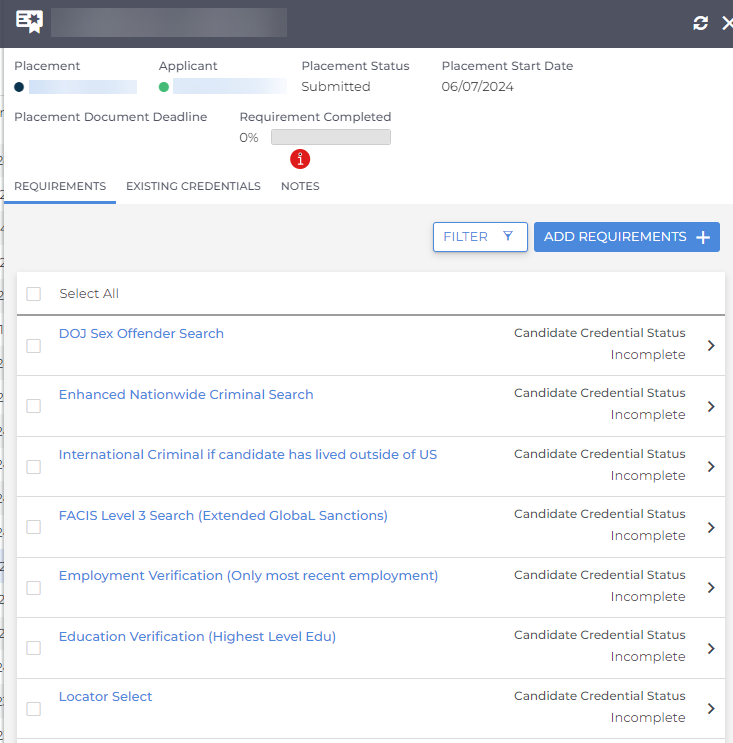
In this tab, you can easily manage your Placement Requirements Placement Requirements are Placement Credentials that are required for a job or placement. If configured, these can be added to Company records and flow down to associated Jobs and Placements. with a range of actions and customization options:
-
Add a new Placement Requirement:
- Select ADD REQUIREMENTS +.
- Choose Individual or Grouped Placement Certifications.
- Start typing the name of the Placement Certification or Group and select it from the list.
- Click Save.
-
Perform actions on Placement Requirements:
- Selecting the checkbox next to a Placement Requirement shows the Selected action menu with the following options:
- Change the Candidate's Credential A record of qualification and/or clinical practices history. Example for Light Inustrial: Fork Lift Certification
Example for Healthcare: Nursing License Status
- Email the Candidate
- Download the Candidate Credential File
- Delete the Placement Requirement
- Change the Candidate's Credential
- Selecting the checkbox next to a Placement Requirement shows the Selected action menu with the following options:
-
Expandable Placement Requirement Cards:
- The tab displays a series of expandable cards, each representing a Placement Requirement.
- Expanding a card brings up the “Edit Placement Credential” form, where you can make edits directly within the dashboard.
- In the “Edit Placement Credential” form, some fields are read-only until a Candidate Credential is matched to the Placement Requirement.
- You can configure which fields are displayed on the Edit Placement Credential form by adjusting the settings in the Placement Credential entity.
- Candidate Credentials can be matched on the Placement Requirement card.
Existing Candidate Credentials Tab
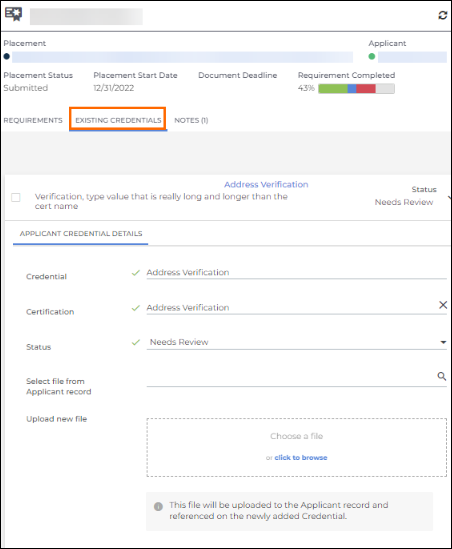
The Existing Candidate Credentials tab allows you to efficiently manage candidate credentials with a variety of actions and customization options:
-
Perform actions on Candidate Credentials:
- Selecting the checkbox next to a Candidate Credential shows the Selected action menu with the following options:
- Change the Candidate's Credential Status
- Email the Candidate
- Download the Candidate Credential File
- Archive the Candidate Credential
- Selecting the checkbox next to a Candidate Credential shows the Selected action menu with the following options:
-
Expandable Candidate Credential Cards
- This tab displays a series of expandable cards, each representing a candidate's Matched Credentials.
- Expanding a card opens the “Edit Candidate Credential” form, allows you to make edits directly within the dashboard.
- You can customize which fields are displayed in the “Edit Candidate Credential” form by configuring the settings in the Candidate Credential (or Candidate Certification) entity.
Notes
The Notes tab provides a convenient way to track and manage all notes related to a placement's credentials and requirements:
- Viewing Notes:
- This tab displays a list of all notes associated with the selected placement’s credentials and requirements, giving you a comprehensive view of any updates or important information.
- Adding, Editing, and Deleting Notes:
- You can easily add new notes, as well as edit or delete existing ones directly from this tab.
- When adding a note, you can reference specific credentials, whether they are Placement Requirements or Candidate Credentials.
- Auto-Populating Credentials:
- When you select "Add Note," all credentials and requirements for the selected placement will automatically populate, saving you time and ensuring accuracy.
- Customizing Credential References:
- If you prefer to reference specific credentials, you can press “Clear All” and then choose to reference a single placement credential or candidate credential at a time.