Send Reference Materials to Candidates
Reference Materials lets you upload PDF documents to a candidate's profile for their reference, without requiring a signature. Use it for informational content like benefits guides, first-day instructions, or safety equipment information. This topic covers enabling the feature, uploading a reference material, and what the candidate sees in their portal.
Before You Begin
Reference Materials requires Task Hub Task Hub provides centralized management of candidate tasks across the application, onboarding, and employee portal experiences. Enabling Task Hub reveals additional system settings that allow you to customize how candidates interact with tasks, applications, and profile requirements throughout their journey. to be enabled for
your organization. If Task A specific action that needs to be completed by a Candidate (e.g., completing a Form, Package, Credential, Skills Checklist) Hub isn't enabled, contact your Bullhorn administrator before
continuing.
Task Hub provides centralized management of candidate tasks across the application, onboarding, and employee portal experiences. Enabling Task Hub reveals additional system settings that allow you to customize how candidates interact with tasks, applications, and profile requirements throughout their journey. to be enabled for
your organization. If Task A specific action that needs to be completed by a Candidate (e.g., completing a Form, Package, Credential, Skills Checklist) Hub isn't enabled, contact your Bullhorn administrator before
continuing.
Any user with permission to send a workflow can upload reference materials. Permissions work like this:
-
Users with view-only access cannot upload.
-
Only admins can delete an uploaded reference material.
-
All other permission roles can view uploaded materials.
Enable Reference Materials
To have Referenced Materials enabled please contact Bullhorn Support. After it is enabled an Upload Reference Materials button will appear on each applicant's profile and the Reference Materials tab appears.
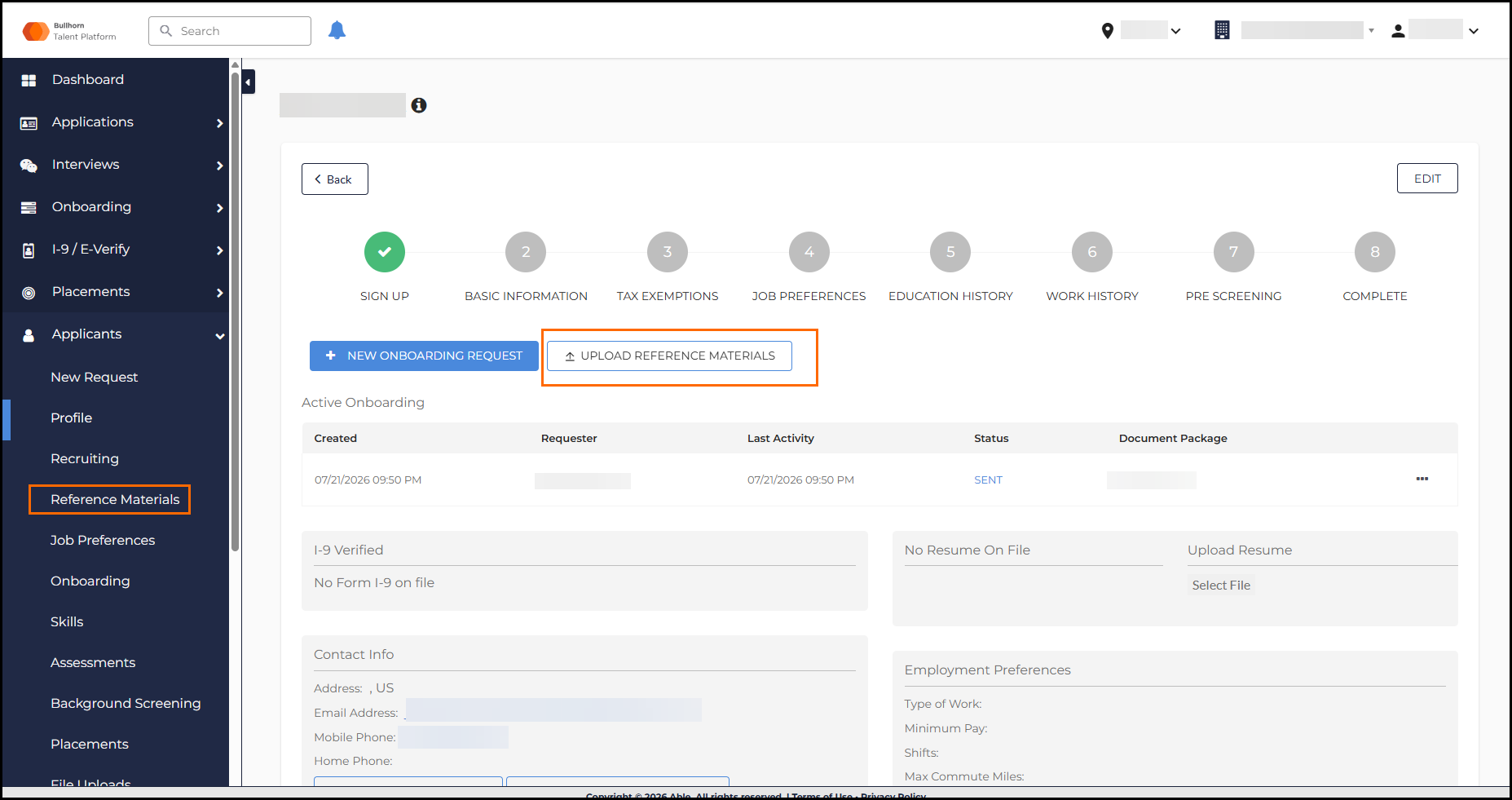
Upload a Reference Material
- Open the applicant's profile.
- Click Upload Reference Materials.
- Enter a Display Name. This is the name the candidate sees for the document in their portal.
- Drag and drop your PDF file into the upload modal, or browse to select it.
- Reference Materials supports PDF files only.
- If your organization has an ATS connection, the modal includes a checkbox to sync the file to the candidate's Files tab in the ATS. This is checked by default; uncheck it if you don't want the file to sync. Clients without an ATS connection won't see this option.
- Click Upload.
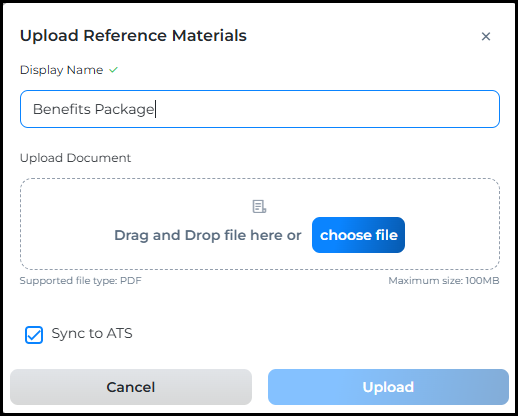
The candidate receives a notification that a document is ready for their review. The document appears under a new Reference Materials section on the applicant's profile, showing the file name, display name, and upload date.
Only admins can delete a reference material from an applicant's profile. Other roles can view uploaded materials but can't remove them.
What the Candidate Sees
When a candidate logs in to their portal after a reference material is uploaded, they see a new Reference Materials tab on the left side of their profile, with a badge showing the number of unreviewed documents.
- The candidate clicks the Reference Materials tab.
- The candidate clicks Download to open the document in a new tab. Candidates can download a document multiple times.
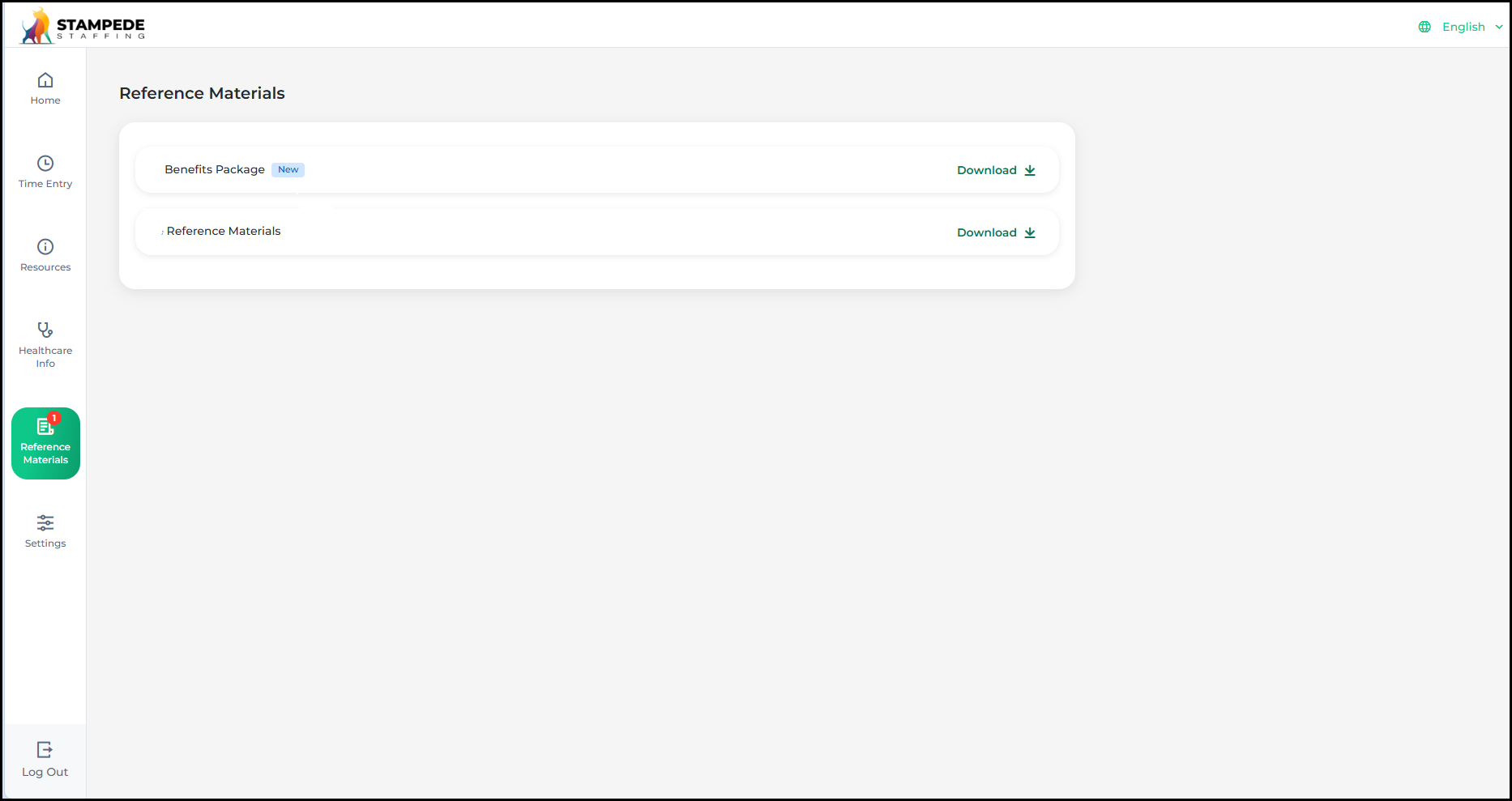
Once the candidate downloads the document, the badge and count clear. The document stays available in the candidate's portal unless an admin removes it.
Frequently Asked Questions
What file types can I upload as a reference material?
PDF only.
Does a reference material require a signature?
No. Reference Materials is designed for informational documents that don't require signing, such as benefits guides, first-day instructions, or safety equipment information. If a document needs a signature, use a workflow instead.
Who can upload a reference material?
Any user with permission to send a workflow. Users with view-only permissions can't upload.
Who can delete a reference material?
Only admins.
Does an uploaded reference material sync to my ATS?
If your organization has an ATS connection, the file syncs to the candidate's Files tab by default. You can uncheck this option during upload if you don't want it to sync. This option isn't available for clients without an ATS connection.
Can I translate the Reference Materials tab into another language?
Yes. You can translate the Reference Materials tab label through Translations settings.