Delete/Rollback Time
Delete/Rollback Time allows a user to delete punches and transactions from an employee's time card, either one day or one week at a time. This most commonly needs to be done if the administrator is trying to close a group and there is an error on an employee timecard preventing the close. This article walks through the deletion steps. Contact your account manager or support to enable this feature.
Delete for Selected Days
-
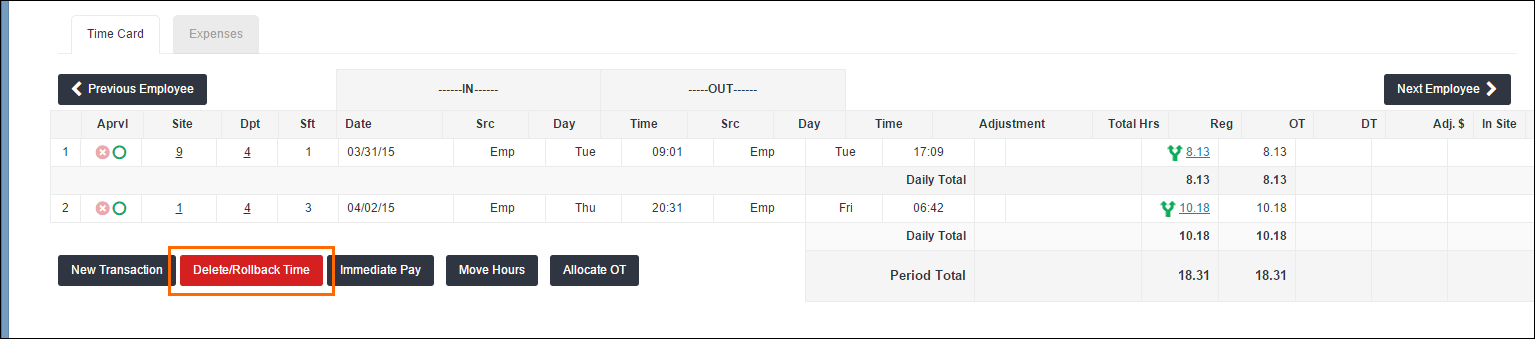
In the BTE TMC, select a time card with transactions for a week and select Delete/Rollback Time.
-
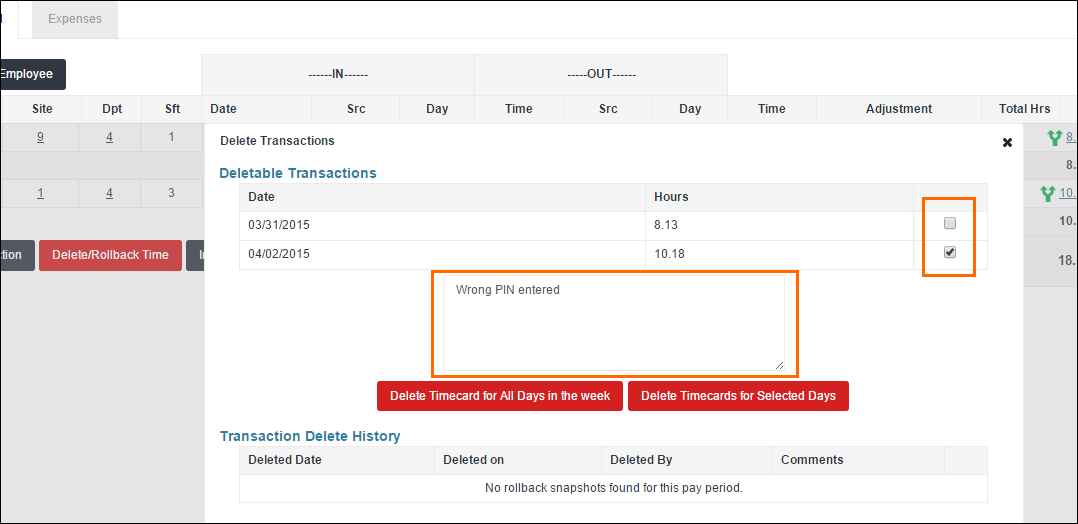
In the Delete Transactions window that appears, select days that you want to delete from the employee's time card by filling in the check-box on the right of the window.
-
After selecting the days you want to delete, enter a reason for the delete in the comments field.
-
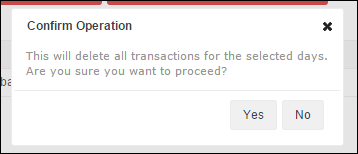
When you are ready to delete the selected days, click Delete Timecards for Selected Days and then confirm the operation.
Delete for All Days
-
In the BTE TMC, select a time card with transactions for a week and select Delete/Rollback Time.
-
In the Delete Transactions window that appears, select days that you want to delete from the employee's time card by filling in the check-box on the right of the window.
-
After selecting the days you want to delete, enter a reason for the delete in the comments field.
-
When you are ready to delete the selected days, click Delete Timecards for All Days in the week and then confirm the operation.
Review and Rollback
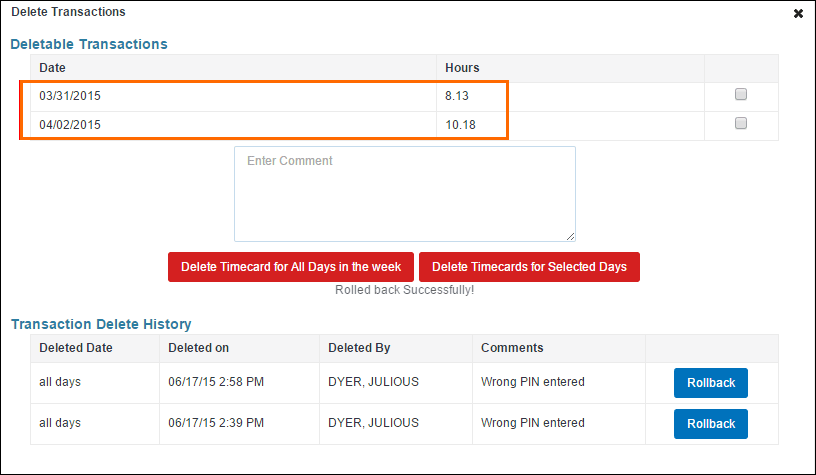
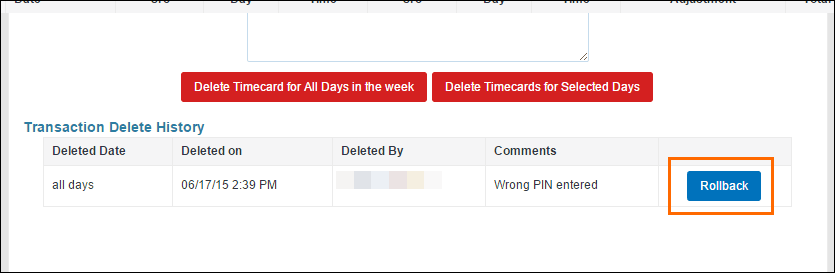
After deleting any transactions, you will see details show in Transaction Delete History table. Here, you can see the original date for the deleted time, when it was deleted, and also the person who deleted the time. If you need to rollback, or undo, the delete action, follow the steps below.
-
Click the Rollback button for the date you wish to restore.
-
Confirm the Rollback operation to proceed.
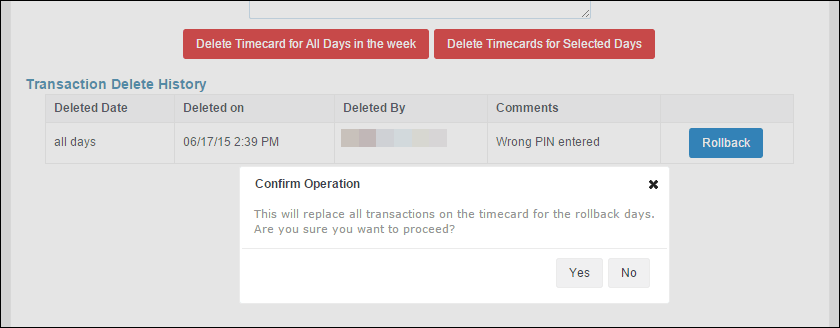
After confirmation, the transactions for the selected day will be restored.