Add Code
This workflow will add a code to a selected list.
Add Permission for this component is granted via the manage code listpermission under the general administration category; default with general and financial administration security profiles.
In order to properly determine Safe Harbor Codes for ACA reporting, two lists have special requirements:
- Healthcare Plans: Any plan that is considered Minimum Essential Coverage (MEC), must have "(MEC)" as part of the Code Description. For example, "Employee+1 (MEC)"
- Healthcare Cancellation Reason: A specific code needs to be created for instances when the cancellation was a result of employee termination. While the Code Name has no formatting requirement, the Code Description MUST have the string "(Terminated)". For example: you can just enter "(Terminated)" (without the quotation marks) as the description or you can add the string as part of a longer description (e.g. "No Longer an Employee (Terminated)".
- Select a list from the box and click the Select List button.
-
The codes in the list are displayed in a box at the bottom of the segment.
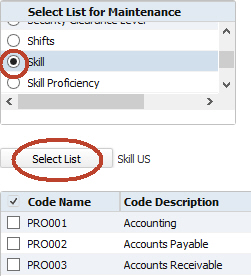
- Select Add below the box to add a new code to the list. To add a code under a parent code, select the parent code from the list and then click Add. To add a code at the parent level, click Add without making any selection from the list.
-
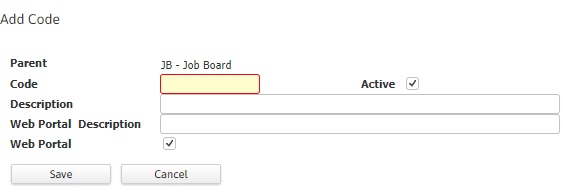
The Add Code workflow will open in a new window.
- While updating the form, fields marked in red are required to complete the workflow.
- The Parent field is auto-populated if you have made a selection from the list; if not selected, it is blank and non-modifiable.
- The code and description cannot be a duplicate of an existing list.
- Clicking Save will complete the workflow and return to the code list.
-
If you are adding a skill, job category or certification, the Add window has two additional fields:
- Web Portal Description: This is how the skill, job category or certification will be presented to the web portal user. It can be the same or different from the Description used in Adapt.
- Web Portal: This checkbox determines whether the skill, job category or certification will be available for selection to the web portal user. A check means the skill, job category or certification will be available. An unchecked box means that it will not be available. If none of the codes have the Web Portal flag checked, 'No matches found' is displayed in the web portal fields.
Adding a Parent Code to a List
To add a parent (top-level) code to a list:
- Without clicking the radio button on any code in the list, click Add.
- The Add Code screen displays.
- The Parent field defaults to <blank>. If you accidentally selected a value in the list before clicking Add and you see a value in this field, click Cancel and restart at step 1. NOTE: Some lists do not allow parent/child codes. In this case, you will not see a Parent field.
- In the Code field, enter a short Code Name for the code you are adding. Codes must be unique within the list. A Code Name can be as small as 1 character or as large as 8 characters.
- In the Description field, enter a longer description of the code you are adding. It is the Description that shows up on drop down lists within the system.
- Make sure that the Active box is checked.
- Some lists allow you to designate whether the code should display when using Web Services. Place a check in the Web Portal checkbox if you want the code to appear in Web Services. Enter the way you would like the code to appear in the Web Portal Description field.
- Click Save.
You may not add, edit or delete a parent code on these lists:
- Candidate Log a Call Outcome
- Contact Log a Call Outcome.
Adding a Child Code to a List
To add a child code to a list:
- On the code grid, select the code (by clicking the radio button to the left of the code’s row) that you want to be the parent of the code you are about to add.
- Click Add.
- The Add Code screen displays.
- The Parent field displays the code you selected in step 1. If you did not select a code, click Cancel and restart at Step 1. NOTE: Some lists do not allow parent/child codes. In this case you will not see a Parent field.
- In the Code field, enter a short Code Name for the code you are adding. Codes must be unique within the list. A Code Name can be as small as 1 character or as large as 8 characters.
- In the Description field, enter a longer description of the code you are adding. It is the Description that shows up on drop down lists within the system.
- Make sure that the Active box is checked.
- Some lists allow you to designate whether the code should display when using Web Services. Place a check in the Web Portal checkbox if you want the code to appear in Web Services. Enter the way you would like the code to appear in the Web Portal Description field.
- Click Save.