Committed
The Committed tab in the Payroll Process screen lists all the processes that have been successfully updated or are in the process of being updated.
- You can search for specific updated process from the list by entering a keyword in the Search box; the processes matching the keyword across any attributes presented in the columns will be displayed. For example, to view processes belonging to a specific Corporation, enter the corporation name in the Search box.
- You can select/deselect all the process listed in a page by selecting the checkbox on the top left of the grid, or select multiple processes from the list by clicking on them individually.
- You can choose to sort records on all columns by clicking the
 icon.
icon. - To expand a record and view details, click the
 icon corresponding to the Process ID.
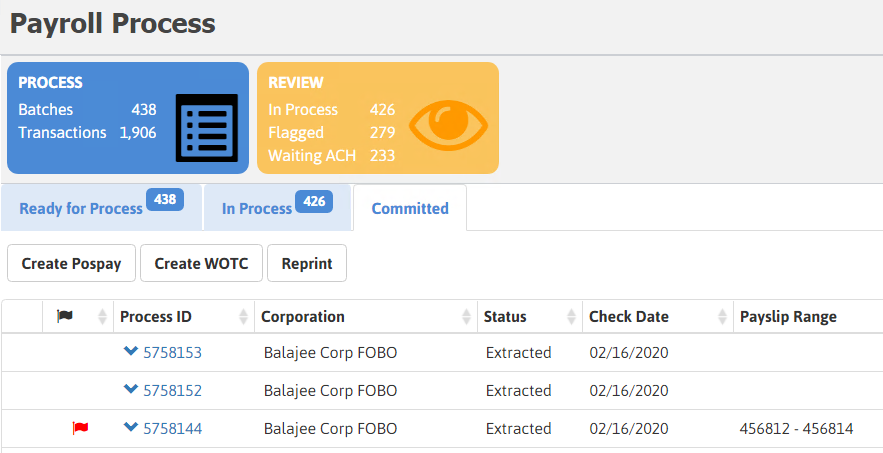
The following actions can be performed from individual records:
- View Process Items: Click View Process Items to go to the Process entity page. You can also access the Process entity page by clicking the Process ID.
- Reprint: Click Reprint if you wish to print the invoice(s) again. By default the entire range of invoices associated to the process is displayed. However, you can enter the invoice range you wish to reprint.
Reset ACH
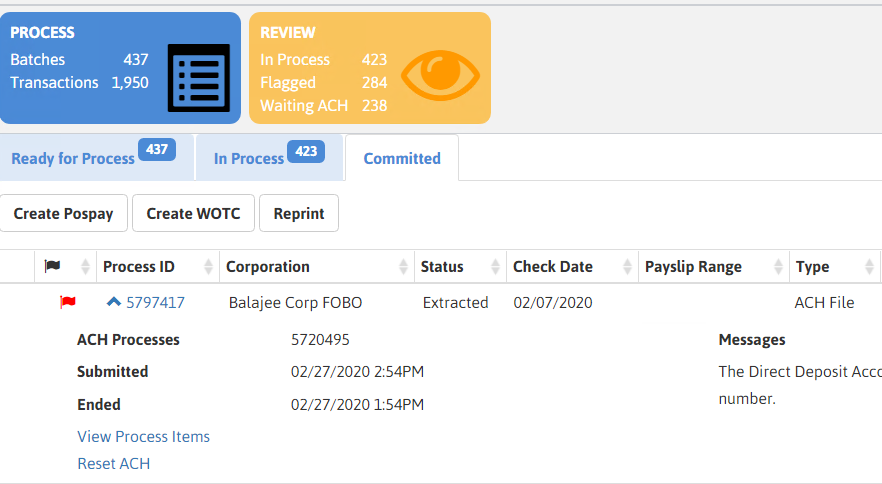
User can Initiate the Reset of a ACH file from the Process Detail.
-
Click Reset ACH and click Submit Process.
Clicking Submit Process, the transmission file is deleted and resets the status back to Updated. You will need to re-create your ACH file.
Create Pospay
Create WOTC
Reprint
To reprint invoices associated to a process:
-
Select an updated process from the list and click Reprint. The Reprint window displays.
You cannot perform this workflow if you have selected multiple processes.
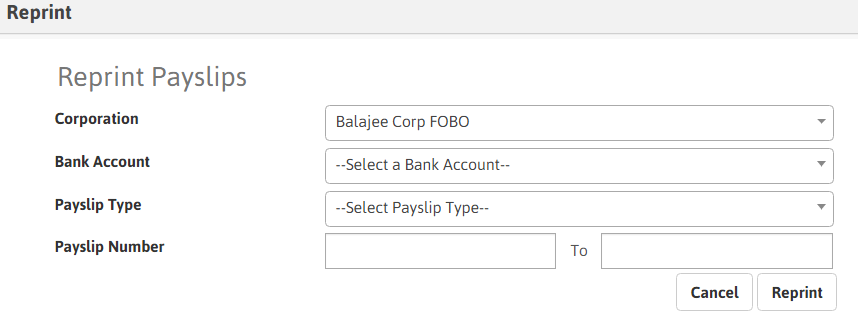
- The Corporation and Process ID defaults from the selection.
- Select Bank Account from the list of drop-down values.
- Click Reprint to print the invoices specified.