Ready for Process
The processes generate diagnostic reports and calculate payroll taxes and deductions. The payroll process selects timecards for employees who are to be paid by check. The direct deposit process selects timecards for employees who are to be paid via direct deposit advice. All of an employee's timecards selected (based on optional processing criteria) are included on the same advice/check unless otherwise indicated; e.g., different check handling flag or selected on the timecard as an individual check.
User must have manage payroll permission in order to process and update checks and direct deposit advices which is available to users with the Financial Administration security profile.
Only a single Payroll related process (Payroll Process, Direct Deposit, DD Extract, Reset Payroll, Reset Direct Deposit, Reset Extract and Update) per Corporation may run at any single time. The Ready for Process tab in the Payroll Process screen lists all the posted batches available to be processed/adjusted. The count of batches ready for process is displayed in the tab header badge.
- You can search for specific batch/batches from the list by entering a keyword in the 'Search' box; the batches matching the keyword across any attributes presented in the columns will be displayed. For example, to view batches from a specific Corporation, enter the corporation name in the Search box.
- You can select/deselect all the batches listed in a page by selecting the checkbox on the top left of the grid, or select multiple batches from the list by clicking on them individually. However, selecting batches from multiple Corporations to process will display a warning message as only batches belonging to the same Corporation can be processed together.
- You can choose to sort records on all columns by clicking the
 icon.
icon.
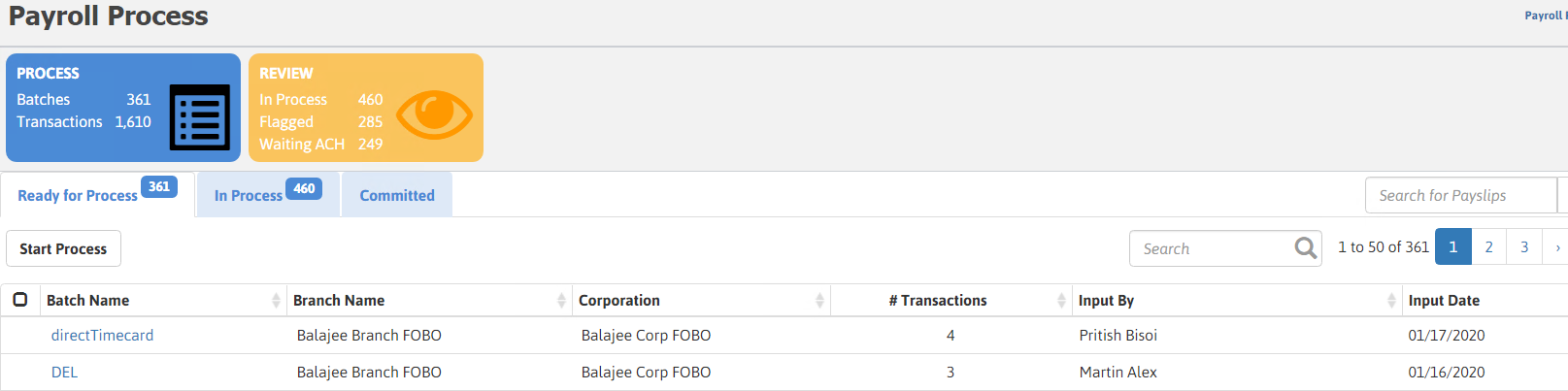
Start Process
- To start the Payroll process perform the below steps:
-
Select a batch from the list and click Start Process. The Payroll Process window displays.
You can also open this workflow without selecting any batch and enter all the information manually.
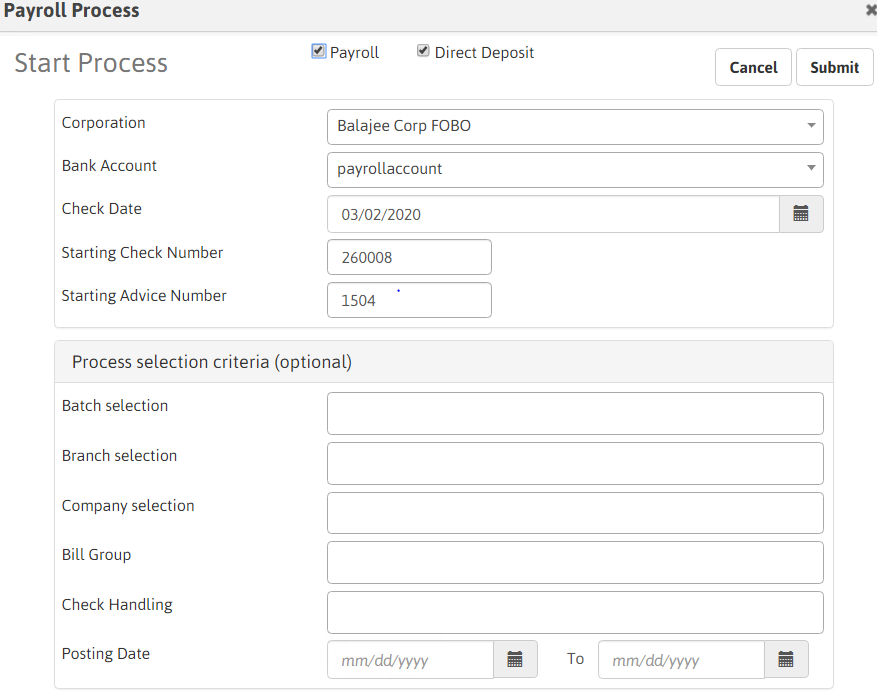
- The Corporation field is auto populated based on the batch selected.
- Select the Bank Account from the drop-down list.
- Check Date defaults to today's date. Click the calendar icon to select a different check date.
-
Specify the process selection criteria (optional fields). Clicking inside these fields lists the options available for selection.
- Batch Selection: lists batches with a status of posted, where the batch contains transactions that have not been billing processed.
- Branch Selection: lists branches linked to the selected corporation and associated with posted timecard batches.
- Company Selection: lists available client records by name or ID.
- Bill Group: lists available billing group.
- Check Handling: list available invoice handling methods/options.
- Posting Date: select the date range of when the batch(es) were posted.
-
After entering the desired criteria click the Submit Process button to send the batch(es) to the queue for processing.
If successfully sent, a success message displays and the count in the Ready for Process tab badge decreases by the number of batches sent and the same batches will now appear in the In Process tab.