In Process
The In Process tab in the Payroll Process screen lists all the completed/failed processes. The count of in process batches is displayed in the tab header badge.
-
You can search for specific process from the list by entering a keyword in the 'Search' box; the processes matching the keyword across any attributes presented in the columns will be displayed. For example, to view processes belonging to a specific Corporation, enter the corporation name in the Search box.
-
You can select/deselect all the processes listed in a page by selecting the checkbox on the top left of the grid, or select multiple processes from the list by clicking on them individually. However, selecting processes from multiple Corporations to update will display a warning message as only processes belonging to the same Corporation can be processed together.
-
A red flag will mark processes which have messages to be reviewed.
- You can choose to sort records on all columns by clicking the
 icon.
icon. - To expand a record and view details, click the
 icon corresponding to the Process ID.
The following actions can be performed from individual records:
-
Print: Click Print to print the payslips within the process.
-
Update: Once you have finished printing and have verified the accuracy of the payroll, click Update to finalize the payroll items.
- When this is done for payroll check types, the count in the 'In Process' tab badge decreases and the process will now appear in the Committed tab.
- When this is done for direct deposit/ACH types, the process will become ‘Waiting for ACH’ and the counts listed in the ‘Review’ badge will be refreshed.
You can also Print or Update using the buttons available on the top left of the process list grid.
To print payslips associated to a process:
-
Select a single completed process from the list and click Print. The Print window displays.
You cannot perform this workflow if you have selected multiple processes.
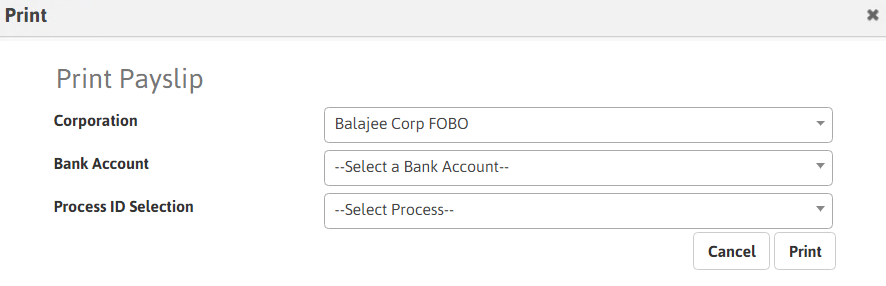
- The Corporation and Process ID defaults from the selection.
- Click inside the Bank Account field to lookup for bank accounts.
- Click Print to print the payslips specified.
Update
The Update workflow updates the completed processes. You can select one or multiple processes (of the same Corporation) and click the Update button to send the process(es) to the queue for processing. A message is displayed to advise the items have been sent for processing and upon successful completion, are available under the Committed tab.
If you do not select any process from the list and click the Update button, the Update window displays.
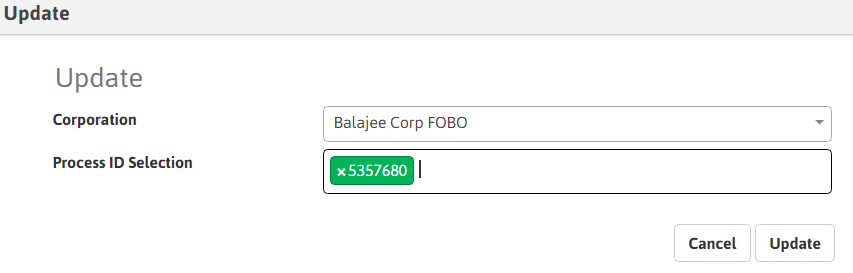
- Select a Corporation in the drop-down list. Based on your selection, the associated process id's will be available for selection in the Process ID Selection field.
- Select the Process ID(s). You can select multiple process id's belonging to the corporation selected.
- Click Update. The process is sent to the queue for processing. A message is displayed to advise the process has been sent.
The count in the In Process tab badge decreases by the number of processes updated, and the same processes will now move to the Committed tab.
Create ACH
- Initiate creation of the ACH file by clicking the Create ACH File button.
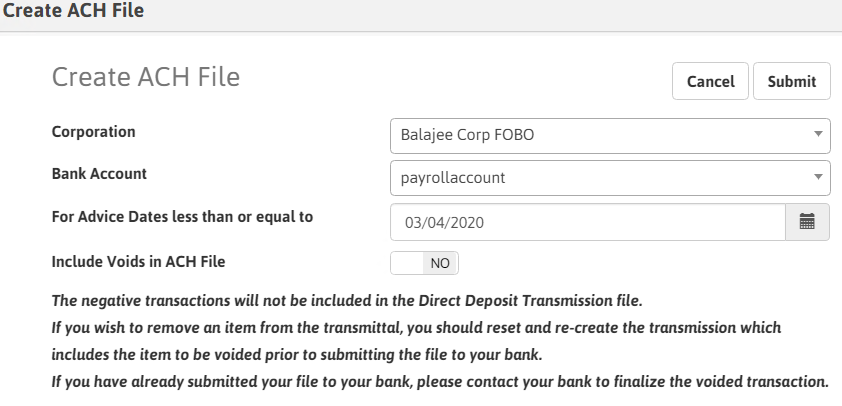
- Select a Corporation in the drop-down list. Based on your selection, the associated process id's will be listed in the Process ID selection field.
- Click inside the Bank Account field to lookup bank accounts.
- Select the Advice Date and click Submit.
It is not necessary to select a process in order to create the ACH file. However, if you select one or more processes, the Corporation and Advice Date will default into the workflow.
Note - ALL ACH type items with a status of WaitingACH (updated) for the same corporation and bank account will be included in the ACH file if the Advice Dates are less than or equal to the date designated (even if these processes were not selected.)
All associated process id's will be listed in the ACH File process details on the Committed tab.