Manage Invoice Templates
This segment allows you to identify the Invoice Templates which will be available for selection within the Billing Profile and when processing Billing. It also allows you to determine which Invoice Template defaults when a new billing profile is created.
This segment displays only if you have a back office license installed.
- Mouse over Administration on the main navigator and then select Administration.
- Select Manage PayBill Codes from the Financial Administration section of the segment.
- Select the Manage Invoice Templates segment.
-
The Manage Invoice Templates segment is displayed. There are two sections on the segment. The top section allows you to add, edit, and remove timecard (contract) invoice templates. The bottom section allows you to do the same to direct hire invoice templates. Since both work the same way, this topic focuses on the Timecard Invoice Template.
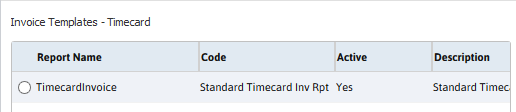
The segment contains the following columns:
-
Report Name: Unique name for the template.
You can use the same name for both timecard and direct hire invoice template. This name must EXACTLY match the associated report name. The standard invoice templates for Timecard and Direct Hire billing are TimecardInvoice, TimecardInvwithInOut, and DirectHireInvoice.
- Code: Type of template. The selection of codes comes from the Invoice Template list and can be edited using the Manage List feature. The Code is what displays when selecting a template on the Company Billing Profile or when processing Billing. Therefore, you should have a unique code for each template you create.
- Active: "Yes" indicates that the template will show up as an option in the Billing Profile. "No" indicates that the template will not show up as an option.
- Description: Brief description of the template.
- Is Default: There can be only one default template. This is the template that defaults when a billing profile is created.
The segment contains the following workflows:
- Add: Allows you to create a new template. Clicking Add causes the Add Invoice Template dialog to display. There, you can add a new report name (must EXACTLY match the report name you created), select the template code (appears when you select a template for a billing profile or when processing billing), determine whether the template is active, select whether it should include a logo and enter a short description (up to 500 characters) of the template.
- View/Edit: Selecting one of the existing templates and clicking View/Edit displays information about the template you chose. You can edit the name, code, active status, logo status and description, if you like.
- Delete: Selecting one of the existing templates and clicking Delete removes the template from your system. You may not delete the default template or any template in current use on any billing profile.
- Set as Default: Selecting one of the existing templates and clicking Set as Default makes that template the default template.
-