Report Folders & Permissions
The Report Folders & Permissions segment allows you to add, edit and remove folders from the Reporting & Analytics area of Adapt.
You can also add, rename and remove folders from the Reporting & Analytics page. However, you can only apply security permissions from the Report Folders & Permissions segment.
Permissions can only be applied to Root Folders.
For more information on Reporting & Analytics, click here.
Accessing This Segment
To access the Report Folders & Permissions segment:
- Select Administration.
- From the Administration fly-out menu, select Administration.
- From the Administration page, select Manage Security Profiles.
- From the Manage Security Profiles page, select the Report Folders & Permissions segment.
Adding a Folder
To add a folder to the Reporting & Analytics area:
- Click Add.
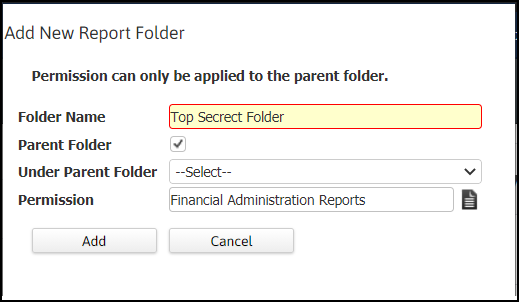
- The Add New Report Folder window displays.
- In the Folder Name field, enter the name of the new folder. This name must be unique. This is REQUIRED.
- In the Root Folder checkbox, place a check in the box if this Folder represents a root folder (a root folder is one that is not housed in any other folder).
- In the Under Parent Folder field, use the droplist to select the parent for this folder. You may select the Root Folder checkbox OR the Under Parent Folder droplist, but not both.
-
In the Permission field, use the Code Selection icon to select the Permission you want applied to this folder. The permissions come from the list in the Manage Security Profiles segment. If the user has the permission listed, then the user can access the new folder. If the user does not have the permission listed, the user cannot access the new folder.
Permissions can only be applied to Root Folders.
- When you are satisfied with your selections, click Add.
Editing a Folder
To edit a folder:
-
Click the radio button to the left of the row containing the folder you want to edit and click Edit.
System Type folders may not be edited..
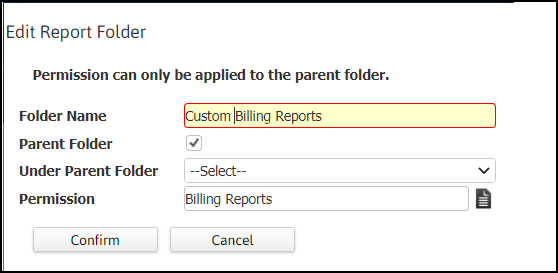
- The Edit Report Folder window displays.
- If you want to change the folder name, change the information in the Folder Name field.
- If you want to change the root/child relationship of this folder, edit the Root Folder checkbox and Under Parent Folder field. If this folder is to be a top level folder (a folder not housed in any other folder), place a check in the Root Folder checkbox and leave the Under Parent Folder droplist blank. If this folder is to be a child of another folder, select the folder using the Under Parent Folder droplist and leave the Root Folder checkbox blank.
-
If you want to change the associated permission, click the Code Selection icon and choose the new permission.
Permissions can only be applied to Root Folders.
- When you are satisfied with your edits, click Confirm.
Deleting a Folder
To delete a folder:
-
Click the radio button to the left of the row containing the folder you want to delete and click Delete.
-
A warning message displays. Confirm the message and the folder will be deleted.
There are three types of folders that may not be deleted:
- System Type (Locked) folders.
- Parent folders containing child folders.
- Folders containing reports.