Amplify Present Admin
You need Bullhorn Amplify Edition to use this feature.
Use Amplify Present Admin to manage all templates used by Amplify Present, including resumes, cover letters, and packets that combine multiple documents.
Accessing Amplify Present Admin
-
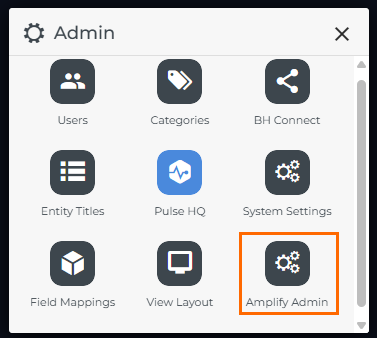
In Bullhorn ATS, open the main menu.
-
Go to Admin > Amplify Admin.
-
Click the Amplify Present tab.

On this tab, you’ll see a list of all existing templates.
-
Use the search bar to find a specific template.
-
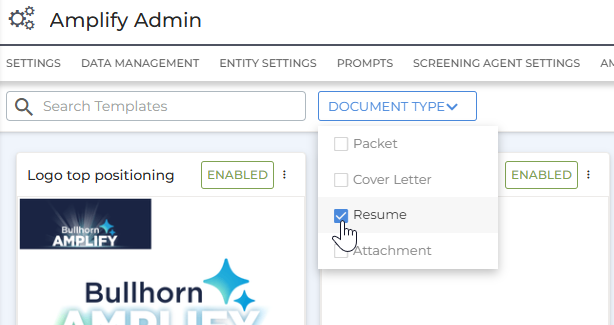
Use the Document Type dropdown to view only certain types of templates, such as Resume, Cover Letter, Attachment, or Packet.
Creating a Packet
A Packet combines multiple templates into one document (for example, a resume and cover letter). Packets are a great way to bundle related materials for hiring managers or clients into one polished document.
To create a packet:
-
At the top-right of the Amplify Present tab, click Create Packet.

-
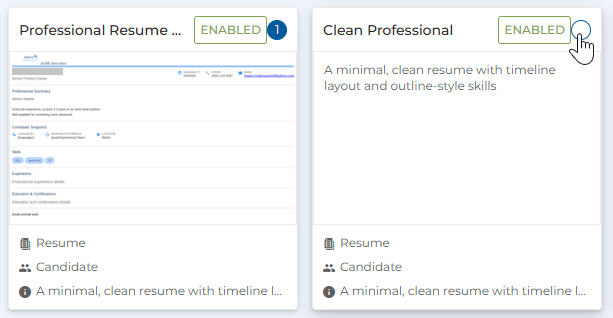
Select the templates you want to include.
-
Click Done to save, or Cancel to exit without creating the packet.
Adding a New Template
To add a new template:
-
At the top right of the Amplify Present tab, click Add Template.
-
Choose whether to Start from Scratch or use a Pro Template.
-
For detailed steps on each option, see:
-