Generate File Automation Step
-
You need Bullhorn Amplify Edition to use this feature.
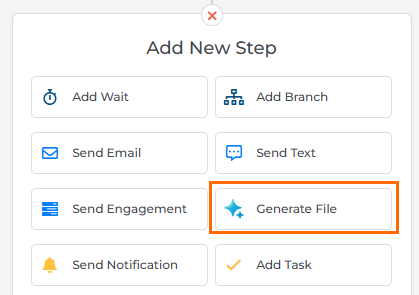
The Generate File automation step creates a PDF document from an Amplify Present template using the candidate’s record data. When the automation runs, the system sends the selected template, candidate details, and job information (when applicable) to Amplify Present. Amplify Present then generates the file and automatically saves it to the candidate record.
Using the Generate File Step
You can use the Generate File step in Candidate, Submission, and Placement-based automations.
Place the step at the desired point in your automation workflow, and configure the settings as outlined below.
If you want the generated document to include job-specific information, make sure you use a Submission- or Placement-based automation. Candidate-based automations do not include job context, so any job-related fields in your template will not be populated.
Generate File Step Settings
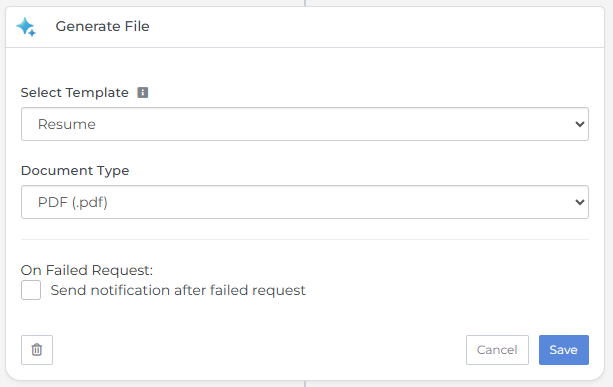
Select Template
Choose where the system should look for the resume data:
Select the Amplify Present template you want the system to use when generating the file. Generated files follow this naming format: FirstName_LastName_Submission_Packet_YYYY-MM-DD.
The dropdown lists all templates configured in your Bullhorn ATS under Amplify Present in the Amplify Admin Access settings.
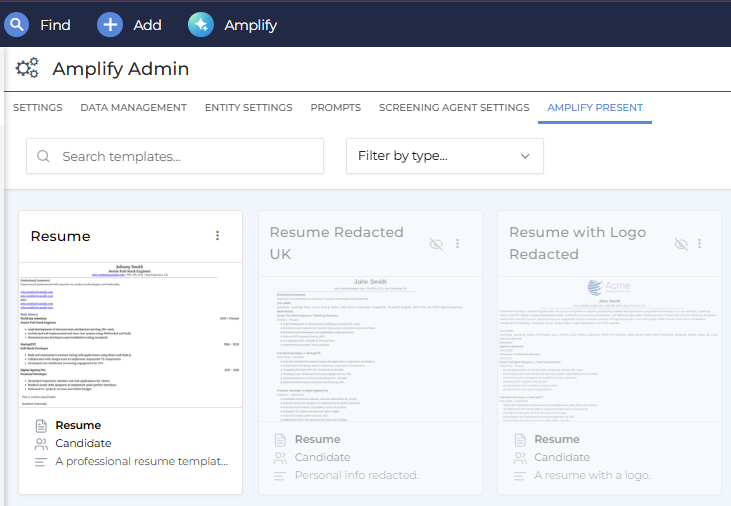
The template determines which candidate and job fields are included in the generated document.
Make sure the template you select is built for the type of automation you're running. For example, a placement-focused template may not work properly in a candidate-only automation if it requires job or placement data.
Document Type
Select the file format for the generated document. Files will be generated as PDFs.
File Type
Select the file type classification to apply when the generated document is saved to the candidate record in Bullhorn ATS. The drop down is populated from your organization's configured file type values, so the options available reflect your existing setup.
If no file type is selected, the file is saved without a type classification.
On Failed Request
This setting determines what happens if the system can’t generate the file.
When this option is enabled, you can choose who should be notified if the file generation request to Amplify Present fails. Available notification recipients depend on the automation type. Example options include:
-
Record owner
-
Record owner's manager
-
Job assigned user (Submission and Placement automations only)
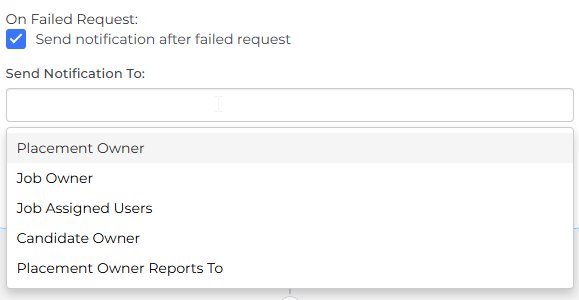
If this option is disabled, the automation continues without notifying anyone. The candidate remains in the automation, but no file is created.
If the step hits more than 25 errors within a 15-minute period, the automation automatically pauses and shows a status of Stopped. This allows you and Automation Support to troubleshoot the issue and manually restart the automation when resolved.
FAQ
What if my template references fields that don't exist on the candidate record?
Amplify Present handles missing fields based on how the template is built. In most cases, missing data is simply left blank in the generated document.
Where is the generated file saved?
The file is saved directly to the candidate record. You’ll find it in the Files section of the candidate’s profile along with any other document associated with that candidate.
Can I generate multiple files in the same automation using the Generate File step?
Yes. You can add more than one Generate File step to a single automation. Each step can use a different template, and each generated file is added individually to the candidate record.
What data does the Generate File step send to Amplify Present?
The system sends the candidate ID, the selected template ID, and (for Submission or Placement automations) the associated job ID. Amplify Present uses these identifiers to pull the relevant data and generate the file according to your template configuration.
How do I include job information in the generated document?
To include job-specific data in the generated file, use a Submission- or Placement-based automation.
These automation types include job context, allowing Amplify Present to populate job-related fields in your template. Candidate-based automations do not include job data.
Why isn't Word document format supported with the Generate File step?
Word documents often display inconsistently from one system to another. Depending on the user's software version, available fonts, and system settings, the document may not display correctly. PDFs maintain consistent formatting across all platforms and viewers, which makes them more reliable for client-facing or candidate-facing documents.
Why did my Generate File step stop working?
The most common reason is that the template selected in the step settings was deleted from your Amplify Present configuration. Check Amplify Present Admin in your ATS to confirm the template still exists. If it has been removed, select a different template in your step settings.
Why are job fields missing from my generated document?
This usually means the automation does not include job context.
Check whether your automation is Candidate-based. If so, switch to a Submission- or Placement-based automation to ensure job fields are included.
Why isn't my file type option available in the File Type drop down?
The File Type drop down is populated from your organization's configured file type values in Bullhorn ATS. If a file type isn't listed, an admin can add it by updating the fileTypeList system setting.