Required, Desired, and Exclude Keywords in Keyword Search
You need Amplify Search & Match to use this feature. If you are interested in enabling Amplify Search & Match, please reach out to your Account Manager.
Learn how to use Required, Desired, and Exclude keyword states to refine your Search & Match results. Keyword states apply to all keywords in your search, whether they were generated by Autobuild or added manually.
Required, Desired, and Exclude keyword states are only available on searches created after the August 2026 release. If you open a search that you saved, followed, or ran before the release, it uses the previous keyword search experience, which only supports Include and Exclude, not Required and Desired.
To use all keyword states, re-create the search manually with the same criteria. The new search carries the updated experience going forward.
How Desired Keywords Work
Keywords in your search are typically set to Desired by default. Desired keywords influence how candidates are ranked in your results: candidates who match more desired keywords appear higher, but candidates who do not match a desired keyword are not filtered out. Only keywords set to Exclude or Required remove candidates from your results. This means you still see a broad pool of candidates, with the strongest matches rising to the top.
When generating a search with Autobuild, keywords that are clearly identified as must-haves, such as those with explicit language like 'required' or 'mandatory' or widely-recognized credentials, are marked as Required by default.
Keyword States
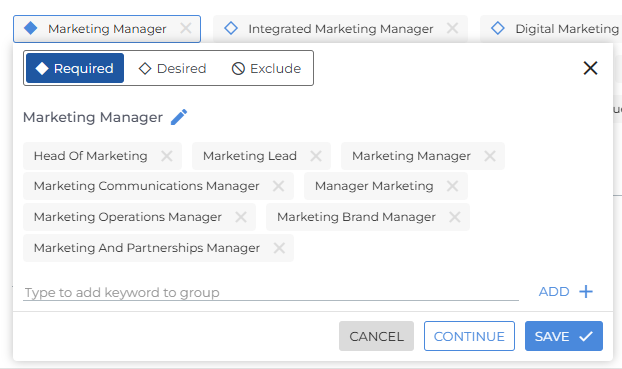
You can adjust how individual keywords affect your results. Click any keyword chip to open its settings, then select Required, Desired, or Exclude.
-
Required: Only candidates who match this keyword will appear in your results. Use this for must-have skills, qualifications, or job titles that are non-negotiable for the role.
-
Desired: Candidates matching this keyword rank higher in your results, but no candidates are filtered out. This is the default state for all keywords generated by Autobuild, and is ideal for preferred skills or qualifications that add value but are not strictly necessary.
-
Exclude: Candidates matching this keyword are removed from your results entirely. Use this to filter out irrelevant terms that may be pulling in poor-fit candidates.
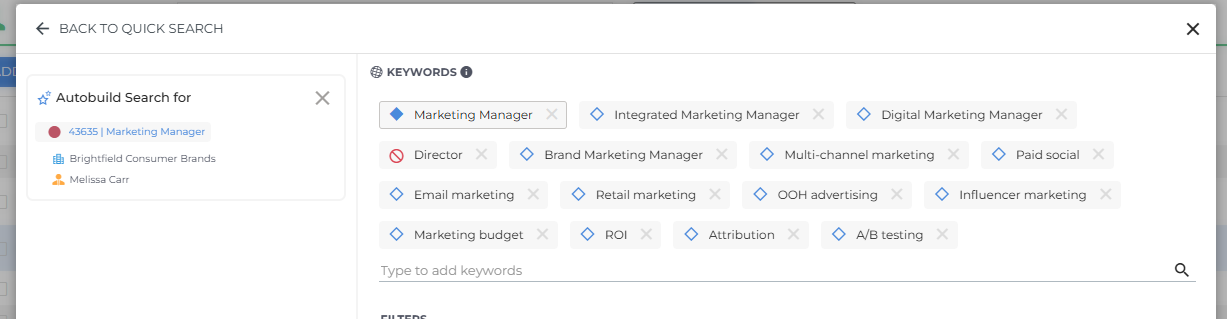
If you are searching for a marketing management role, you might:
-
Set Marketing Manager as Required to ensure only relevant candidates appear.
-
Leave related skills such as Email Marketing or Retail Marketing as Desired to surface the best-matched candidates at the top.
-
Set Exclude on terms like Director, which typically indicate seniority beyond the scope of the role.