Relevancy Column
You need Amplify Search & Match to use this feature. If you are interested in enabling Amplify Search & Match, please reach out to your Account Manager.
The Relevancy column helps you quickly understand how closely a candidate matches the requirements of a specific job. It provides an AI-generated score that reflects the strength of the match based on historic placement data. This gives recruiters a fast, visual way to identify strong candidates and prioritize outreach.
Where the Relevancy Column Appears
The Relevancy column displays on the Candidate List in the following situations:
-
When you run an Autobuild search that includes a Job record
-
When you select Show All Candidates from the Recommended Candidates card on a Job record
The Relevancy column appears only when a job record is included in the search.
The score shown in this column is generated using AI-driven vector-based sorting, which helps determine how closely a candidate matches the requirements of a job.
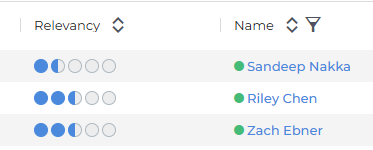
Understanding Relevancy Scores
The Relevancy column displays a row of circles that fill in based on how strong the match is. More filled circles indicate a stronger match.
.png)
Hover over a candidate’s Relevancy bar to view a Skill Match summary, or open the Relevancy tab in the preview slideout to see how the match was determined, including job title alignment and a breakdown of matching, similar, and missing skills.
Skill Match functionality is currently available only on the Candidate List and is not yet supported on the Recommended Candidates card.
Skill Match Summary in the Relevancy Bar
Hover over a candidate’s Relevancy bar to view the Skill Match summary.
The Skill Match summary shows how the candidate compares to the job requirements. It indicates whether the job title matches or is similar, and highlights skills as:
-
Matching skills (green with a ✓ icon)
-
Similar skills (blue with a ~ icon)
-
Missing skills (grey with a X icon)
.png)
Each similar skill chip shows up to two similar skills, shown comma-separated and ranked by relevance. The chip also names the skill from the job that they relate to.

Skills are identified by analyzing the candidate’s resume content (from the Resume/Description field, not an attached resume file).
A maximum of five skills are displayed in the Skill Match summary. If additional skills are identified, you can view the full list in the Relevancy tab on the candidate’s preview slideout.
Relevancy Slideout Tab
The Relevancy tab in the candidate’s preview slideout shows a complete breakdown of relevant skills.
Click the binoculars icon next to the candidate to open the slideout, then select the Relevancy tab.
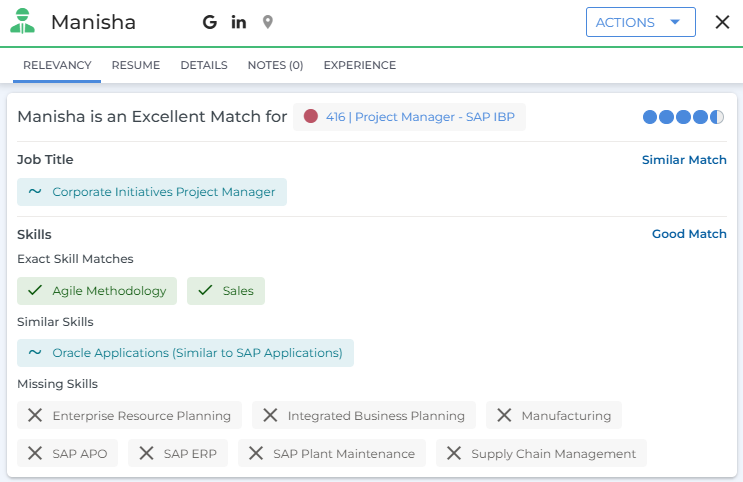
Skills are grouped into the following categories:
-
Exact Skill Matches: Skills that directly match those identified in the job description.
-
Similar Skills: Skills that are related or similar to those identified in the job description.
-
Missing Skills: Skills identified in the job description that are not found in the candidate’s resume.
Job Description Used for Skill Match
The skill details you see in the Skill Match summary use the same job description setting as Autobuild and Recommended Candidates. Skill Match reads the job description field that your organization has set as its preferred source.
If the preferred field is blank or too short, Skill Match automatically uses the other description field instead. Admins can view or change the preferred job description field under Menu > Admin > Search Admin > Autobuild & Automatch Administration.
For details, see Configuring Default Filters for Autobuild and Recommended Candidates.