Natural Language Search
Natural Language Search helps you find the right candidates faster by letting you type what you need in plain, everyday language. Instead of building complex criteria from scratch, just describe the type of candidate you’re looking for and Bullhorn will automatically generate the search for you.
What is Natural Language Search?
With Natural Language Search, you can enter phrases like:
-
“quality engineer in Boston”
-
“JavaScript developer with 5 years experience”
-
“forklift operator in Texas”
Bullhorn interprets what you typed and builds an Advanced Search for you, filling in relevant fields such as job title, skills, keywords, and location.
Prerequisites
To use Natural Language Search, you’ll need:
-
Amplify Search & Match
This is an optional premium feature. If you’re interested in enabling it, reach out to your Bullhorn Account Manager.
-
Natural Language Searching enabled for your Bullhorn environment
How to Use Natural Language Search
-
Open the Candidate List.
-
Click into the Quick Search field and start typing your search phrase (for example, “marketing coordinator in Denver”).
-
As you type:
-
With 3 or fewer characters, you’ll see any matching Autobuild or Saved Searches.
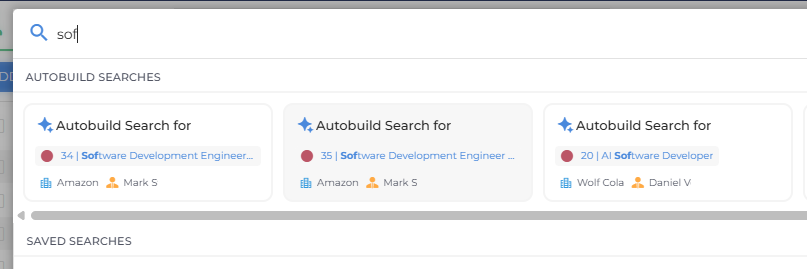
-
With 4 or more characters, you’ll see those same searches plus a Generate Search option.
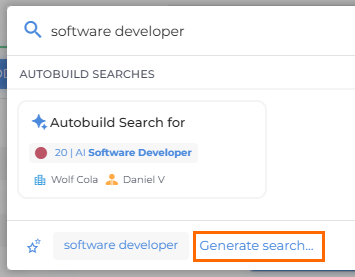
-
-
When you’ve finished typing, click Generate Search.
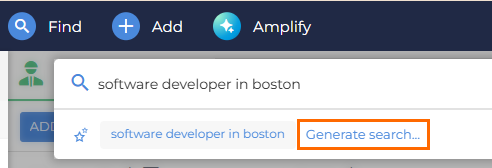
-
Bullhorn will take you to the Advanced Search builder, with relevant fields already filled in based on your phrase.
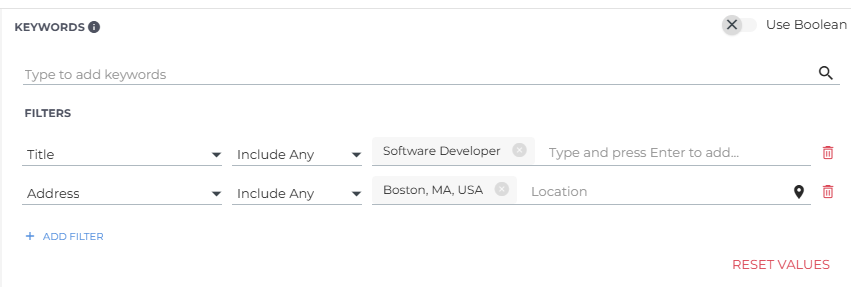
-
Review and adjust any criteria. You can modify fields exactly as you would in a normal Advanced Search.
-
Click Show Candidates to see your results.
When Natural Language Search Appears
The Generate Search option appears when both of these are true:
-
You’ve typed 4 or more characters in the Quick Search field.
-
You’re searching within the Candidate List.
You’ll still see any matching Autobuild or Saved Searches, giving you the flexibility to reuse an existing search or generate a fresh one.
Tips for Getting Good Results
Keep your phrasing simple and clear. Natural Language Search works best when your search describes the type of candidate you want at a high level.
-
Be specific: Include job titles, skills, or locations.
-
For example: “project manager with PMP in Chicago.”
-
-
Use natural phrasing: Write the way you’d say it to a colleague.
-
Review before running: Always take a quick look at the generated criteria. Adjust anything you like to refine your results.