January 2026 Release: Omnitable Features & Enhancements
Ability to Delete Named Views
-
Feature: Omnitable
-
Level of Configuration: Low
Logged-in Users can now delete an Omnitable Named View they created. When you click on the arrow-shaped button at the end of the Omnitable Controls row, you will now see Delete View displayed, as well as New View.
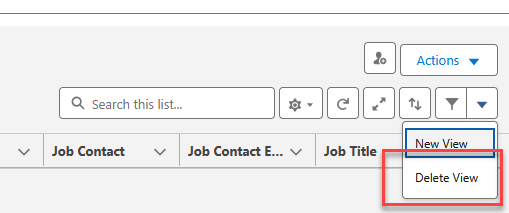
The following functionality is default:
-
Clicking on Delete View will delete the Named View that the user is currently on. The only exception is the default (‘All’) Named View as that cannot be deleted.
-
When deleting a Named View that is not a pinned view, the user is returned to the pinned view after delete.
-
If there is no pinned view, then the user is returned to the default Named View (All) after delete.
Configuration Steps
These are optional and only for Admins that do not want users to use Delete View. This can be achieved in two ways:
-
Go to and go to the record for the Omnitable you want to modify. In the configuration JSON for that Omnitable, find the visibilitySettings section. To hide the New View/Delete View controls, in that section have "hideFilterControls" : true . Please note that this hides both New View and Delete View controls.
-
Remove users' Delete permission for the TR1__Filter__c at User Profile level and from Permission Sets (if you are using packaged Permission Sets, the only one with Delete enabled for TR1__Filter__c is the ATSv2 Permission Set). This will result in the Delete View option being removed from UI for all Omnitable.
Omnitable Column Filtering > Date Filters: Add Date Range Tab
-
Feature: Omnitable
-
Level of Configuration: Low
In our previous release, we added support for Date/Date Time column filtering (users can create a filter for a Specific Date or a Relative Date).
The implementation is now complete with the option to also filter columns based on Date Range. This is now available out of the box and does not require configuration.