Resume
Use these instructions for viewing and modifying the candidate’s resume segment.
- Select Resume in the segments drop-list at the top of the record.
- The resume segment has three boxes for the three different resumes used throughout Adapt.
- The first section is the Original Resume section. This is where the resume provided by the candidate is stored. If the record is created via Resume Capture the resume used to create the record is found here.
-
To add a new Original Resume to this section use the Acquire button in the list controls.

-
Select a resume to activate controls on the list box. You can acquire, delete, print or change the sorting of the items in the box via these controls:

-
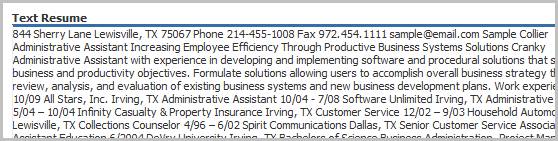
The next box is the Text Resume box; this is where a text resume without formatting is stored. To add or edit the text resume click the Edit button.
-
Click on the Edit button to modify the text resume.
- The last box is the Formatted Resume. This is where the Adapt generated resume is stored; only the last resume generated by Adapt is stored in this box. To view earlier versions you will need to look in the document library.
-
To add a resume to this section use the Create Formatted Resume workflow in the Candidate Activities menu.

-
Select a resume to activate controls on the list box. You can acquire, print, remove or change the sorting of the items in the box via these controls: