Employee Financial Summary
The summary segment of the employee financial profile lists all check history for the candidate. The financial profile is visible in systems with an active back office license.
- Access the Employee Financial profile by clicking on the link in the title bar.
- Select Summary in the segments control panel on the left side of the record.
-
The summary segment lists the check history for the candidate; which includes regular payroll checks/direct deposits, manual checks or payroll adjustments.
- Clicking on the candidate’s name at the top of the segment will redisplay the front office record view.
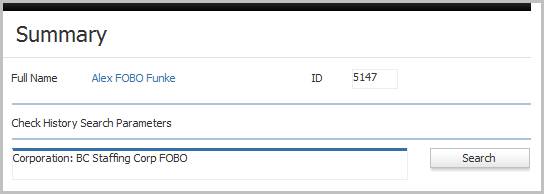
- The top of the segment displays search parameters for the items displayed in the list box.
-
Click the Search button to change the parameters for a different list of items.
-
After using the search workflow to filter the check history, the matching items are listed.
-
The data displayed summarizes the item date, number, gross and net amounts and the corporation from which it was paid.
-
Adding an item to the list box is done through the process payroll check (or direct deposit advice) and adjustment workflows.
-
To see Payroll process ID detail, click the blue ID link in the Process ID column.
-
If the check has been cleared by the Reconciliation process, a date displays in the Cleared Date column.
-
Select an item and click the View button to see details of the record.
-
Select an item in the grid and click the Print button to print a check.
-
Below the list box is a running total of all gross, net, withholding and deduction amounts.
