Configuring Amplify Transcribe
Learn how to configure Amplify Transcribe for your organization. All settings are managed through the Transcribe Config tab in Amplify Admin.
For a guide to setting up and using Transcribe as an end user, see Using Amplify Transcribe.
Enable Amplify Transcribe
Amplify Transcribe is switched off by default, but can be enabled by an Admin via the Labs tab. For more information, see Amplify Labs.
To enable Transcribe:
-
Go to Menu > Admin > Amplify Admin > Labs.
-
Toggle Transcribe on.

Once enabled, you'll have access to the Transcribe Config tab within Amplify Admin, where you can provision Transcribe to your selected users and configure company-wide settings as outlined in the rest of this article.
By default, all users have access to Transcribe once it's switched on. To restrict access to specific individuals, use the Enabled Users setting on the Transcribe Config tab.
Access Transcribe Settings
-
Go to Menu > Admin > Amplify Admin.
-
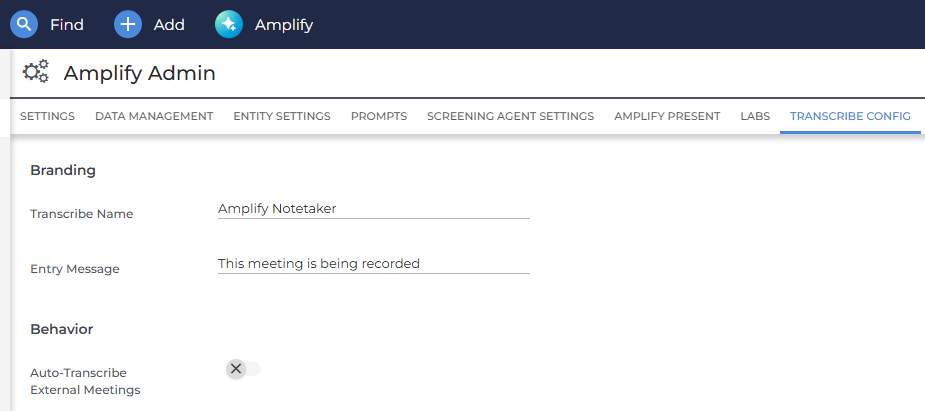
Click the Transcribe Config tab.
-
Configure the settings as outlined below.
-
Click Save when finished.
Branding
These settings control how the Transcribe bot identifies itself when it joins a meeting.
-
Transcribe Name: Sets the name displayed to other meeting attendees when the bot joins. This applies to all users in your corporation by default, but individual users can set their own bot name in their personal settings.
-
Entry Message: Sets the introductory message displayed to attendees when the bot joins. Use this to let attendees know the meeting is being recorded. This applies to all users in your corporation.
Behavior
These settings control how and when Transcribe automatically records meetings.
-
Auto-Transcribe External Meetings: When enabled, meetings where at least one invitee has an external email domain (one not assigned to any ATS users in your corporation) will appear pre-checked in your Meetings tab. This means the bot joins those meetings automatically. Users can uncheck individual meetings to opt out before the call starts.
-
Join Meetings Early: When enabled, the bot joins meetings a few minutes early to capture any conversation before the meeting officially starts.
-
Audio Disclosure for Phone Participants: When enabled, a brief audio message plays at the start of the meeting to inform phone participants that the meeting is being recorded. A default message is provided. To use a custom message, click Upload MP3 to upload your own file (MP3 format, maximum 15 seconds and 500 KB). Click Preview to hear the currently selected disclosure audio.
-
Repeat Disclosure for New Phone Participants: Available when Audio Disclosure for Phone Participants is enabled. When enabled, the audio disclosure message repeats each time a new phone participant joins the meeting.
-
Restricted Domains: Use this setting to prevent Transcribe from automatically joining meetings with attendees from specific email domains. Enter a domain name and click Add Domain to add it to the restricted list.
Enabled Users (Early Access Only)
Use this setting to restrict Transcribe access to specific Bullhorn users. Enter user names in the field to limit access. Leave it blank to give all users access.
AI Processing
These settings control how Transcribe processes call recordings.
Compliance Prompt
The compliance prompt is a master prompt that runs across the full transcript at the end of every call. Use it to:
-
Clean up spoken language (for example, removing filler words like "um" and "er")
-
Redact specific content from the transcript (for example, confidential information for compliance purposes)
The Compliance Prompt applies to both Botless and Bot recording methods.
Note Type Configurations
Note type configurations are the core of how Transcribe generates structured, role-specific outputs. For each note type, you can configure a prep sheet and a custom processing prompt.
Visible Note & Call Types
Choose which note actions Amplify can use as call types. Only the note actions you include here will be available as call types for Transcribe. Limit this list to note actions that are relevant to calls you use Transcribe for. Keeping this list specific helps Amplify accurately auto-assign a call type to a meeting and makes the dropdown easier to browse.
To add a call type, select it from the dropdown. To remove a call type, click the X next to it in the list.
Prep Sheets & Custom Prompts
You can configure a prep sheet and a custom processing prompt for each call type you select from the dropdown.
Prep Sheet
A prep sheet is a checklist shown to the user before and during a call. Use it to guide your team on what to cover — for example, asking about a candidate's experience, salary expectations, and notice period during a prescreen call.
The Prep Sheet text box is split into two tabs: Original and AI Breakdown.
In the Original tab, enter your prep sheet content. Include any guidance for the call (for example, "Keep questions open but direct. You want a clear, specific answer on each — follow up and probe for leads.") and a list of questions or topics to cover. Format your questions as a list so that Amplify can identify them.
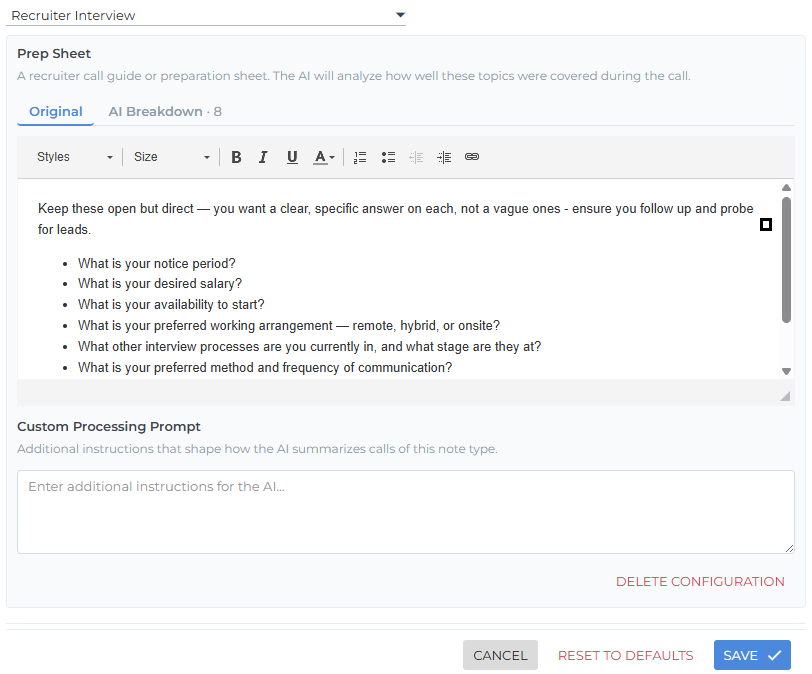
When you save the prep sheet, Amplify parses your text and formats it. After saving your changes, click the AI Breakdown tab to see the result.
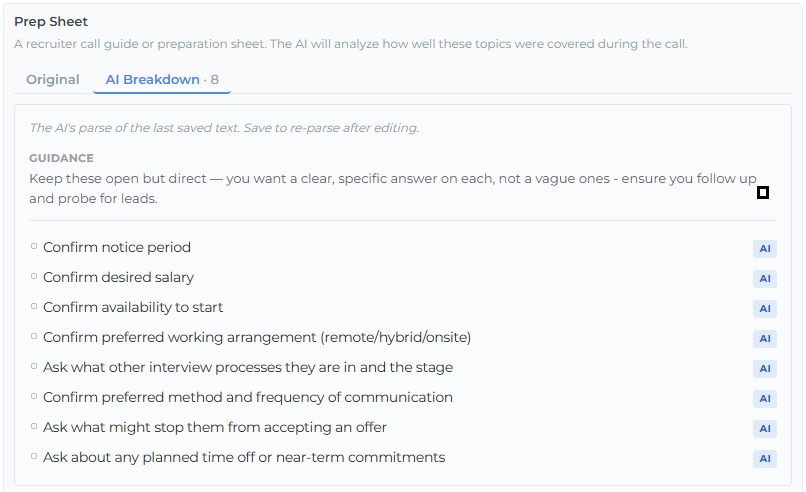
Guidance text is placed in a Guidance section at the top. Questions are categorized for use with Transcribe Live:
-
AI: Questions that are specific and clear enough for Amplify to detect and fill in answers automatically during a call.
-
Manual: Questions that are more complex, unclear, or that Amplify determines it can't reliably answer automatically. These still appear on the prep sheet during the call, but the user needs to type in the answers manually.
If questions are categorized as Manual and you'd prefer them to be auto-filled, try making them more specific. Save and regenerate the AI Breakdown to see whether Amplify can recategorize them.
Custom Processing Prompt
The custom processing prompt tells Transcribe how to process the transcript for a specific type of call. For example, a prescreen prompt might instruct Transcribe to evaluate the candidate against specific criteria, while a business development prompt might focus on identifying next steps and key objections.
This prompt works alongside the compliance prompt — you don't need to repeat anything from the compliance prompt here, as it runs automatically on every call. Use the custom processing prompt to provide additional instructions specific to each call type.
Parent / Child Configurations
For greater granularity, note types support parent / child configurations. Each parent configuration maps to a Bullhorn note type (for example, "Prescreen"). Under a parent, you can create multiple child configurations such as "Prescreen: Intake" and "Prescreen: Technical", each with its own prep sheet and summarization prompt.
Child configurations don't need to correspond to separate note types in Bullhorn. They sit under the parent note type and let you tailor Transcribe's behavior for different variations of the same call type. When a meeting is saved, the note will be saved under the parent note type.
When a user opens a meeting, Transcribe attempts to infer the correct child configuration from the meeting name or description. If it can't determine the type automatically, users can select it manually from the Call Type drop down before or during the call.
To add a child configuration:
-
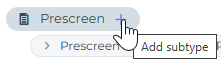
Click the + on a configured note type (for example, Prescreen).
-
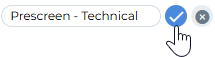
Enter a name for the child configuration (for example, "Prescreen - Technical.")
-
Click the check icon to save it. You can add multiple child configurations under each parent.
-
Click the child configuration name to open its settings and configure the prep sheet and custom processing prompt.
-
When finished, click Save.
Advanced Settings
These settings control additional aspects of how the Transcribe bot behaves during and after meetings. Adjust these to reflect your organization's preferences. Each of these settings applies to all users with access to Transcribe.
-
Live Insights for Bot Meetings: Enables Transcribe Live for meetings recorded by the Transcribe bot. For more information, see Amplify Transcribe Live.
-
Botless Recording: Enables recording without the Transcribe bot. For more information, see Recording a Call Without a Bot.
-
Live Insights for Browser Meetings: Available when Botless Recording is enabled. Enables Transcribe Live for meetings recorded without the Transcribe bot.
-
Show Record Now on Candidate and Contact Records: Available when Botless Recording is enabled. Adds a Record Now button to candidate and contact records, allowing users to start a botless recording directly from a record.
-
-
Auto-Leave When Only Bots Remain: When enabled, the bot automatically leaves a meeting if all other attendees have left and only other bots remain.
-
Auto-Save Summary Notes: When enabled, the summary note is automatically saved to the related record once processing is complete. Users can still review and edit the note after it has been saved.
-
Transcript Source Retention: Controls how long the raw transcript source data is kept before it’s permanently deleted. Generated content, including summaries, Q&A, and notes, is never deleted by this setting.
-
Default Date Added: Sets the date and time recorded on the generated note. Users can override this when reviewing and saving a note. The available options are:
-
Now: The current date and time when the note is saved.
-
Time of Meeting: The date and time the meeting took place.
-
-
Waiting Room Timeout (seconds): The number of seconds the bot will wait in a meeting's waiting room before leaving if it isn't admitted.
-
No One Joined Timeout (seconds): The number of seconds the bot will wait in a meeting before leaving if no other attendees join.
-
Everyone Left Timeout (seconds): The number of seconds the bot will wait after all other attendees have left the meeting.