Using Amplify Transcribe
Learn how to set up Amplify Transcribe, choose how to record your calls, and review the results.
Access Amplify Transcribe
All Transcribe setup and activity takes place in the Meetings tab in Amplify.
-
Go to Menu > Amplify, or click the Amplify button at the top of your Bullhorn ATS screen.
-
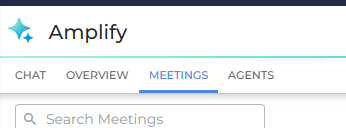
Click the Meetings tab.
Connect your Calendar
Connecting your calendar lets the Transcribe bot join your scheduled meetings automatically. The first time you open the Meetings tab, you'll be prompted to connect your Google or Microsoft calendar using single sign-on (SSO). Once connected, your upcoming calendar events will appear under Upcoming Meetings.
You only need to do this once. After that, your calendar stays connected automatically.
Early Access: When connecting your calendar, you may see a warning indicating that Bullhorn is not yet a verified developer. This is expected behavior, and you can safely proceed through the prompt to complete the connection.
If you're prompted for admin approval when connecting your calendar, see Amplify Transcribe Troubleshooting.
User Settings
Click the Settings  icon in the top right of the Meetings tab to set your personal bot preferences. These override the defaults set by your administrator and apply to your bot only.
-
Transcribe Display Name: The name displayed to other attendees when the bot joins your meeting.
The Meetings Area
The Meetings tab is organized into four main sections: Next Meeting, Needs Review, Upcoming Meetings, and Saved Meetings.
Next Meeting
The top card shows details for your next upcoming meeting, including the associated candidates or contacts, the time, the meeting name, a toggle to turn bot transcription on or off, and a button to view your prep notes in advance.

Needs Review
Completed meetings that haven't been reviewed yet appear in a dedicated Needs Review section at the top of the screen, whichever recording method you used.
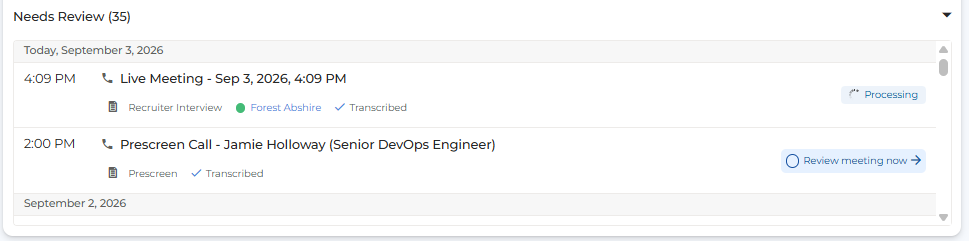
This acts as a task list so that meetings requiring action are easy to find. Click Review Meeting Now to open the post-meeting screen. For more information, see Reviewing and Saving a Meeting.
Upcoming Meetings
Your upcoming calendar meetings are listed under Upcoming Meetings. You can search and filter by name, date, call type, or record type. These are the meetings the bot can join.
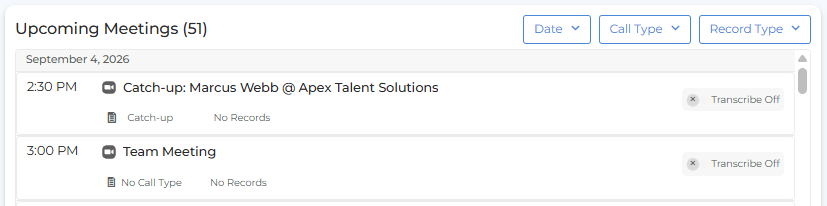
For more information about call types, prep sheets, and managing individual meetings, see Recording a Call with the Bot.
Saved Meetings
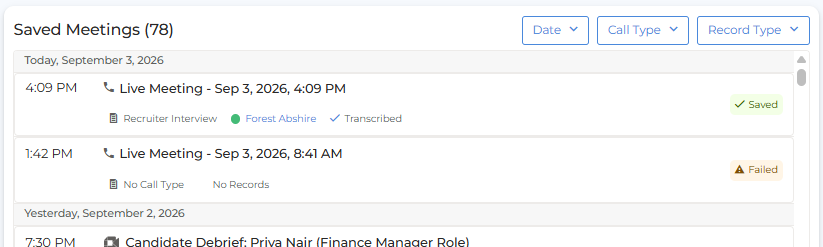
Saved Meetings shows only meetings that have been reviewed, and any meetings that failed to generate a transcript. A failed meeting could mean the bot was either not admitted from the waiting room, or that an error prevented the transcript from being generated. Click into a failed meeting to resend the request to generate the transcript.
Choose How to Record
Transcribe can capture a call in two ways. Choose the one that fits the conversation.
-
Bot Recording: The Transcribe bot joins your meeting and records it. This is the best option for scheduled video meetings on Zoom, Microsoft Teams, or Google Meet. The bot can join automatically from your calendar, or you can paste in a meeting link for a call that isn’t scheduled. For instructions, see Recording a Call with the Bot.
-
Botless Recording: Click Record Now to instantly record the audio from your computer’s microphone and speakers. No bot or calendar invite is required, making this the best option for impromptu calls and in-person meetings.
For instructions, see Recording a Call Without a Bot.
Botless Recording must be enabled by an administrator.
Make sure you have consent to record from all participants before you start. When you record without a bot, attendees aren’t notified automatically.
Transcribe Live
If your administrator has enabled Transcribe Live, Amplify fills in your prep sheet answers and captures action items, key points, and decisions in real time as the call progresses. For more information, see Amplify Transcribe Live.
After the Call
Once a call has ended, whichever way you recorded it, Transcribe generates a summary, Q&A, and full transcript for you to review. You can then save the summary as a note on the linked Bullhorn record, ask Amplify questions about the meeting, and accept or dismiss suggested field updates. For more information, see Reviewing and Saving a Meeting.