| Edition: Enterprise | Audience: All Users |
Saving and Sharing Trends
Trends can be saved and shared across the business, so they can add value for anyone in the hierarchy, even if they are not comfortable creating Trends for themselves. This article explains how to save and share trends.
Saving Trends
To save a trends page, use the SAVE PAGE AS and SAVE PAGE options at the top right of the Trends screen.
- SAVE PAGE AS: This option will prompt you to enter a name for the page, so use this the first time you save a new page.
- SAVE PAGE: Use this option to save your changes to the current page.
Viewing and Sharing Saved Trends
To view saved trends, click the Saved Trends button at the bottom right of the screen.

This will open a list of all your saved trends, as well as trends that have been shared with you or your group.
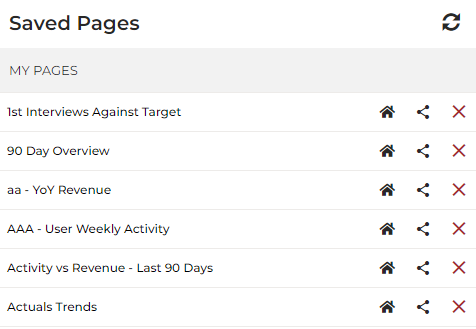
You can take the following actions on your saved trends:
- Set as default page: Click the home icon (
 ) to set a page as your default page when you open Trends.
 - Share: Click the share icon (
 ) to open an interface where you can select users, groups, or any part of the hierarchy to share the selected Trends page with. After selecting the group(s) or user(s) to share with, click Save.
 - Delete: Click the X icon (
 ) to delete the selected Trends page.
Was this helpful?