| Edition: Enterprise | Audience: All Users |
Trends Navigation
When you open Trends for the first time, you’ll be greeted by a blank Trend Chart template and number of options which will help to get you started. You can create Trends pages with as many Trend Charts as you wish, covering the whole business, a specific group, department, or team, or to analyse your own personal performance.
Options
New Page
This creates a new page of Trend charts, and from a blank page returns you to this screen.
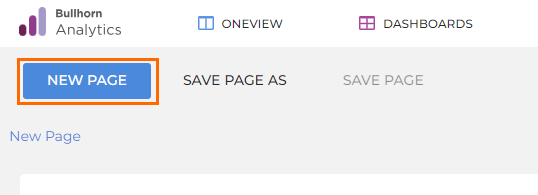
Clicking New Page will overwrite any unsaved Trends pages. Make sure to save your work.
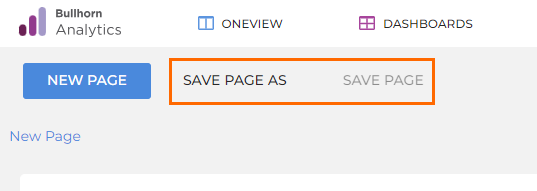
Save Page As / Save Page
This allows you to save your Trends page. The first save will require you to input a name, so click Save Page As. Future progress can be saved with Save Page.
+ Add Trend Chart
This adds a new Trend chart to the page. To edit it, use the Edit Trend Chart button (described below).
Trend Options
These options allow you to move and edit the appearance of charts on the page. The most important button is Edit Trend Chart which lets you configure your chart. See Edit Trend Chart for more information.
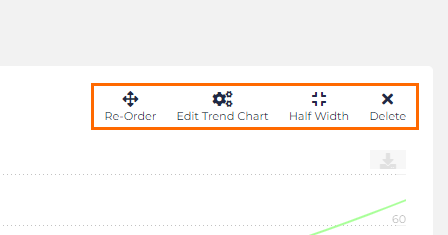
The Half Width / Full Width toggle allows you to fit two trend charts side by side on a page.