Troubleshoot List Counts and Criteria in Bullhorn Automation
This article covers common list-building issues in Bullhorn Automation: list counts that do not match expectations, records appearing in a list when they should not, and records missing from a list when they should be included. It also covers known limitations of the list criteria system.
List Count Is Lower Than Expected
Invalid Email Addresses
When you run an engagement from a list, Bullhorn Automation skips any record that does not have a usable email address. Those records still appear in your list count, but the engagement does not go out to them. A list of 1,000 records can produce a send count of 500 if half the records have missing or malformed email addresses.
Use the Is Not Valid operator on the Email field in Advanced Search or your list criteria to surface records with email address problems. This operator catches:
- No email address on file
- Whitespace-only values
- Addresses missing the @ symbol
- Partially formed addresses (for example, "test@" with no domain)
- Addresses with invalid characters
- Phone numbers or other non-email values entered in the email field
Is Not Valid checks format only. A correctly formatted address returns as valid even if that inbox no longer exists or is not accepting mail.
To find records with invalid email addresses before a campaign, go to , click Advanced Search, select the entity type, add the condition Email > Is Not Valid, and click Search. Review the results and correct data entry errors directly on the record. You can also export the list to CSV from the bottom of the results page.
To flag records on an ongoing basis, build an automation using the Is Not Valid condition and an Update [Entity] step that sets a custom status such as Invalid Email. Before setting this up, confirm that the custom status exists in Bullhorn ATS. For instructions, see Changing Field Value Lists and Attributes.
Merged or Duplicate Records
When records are merged in Bullhorn ATS, the deleted record is removed from all lists in Bullhorn Automation. If your list count drops unexpectedly, check whether a record merge occurred in the ATS around the same time.
Notes Count Discrepancy Between Bullhorn ATS and Bullhorn Automation
A "Contacts without Notes" list in Bullhorn Automation can show a higher count than the same search in Bullhorn ATS. This happens when a Note references more than one Sales Contact through the Additional References field. Bullhorn Automation attaches the Note to one of those contacts at random. The other referenced contacts appear note-free in Automation even though the Note exists in the ATS.
This is an architectural limitation, not a sync or configuration issue. A resync does not resolve it.
Unexpected Records in the List
IS NOT Logic with Date Qualifiers
When IS NOT is used in a logic statement that includes a date qualifier, the IS NOT applies to the entire statement, including the date qualifier. This is a common source of unexpected results.
For example, the criteria below finds all Submissions where "Packet Created" equals 1 and "Date Added" is less than 2 days ago, then returns everything except those records because of the IS NOT qualifier. The IS NOT applies to the entire logic statement, not just the Packet Created field:
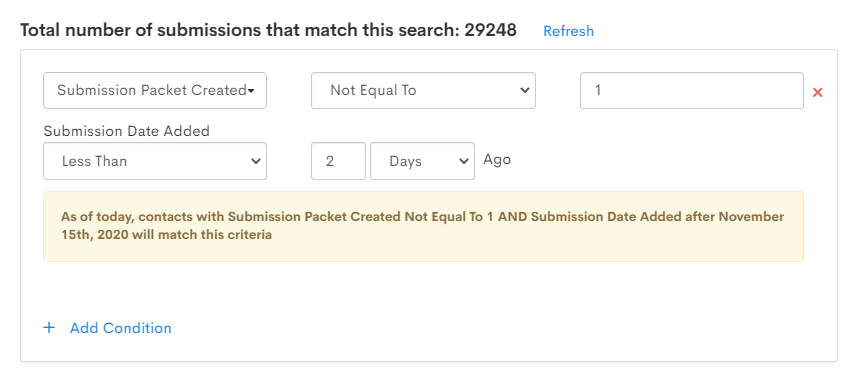
If your results include records you did not expect, check whether IS NOT is applied to a statement that contains a date qualifier. Breaking the logic into separate criteria statements can help isolate the behavior.
Submission Entity Behavior
The following Submission behaviors are common causes of unexpected list results:
- Has Submission: Returns Submissions of any status, including Rejected, Shortlisted, and Web Response. To filter by a specific status, add Submission Status IS [Status] as additional criteria.
- Tearsheet associations: If a Candidate is on a Tearsheet and the list uses a Placement or Submission entity, every associated Placement or Submission is returned unless you add criteria to narrow the results.
- Submission Date Added: This is the date the Submission was created in the system, not the date it moved to Client Submission status.
- Job Is Open vs. Submission Job Is Open: These two criteria return the same results.
Opted-Out Records
To return records that are opted out specifically in Bullhorn ATS, use Subscription Status IS NOT Subscribed in your list criteria.
Records Missing from the List
More Than / Less Than X Days Ago Is Inclusive
The More Than and Less Than X Days Ago date qualifiers include the specified number of days. If you expect a record that falls exactly on the boundary date to be excluded, it will not be. To verify, check matched records for a record that meets the criteria exactly on the boundary day.
Date Fields on Job Records
Date parameters only apply to fields where activity data is captured by date. Job records do not capture date modifications the same way other entities do. Date-based criteria on Job record fields may not behave as expected.
Status Date vs. Date Changed
When using date logic on statuses, Bullhorn Automation looks at the date the record was added to the database with that status, not the date the status was changed. The Before and After qualifiers include the selected date and require the record to currently have the selected status.
How These Fields Behave
Date Modified Is Not Available
The Bullhorn ATS API does not provide access to the Date Modified field or the Activity tab for most record types. The only exception is the Date Added field. List criteria that depend on when a record was last modified are not supported through the standard API connection.
Has Changed Behavior
The Has Changed qualifier detects whether a field value changed since the last sync cycle. It does not indicate what the value changed from or to, and it resets after each sync. A record that changed and then changed back within a single sync window may not be captured.
Primary vs. Additional Contacts
Bullhorn Automation communicates only with the main contact in the Sales Contact field. Additional contacts in other fields cannot be processed through an automation as the primary Sales Contact.
Cross-Entity Notes
Bullhorn Automation does not pull in Notes where a Sales Contact is referenced on a Note that belongs to a Candidate record. Only Notes directly associated with the Sales Contact record are synced.
Related Articles
For information on how field edit types in Bullhorn ATS affect available list criteria options, see Bullhorn Field Edit Types and Bullhorn Automation List Criteria.