Log In to Bullhorn Automation with Email Multi-Factor Authentication (MFA)
Bullhorn Automation uses multi-factor authentication (MFA) to protect your account if someone else learns your password. When you log in with your email address and password, whether on the Bullhorn Automation login page or from the Bullhorn ATS menu, you also enter a 6-digit access code that we email to you. If you sign in with single sign-on (SSO), you don't enter a code.
Common Reasons You Might Need This Article for Email MFA Login
- You log in to Bullhorn Automation and see a screen with six boxes that asks for an access code.
- You did not receive the access code email after entering your password.
- Bullhorn Automation says your code is invalid or expired.
- Bullhorn Automation says "Too many attempts, try again later."
- You registered or reset your password and were not logged in automatically.
- You no longer have access to the mailbox for your login email address.
- You want to know whether email MFA can be turned off.
How Email MFA Works When You Log In to Bullhorn Automation
Email MFA is required whenever you log in to Bullhorn Automation with an email address and password. A correct password alone does not log you in, and email MFA cannot be turned off.
- After you enter a correct email address and password, Bullhorn Automation shows a code screen with six boxes, a Submit button, and a Request New Code button.
- Bullhorn Automation emails you an access code. You enter the code and you are logged in.
- Register and Reset Password end on the login page with the message "Your password is set. Please log in." After either one, you log in with your email address and password and enter an access code.
- If you sign in with single sign-on (SSO), you do not enter an access code.
Log In to Bullhorn Automation with Your Email, Password, and Access Code
Before you start, make sure you can open the mailbox for the email address you use to log in. Bullhorn Automation sends the access code only to that address, and you cannot choose a different one. Then use these steps to log in.
- On the Bullhorn Automation login page, enter your email address and password, and then click Log in.
- Open the access code email from Bullhorn Automation Notifications (notifications@herefish.com). The subject line is "Authentication Code | Bullhorn Automation."
- On the Bullhorn Automation code screen, enter one digit in each of the six boxes. You can also paste the whole code into the first box.
- Click Submit. Bullhorn Automation opens your dashboard.
Access codes usually arrive within minutes. If you enter a wrong password in step 1, Bullhorn Automation shows the usual error and does not send an email.
How Bullhorn Automation Access Codes Work
Each Bullhorn Automation access code is short-lived and works one time. Bullhorn Automation also limits the number of wrong codes you can enter and the number of new codes you can request. These limits protect your account.
- A code expires after a short time. The access code email tells you when.
- Only the newest code works. When Bullhorn Automation sends a new code, the previous code stops working.
- After too many wrong codes or too many new code requests, Bullhorn Automation pauses further attempts for a while.
Request a New Access Code in Bullhorn Automation
If your access code expired, did not arrive, or was rejected, request a new code on the Bullhorn Automation code screen.
- On the code screen, click Request New Code.
- Wait for the blue message above the boxes: "A New Authentication Code has been sent to your email."
- Open the newest email and enter the new code in the six boxes.
- Click Submit.
The old code stops working as soon as Bullhorn Automation sends the new one. You must wait a short time between requests for a new code, and Bullhorn Automation limits how many you can request in an hour. If the code screen is out of date, Bullhorn Automation asks you to log in again.
Use the Bullhorn Automation Code Screen
The Bullhorn Automation code screen has a few behaviors that make entering an access code faster.
- Type one digit in each box, or paste the whole code into the first box. Letters are ignored.
- Press Backspace in an empty box to move back one box.
- Clicking Log in twice quickly sends only one request.
- If you refresh the page on the code screen, or click Back to log in, you return to the password form.
What the Bullhorn Automation Access Code Email Contains
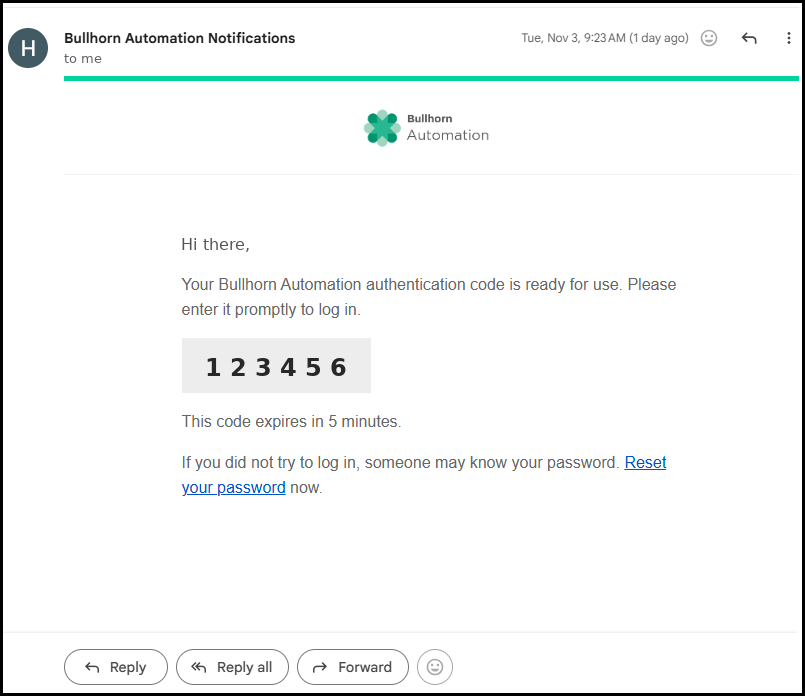
The Bullhorn Automation access code email comes from Bullhorn Automation Notifications (notifications@herefish.com), and the subject line is "Authentication Code | Bullhorn Automation." Search for either one if you cannot find the email. The email shows your 6-digit code, states when the code expires, and tells you to reset your password if you did not try to log in. The Reset your password link in the email does not contain your code or your email address.
If you did not try to log in, do not enter the code. Click Reset your password in the email, because someone else may know your password.
Troubleshooting Email MFA Login in Bullhorn Automation
Use this section to match the message or symptom you see on the Bullhorn Automation login page to a fix.
Messages You May See During Email MFA Login in Bullhorn Automation
| Situation | Message | What to do |
|---|---|---|
| Wrong code | "Invalid or expired code." Bullhorn Automation empties the six boxes so you can enter the code again. | Re-enter the code from the newest email, or click Request New Code. |
| Too many wrong entries for one code | "Too many wrong codes. Request a new one." Submit stays off until you request a new code. | Click Request New Code. |
| Expired code | "That code has expired. Request a new one." | Click Request New Code. |
| Too many wrong codes or new code requests in a short period | "Too many attempts, try again later" | Wait, and then log in again. If the message continues, submit a support ticket. |
| Request New Code clicked too soon after the last request | "Please wait a minute before requesting another code." | Wait a minute, and then click Request New Code. |
| New code sent | A blue line above the boxes: "A New Authentication Code has been sent to your email" | Use the newest email. |
| Bullhorn Automation could not send the email | "We couldn't send your code, please try again" | Wait a minute, and then click Request New Code. |
If You Did Not Receive the Bullhorn Automation Access Code Email
If the access code email does not arrive after you enter your password, check these items in order. Codes usually arrive within minutes.
- Wait a few minutes, and then check the spam or junk folder of the mailbox for your login email address. Look for an email from notifications@herefish.com, or search for the subject line "Authentication Code | Bullhorn Automation."
- Confirm that you are checking the mailbox for the same email address you use to log in. Bullhorn Automation sends the code only to that address.
- Click Request New Code after waiting a minute, and use only the newest email.
- If you see "We couldn't send your code, please try again," wait a minute and request a new code. Requesting again too soon shows "Please wait a minute before requesting another code."
If the email still does not arrive, ask your company's IT or email administrator to check your mail system. Only your IT team can see your company's email logs and filtering settings.
- Search your email logs for messages from notifications@herefish.com to the affected user, and check the delivery status: delivered, deferred, rejected, or redirected.
- Check whether an email security gateway or scanning tool is redirecting, changing, or dropping the message. These tools can do this without creating a quarantine entry.
- Temporarily allow messages from notifications@herefish.com, and then try logging in again.
If your IT team completes these checks and the code still does not arrive, submit a support ticket and include the email logs from your IT team.
If an Access Code Works on One Browser Tab but Not Another
If you log in to Bullhorn Automation on two browser tabs, only the newest code works. The older tab shows "Invalid or expired code." Close the older tab, and enter the newest code on the newer tab.
If You Clicked Request New Code Twice and Received Two Emails
If you click Request New Code twice at almost the same moment, Bullhorn Automation may send two emails. Use the newest email.
If Registering or Resetting Your Password Did Not Log You In
Register and Reset Password in Bullhorn Automation end on the login page with the message "Your password is set. Please log in." These flows do not log you in automatically. Log in with your email address and password, and then enter the emailed access code.
If You No Longer Have Access to Your Login Email Address
Bullhorn Automation sends the access code only to the email address on your user account. You cannot change that address yourself, and there is no way to skip the code. If you can no longer open that mailbox, ask your company's Bullhorn Automation administrator to add you as a new user with a valid email address. For steps, see Adding/Removing a New User and User Options. If your company has no other administrator, submit a support ticket.
Frequently Asked Questions About Email MFA in Bullhorn Automation
Can email MFA be turned off for Bullhorn Automation?
No. Email MFA is required whenever you log in to Bullhorn Automation with an email address and password. If your company uses single sign-on (SSO), your Bullhorn Automation administrator can enable SSO for the company and for your user account, and then you sign in with SSO instead.
Do I need an access code if I sign in to Bullhorn Automation with SSO?
No. Bullhorn Automation does not ask SSO users for an emailed code.
What email address does the Bullhorn Automation access code come from?
The email comes from Bullhorn Automation Notifications (notifications@herefish.com). The subject line is "Authentication Code | Bullhorn Automation."
How long does the Bullhorn Automation access code take to arrive?
Access codes usually arrive within minutes. If the code does not arrive, see Log In to Bullhorn Automation with Email Multi-Factor Authentication (MFA).
Which email address receives the Bullhorn Automation access code?
Bullhorn Automation sends the code to the email address you use to log in. You cannot choose a different address.
Does email MFA apply to API users?
No. API users are not affected. Email MFA applies only when you log in to Bullhorn Automation through the user interface, either on the Bullhorn Automation login page or from the Bullhorn ATS menu.
Can I use an old access code if I requested a new one?
No. Only the newest code works. The old code stops working as soon as Bullhorn Automation sends a new one.
Can I use the same access code twice?
No. Each code works one time and expires after a short time.
Why does Bullhorn Automation reject my code after an administrator deactivated my account?
If an administrator deactivates your account before you enter the code, Bullhorn Automation refuses the code with the message "Invalid or expired code." Contact your company's Bullhorn Automation administrator.