Using Sophia to Get Support in Bullhorn ATS/CRM
Sophia from Bullhorn makes it easier to get the support you need without waiting in line. With her built-in AI, you can quickly find answers, get troubleshooting guidance, and transfer to a live analyst when necessary.
Sophia AI Support Chat is currently available only to select customers as part of an early access program. Your organization will receive a communication from Bullhorn when Sophia is ready to be enabled for you.
Check out the demo of the two ways you can use Sophia:
Common Reasons You Might Use Sophia
This article will help you use Sophia if you find yourself in situations like these:
-
You have a "how-to" question about a feature in the ATS.
-
You need to troubleshoot an error message or unexpected behavior.
-
You want to find a best practice without leaving the application.
-
You need to perform a simple administrative task, like adding a new department.
-
You've tried to self-serve but now need to talk to a live person.
-
You want to create a support case without navigating to the support portal.
How to Start a Chat with Sophia
You can begin a conversation with Sophia at any time directly from your Bullhorn ATS dashboard. Following these steps ensures you can quickly ask questions and get support without disrupting your workflow.
-
Sign in to Bullhorn ATS/CRM.
-
Click the chat icon in the bottom-left corner.
-
Alternatively, click Help in the ATS Toolbar and then select Open Chat.
-
-
Select Start Conversation with Sophia from Bullhorn.
-
Type your question in the chat window and press Enter or click the arrow.
-
Continue the conversation by asking follow-up questions.
-
When finished, click the three dots (•••) and select End Chat.
You will be prompted to provide optional feedback on your experience.
How to Change the Sophia Chat Icon Position in Bullhorn ATS
You can move the Sophia chat icon to a different location on your screen to fit your workflow. Your preferred position is saved to your account. There are two ways to reposition it.
Drag and drop the chat icon
-
Click and hold the Sophia chat icon.
-
Drag it to your preferred position on the screen.
-
Release to drop it in place.
The Sophia chat icon moves to your selected position and stays there for future sessions.
Use the Help menu
-
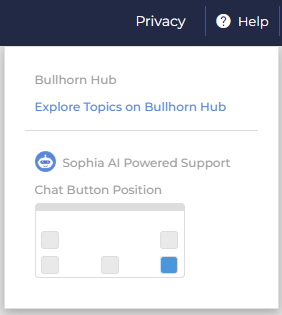
In the Bullhorn ATS toolbar, click Help.
-
From the menu, select your preferred icon position from the dropdown.
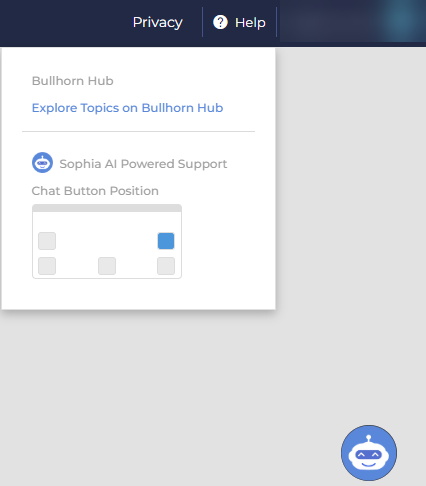
The Sophia chat icon moves to your selected position and stays there for future sessions.
How to Show or Hide the Sophia Chat Icon
You can hide the Sophia chat icon if you prefer a cleaner interface. Your preference is saved to your account and persists across sessions. You can still open Sophia at any time through Help > Open Chat.
-
In the Bullhorn ATS toolbar, click Help.
-
Select the Show Chat Icon toggle to show or hide the icon.
The chat icon appears or disappears based on your selection. Your preference is saved for future sessions.
How to Resize the Sophia Chat Window
You can resize the Sophia chat window to give yourself more room to read responses. The size you set persists across sessions and positions.
-
Open the Sophia chat window.
-
Click and drag the edge of the chat window to your preferred size.
The chat window stays at your chosen size the next time you open Sophia.
Examples of Tasks Sophia Can Handle
Beyond answering questions, Sophia can perform specific actions if you are a designated Support Contact. This allows you to complete certain administrative tasks instantly, directly from the chat window.
-
Add or update company departments
-
Add new business sectors or industries to your configuration
-
Create a new support case and provide you with a case number
-
Transfer you to a live chat with a support analyst during business hours
Before Sophia performs any write action, such as adding a department or business sector, she will display an environment awareness notice. This is a reminder to confirm you are working in the correct Bullhorn instance. If you think you may be in the wrong environment, log in to the correct instance and start a new chat.
Troubleshooting
-
If Sophia doesn't respond or stops working: The connection may have timed out. First, try refreshing your browser page. If that doesn't work, end the current chat session from the three-dot menu and start a new one.
-
If Sophia doesn't understand your question: Try rephrasing your question to be more specific. Include the name of the Bullhorn feature or entity you need help with, such as "How do I add a note to a Candidate record?"
-
If you need to speak with a person: Simply type "talk to an agent" or "I need to chat with a person," and Sophia will initiate a transfer to a live support analyst if one is available.
FAQ
Q: How do I find Sophia in the ATS?
A: To find Sophia, click the chat bubble icon in the bottom-left corner of your Bullhorn ATS screen and select "Start Conversation."
Q: Does Sophia know who I am when I start a chat?
A: Yes, Sophia is integrated with your Bullhorn ATS account. It recognizes you as a logged-in user, which helps it provide personalized support and perform actions on your behalf.
Q: Can Sophia connect me to live support?
A: Yes, she can
Q: What's the difference between ending a chat and just closing the window?
A: Closing the window hides the chat, but the session remains active. Selecting "End Chat" from the three-dot menu properly closes the conversation and allows you to rate the support you received.