Configuring Amplify Prospect
Amplify Prospect is currently in Closed Early Access.
You must be an Amplify Admin to complete these steps.
Learn how to enable Amplify Prospect for users in your organization and configure its settings.
Access Amplify Prospect Settings
-
Go to Menu > Admin > Amplify Admin.
-
Click the Labs tab.
-
Click the settings icon (
 ) next to Amplify Prospect.
Configure Amplify Prospect Settings
The settings window lets you control access and field update behavior for Amplify Prospect across your organization. Click Save to apply your changes. All settings apply company-wide.
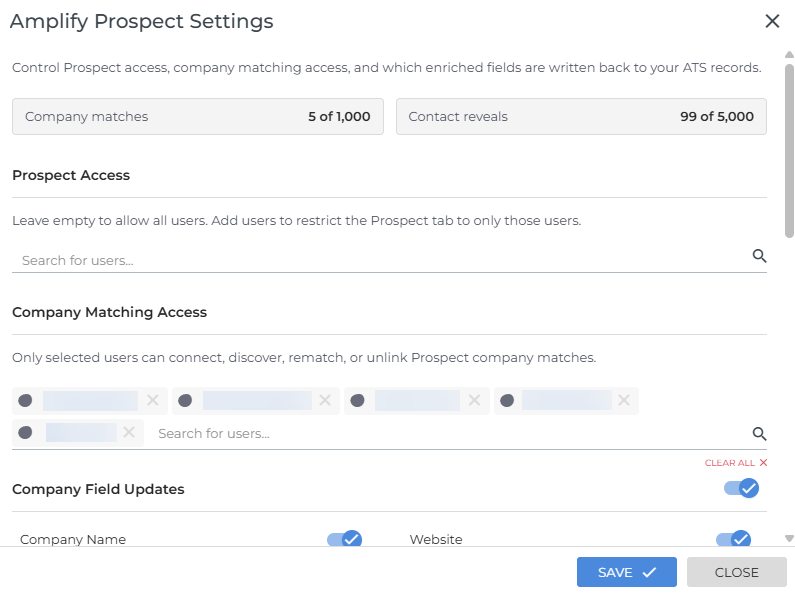
Usage Counts (Early Access Only)
At the top of the settings window, you can see how many Company Matches and Contact Reveals your organization has used.
-
A company match links a Bullhorn company record to a company in the Amplify Prospect database.
-
A contact reveal exposes a contact's email address, phone number, or both.
During early access, a limit applies to the number of company matches and contact reveals available to your organization for testing purposes.
Settings
Prospect Access
Controls which users can view the Prospect tab and its data cards for matched companies.
If you leave this field blank, all users in your organization can access the Prospect tab. If you add any users, only those users will have access.
Company Matching Access
Controls which users can link and unlink Bullhorn company records to Amplify Prospect. Users in this field can connect a company record to its entry in the Prospect database, making Prospect data visible to users with access to the Prospect tab.
Company and Contact Field Updates
Lists the company and contact record fields that Amplify Prospect can suggest updates to when it detects new information about a linked company. Toggle off any field you do not want to receive update suggestions for.
Field updates are not applied automatically. When Amplify Prospect detects a potential update for a toggled-on field, it surfaces a suggestion on the Suggested Actions card. A user must confirm the update before it is applied to the record.