Connecting a Company to Amplify Prospect
Amplify Prospect is currently in Closed Early Access.
The Prospect tab only displays information for companies that have been connected to Amplify Prospect. This article explains how to connect a company record in Bullhorn to Amplify Prospect and access its data.
Permission to link and unlink companies is controlled by an Amplify Admin. If you do not see the option to connect a company, contact your administrator.
Connect a Company
To link a company to Amplify Prospect:
-
Open the company record overview and click Connect on the Amplify Prospect card.

If you don’t see the Amplify Prospect card, click Layout in the record header and make sure Amplify Prospect is enabled under the Cards tab.
-
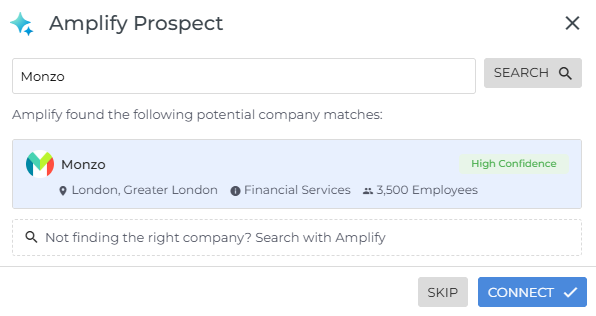
Review the potential matches that Amplify Prospect suggests. If you do not see the correct company, click Search with Amplify to widen your search.
-
Select the correct company and click Connect.
Once connected, a Verified badge appears next to the company name in the record header, confirming the company has been connected to Amplify Prospect.

Unlink a Company
Unlinking removes the connection between the Bullhorn record and Amplify Prospect. The company can be reconnected at any time. Use this option if you have accidentally linked to the wrong company.
To remove a company's connection to Amplify Prospect:
-
Go to the Prospect tab on the company record.
-
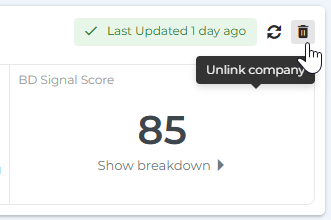
Click the trash can icon in the top right of the company overview card.
-
Click Unlink to confirm.
Suggested Actions
The Suggested Actions card appears on connected company records when Amplify Prospect detects potential updates to company record fields. This card only displays when new field update suggestions are available. Click View to review the suggestions and apply any updates to the record.

Amplify Admins can control which fields can receive suggested updates.