Using the Amplify Prospect Tab
Amplify Prospect is currently in Closed Early Access.
The Prospect tab is available on company records and displays business development intelligence for companies that have been connected to Amplify Prospect. Use it to access data including company insights, open jobs, and contacts to support your outreach.
The Prospect tab loads the latest available data each time you open it. Refresh frequencies vary by content type:
-
Company overview data, including the BD signal score, refreshes every 30 days.
-
Job and news data refreshes daily.
If you need to update the data mid-session, click Refresh ( ) on the Company Overview card.
Notes:
-
The Prospect tab only displays data for companies that have been connected to Amplify Prospect. For steps, see Connecting a Company to Amplify Prospect.
-
Job titles, locations, and other details are based on profile visibility and the most recently refreshed data. Always check data before updating.
Company Overview
The Company Overview card displays top-level information about the connected company. Data on this card refreshes every 30 days. The card includes:
-
General company information and links to social media profiles
-
Main location, company size, and industries
-
Average Glassdoor rating
-
Employee growth and hiring velocity charts
-
BD (business development) signal score

The BD Signal Score gives an at-a-glance measure of the business development opportunity for this company. Click Show breakdown to see how the score is calculated. It is based on four factors:
-
Hiring Activity: How many jobs the company is currently posting.
-
Gap Opportunity: How many of the company's jobs you are working compared to the total available.
-
Contact Coverage: How many of the company's contacts you already have in Bullhorn.
-
Working Relationship: How frequently you communicate with contacts at the company.
Active Job Coverage
The Active Job Coverage card shows currently open jobs for the connected company, sourced from MarketIQ, SourceBreaker, and the web. Jobs are sorted by relevancy to you, based on the types of jobs you have previously worked on.
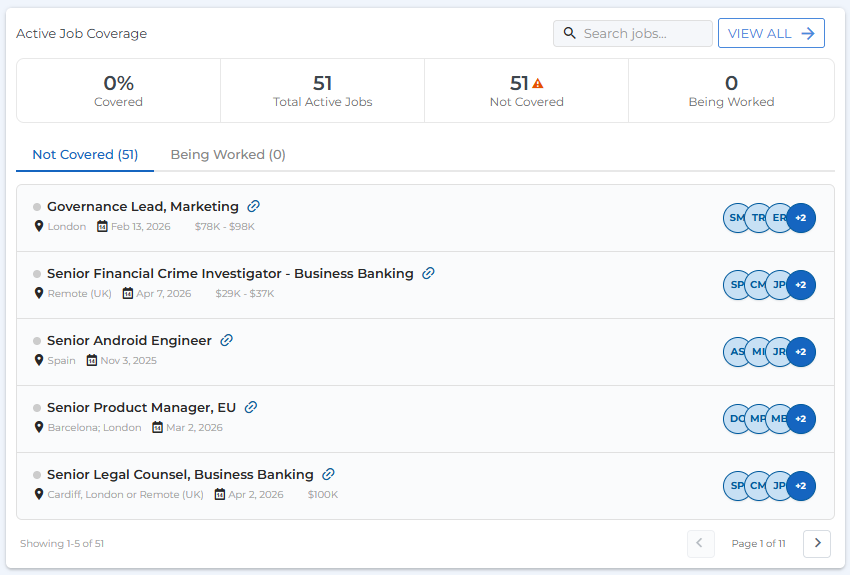
At the top of the card you can see a summary showing the percentage of jobs you are currently recruiting for, the total number of active jobs, and the total not yet covered. Use the toggle to switch between views:
-
Not Covered: Jobs that are not yet being worked on in Bullhorn.
-
Being Worked: Jobs that are already in Bullhorn and actively being worked on.
Each job listing shows the location, date added, salary range, and potential hiring manager matches. Click the link icon ( ) to open the original job posting, or click anywhere else on a job to open the job slideout with more details.
Click View All to open the full list of jobs for that company, where you can search by keyword or filter by location, function, seniority level, date added, and specific contacts.
Contact Matrix
The Contact Matrix card shows the number of contacts at manager level and above for the connected company, organized by function such as Engineering, Finance, and Operations.
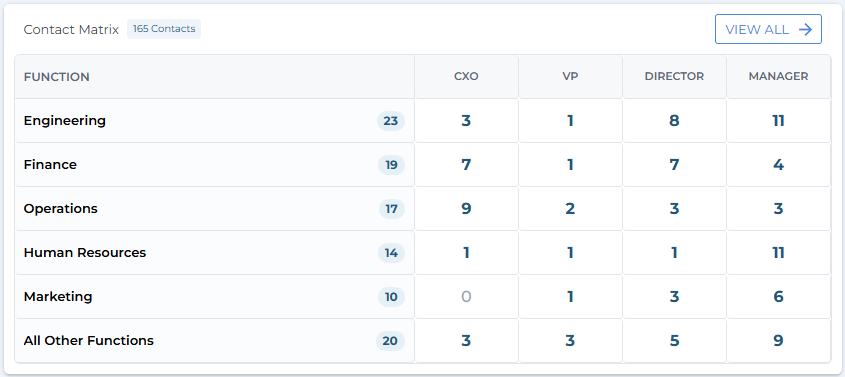
Click any number in the matrix to open a filtered contacts list, or click View All to open the full expanded matrix view.
Recent Articles
The Recent Articles card displays recent news about the connected company.
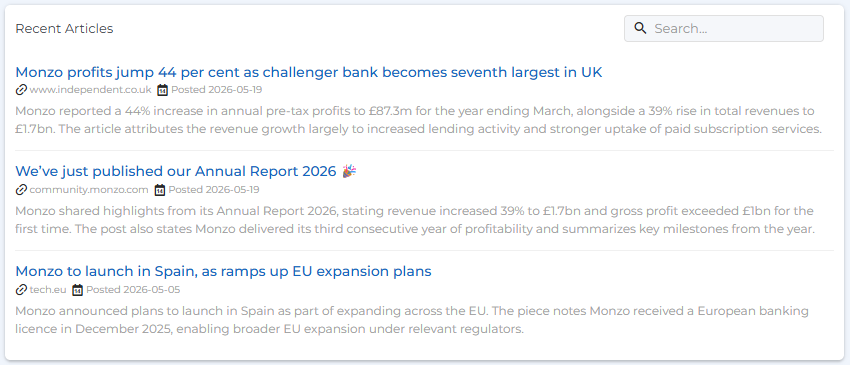
Use the search bar to find articles by keyword. Use this card to research the company's current situation and hiring needs, or to find talking points for business development calls and outreach.
Movers and Shakers
The Movers and Shakers card shows people who have recently joined or left the connected company within the past 12 months. Use the tabs to switch between views:
-
Joined: People who have joined the company in the past 12 months, including how long ago they joined, their previous role and company, and their current role.
-
Left: People who have left the company in the past 12 months, including how long ago they left, their role at this company, and their current role and new employer.
View All Contacts
Clicking View All on the Contact Matrix card opens the full contacts list for the company, sourced from Amplify's data providers. You can filter, search, and sort across all contacts. Contacts that are already in Bullhorn are indicated with a yellow dot.
Filter Contacts by Bullhorn Status
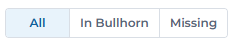
At the top of the contacts view, use the filter to control which contacts are displayed.
-
All: Show all contacts.
-
In Bullhorn: Show only contacts that have already been added to Bullhorn.
-
Missing: Show only contacts that are not yet in Bullhorn.
Change Contact Display
Use the view options to choose how contacts are displayed:

-
Matrix: Contacts are organized by function and seniority level.
-
Tree: Contacts are displayed by seniority level in collapsible sections, grouped by department.
-
List: Contacts are displayed in a single list for easy filtering and searching.
In any view, use the search bar and filters at the top to narrow results by seniority, department, or other criteria.
Find More Contacts
If a contact you are looking for is not in the list, or you want to search for additional contacts in a particular role or department, click Find More Contacts.
Amplify runs an additional search and adds any new results to the list. Newly added contacts are marked with an Amplify icon so you can identify them easily.
Not all contacts for a company are guaranteed to appear. Some individuals may have opted out of data sharing, so complete contact coverage cannot be confirmed for every company.
Take Action on Contacts
-
Click Select and choose the contacts you want to act on.

-
Click Actions and select an option from the dropdown:
-
Create contacts
-
Send Email
-
Add to Distribution List
-
Add to Tearsheet
Contact Slideout
Clicking the name or initials of a contact anywhere on the Prospect tab or job slideout opens a contact slideout showing their title and location.
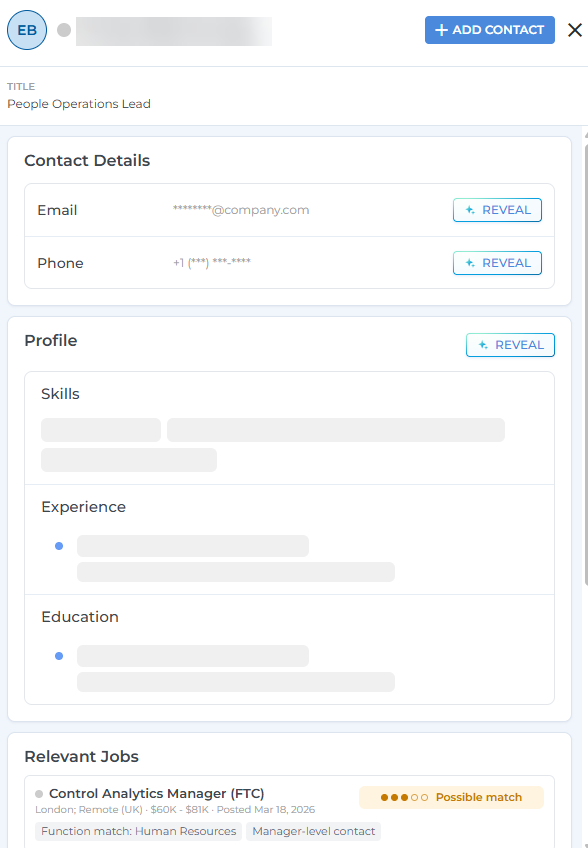
From the slideout you can:
-
Reveal their contact details and profile, including skills, experience, and education.
-
Click + Add Contact to add them to Bullhorn as a new contact record.
-
Click Open Contact Record to view their existing Bullhorn record if they are already in Bullhorn.
Revealing a contact's contact information or profile counts toward your organization's usage limits. Only reveal details for contacts you intend to engage with.
Link a Contact to an Existing Bullhorn Record
When you open a contact from the Prospect tab, Amplify automatically links them to a matching Bullhorn contact record if it finds a strong enough match based on name and title. If Amplify detects a possible but uncertain match, a Possible Match button appears. Click it to review the suggested record and manually confirm the link if it is the correct person.
Relevant Jobs
At the bottom of the contact slideout, you will also see a list of jobs they are a potential hiring manager match for. Each job shows a match strength (Strong, Possible, or Weak) based on how well their role and department align with the job title. Click a job to open its job slideout.
Job Slideout
Clicking a job anywhere on the Prospect tab or contact slideout opens a job slideout showing high-level details including the date added, estimated salary, location, and job description. The slideout also includes a link to the original job posting.
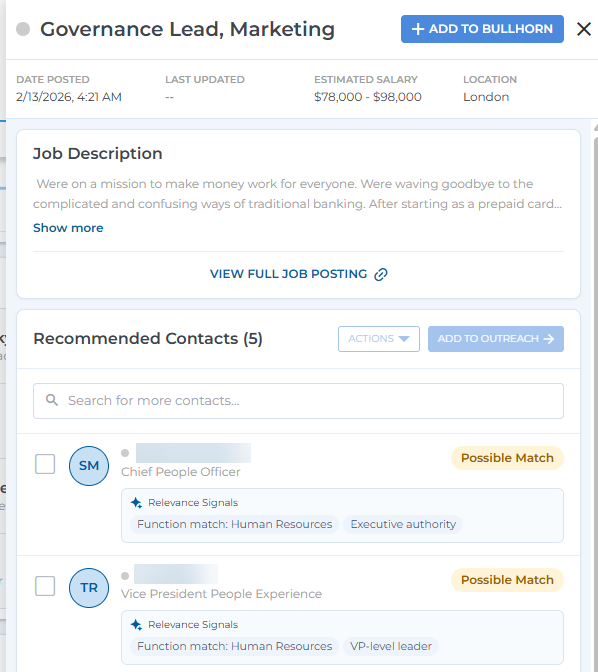
Click Add to Bullhorn to create a job record in Bullhorn from this posting. Information such as the description and location is copied into the relevant fields to simplify the process.
Recommended Contacts
The Recommended Contacts section of the job slideout lists potential hiring managers for the role as detected by Amplify. Each contact shows a match strength (Strong, Possible, or Weak) and relevance signals explaining why Amplify identified them as a match for the job.
Click a single contact to open their contact slideout, where you can reveal their details or add them to Bullhorn.
To act on multiple contacts at once, select them using the checkboxes, then use the Actions dropdown to add them to Bullhorn, send them an email or add them to a distribution list or tearsheet.
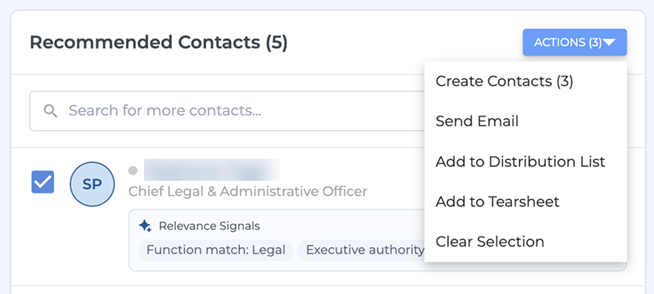
If you have an Amplify Outreach automation set up, you'll also see an Add to Outreach button. Click this to enroll the selected contacts in an Outreach campaign.