Enrich From File Automation Step
-
You need Bullhorn Amplify Edition to use this feature.
-
This feature is currently Early Access.
The Enrich From File automation step updates candidate records using data extracted from their resume. You can choose to pull data from the candidate’s resume field or from attached files that match selected file types. The extracted data is then mapped to the candidate fields you specify, including standard fields like phone and email, as well as structured data such as skills, work history, and education.
Using the Enrich From File Step
You can use the Enrich From File step in Candidate-based automations.
Place the step at the desired point in your automation workflow, and configure the settings as outlined below.
Enrich from File Step Settings
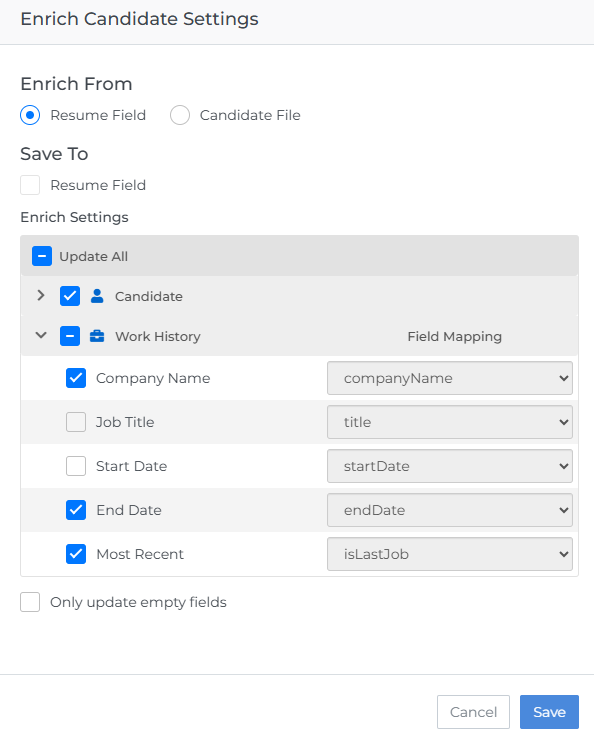
Enrich From
Choose where the system should look for the resume data:
Resume Field
Extracts data from the information stored in the candidate's description field (also known as the resume field).
-
If the resume field is empty or contains no usable data, the candidate is removed from the automation
Candidate File
Extracts data from files attached to the candidate record that match the selected file types (based on the type field).
-
The most recently added file is used, based on the dateAdded field.
-
If no matching file is found, or if the matching file contains no usable data, the candidate is removed from the automation.
-
If multiple file types are selected, the system evaluates all selected types and uses the most recently added matching file.
File type matching is based on the type field in your ATS, not the fileType attribute.
File Types (Candidate File only)
When Candidate File is selected, choose which file types the system should consider. Common options include Resume, Formatted Resume, and CV.
Field Mapping
Select which candidate fields the system should update. Field Mapping determines which ATS field will be populated with extracted data.
Supported Fields:
|
Candidate Fields (Candidate Profile) |
Work History Fields (Work Histories Tab) |
Education Fields (Educations Tab) |
|---|---|---|
|
First Name (firstName) |
Company Name (companyName) |
Degree Name (degree) |
|
Middle Name (middleName) |
Job Title (title) |
Major (major) |
|
Last Name (lastName) |
Start Date (startDate) |
Start Date (startDate) |
|
Name Prefix (namePrefix) |
End Date (endDate) |
End Date (endDate) |
|
Name Suffix (nameSuffix) |
Most Recent (isLastJob) |
Graduation Date (graduationDate) |
|
Nickname (nickName) |
Full Description (comments) |
School Name (school) |
|
Email (email) |
|
City (city) |
|
Mobile Phone* (mobile) |
|
State (state) |
|
Address (address) (Address1 Address2 City State ZipCode CountryCode CountryId) |
|
GPA (gpa) |
|
Personal URL (companyURL) |
|
Full Description (comments) |
|
Date of Birth (dateOfBirth) |
|
|
|
Marital Status (maritalStatus) |
|
|
|
Education Level (educationDegree) |
|
|
|
Current Role (occupation) |
|
|
|
Current Employer (companyName) |
|
|
|
Years Experience (experience) |
|
|
|
Skills (primarySkills) |
|
|
|
Description/Resume (description) |
|
|
|
Parsed Resume File (parsedResumeFile) |
|
|
*The system assumes the first phone number found is the mobile number and uses a normalized phone format.
-
The field name in brackets in the table above is the Bullhorn field that Enrich From File will populate. It always writes to that field, even if you use a different or renamed field for the same information.
-
If you don’t see all of these fields on your candidate records, check that they are unhidden and included in your View Layout.
-
Certifications, licenses, and custom fields are not currently supported.
Only Update When Empty
This setting controls how existing candidate data is treated.
When enabled:
The system only updates fields that are currently empty.
-
Candidate fields like phone, email, or location are checked individually.
-
Skills, work history, and education are treated as complete sections. If any data exists in these sections, the entire section is considered not empty and is not updated.
-
The step cannot selectively update individual fields within a work history entry or add new skills to an existing list.
When disabled:
The system overwrites all selected fields with the new resume data.
-
Existing skills, work history, and education are replaced, not added to. The previous data is overwritten.
If your ATS is configured to automatically create work history records for approved placements (using the autoCreateWorkHistoryFromPlacement system setting), turning off Only Update When Empty will delete the work history entries created by those placements. For more information about this setting, see Understanding Bullhorn System Settings.
Example: How skills are handled
A candidate's current record lists skills in Project Management and Product Management. The resume file being processed lists Product Management and Jira.
-
If "Only update when empty" is enabled:
The system does nothing. The candidate retains their existing skills of Project Management and Product Management.
-
If "Only update when empty" is disabled:
The system overwrites the previous skills list. The candidate record is updated to show Product Management and Jira.
The system will not append skills. The result will never combine all three: Project Management, Product Management, and Jira.
The same logic applies to work history and education. These sections are always replaced as a whole, not updated field-by-field. This ensures these sections reflect the candidate’s most current resume.
FAQ
What happens if no resume data or matching file is found?
The candidate is removed from the automation step.
How does the system determine which file is "most recent"?
The system uses the dateAdded field. If multiple files match the selected file types, whichever was added most recently is used.
Can I update individual fields within a work history or education entry?
No. Work history and education are processed as complete sections. The system cannot update individual fields within these sections. Either the entire section is updated, or it is not touched.
Why does the system replace data instead of adding to it?
The system replaces data because a resume is meant to reflect a candidate’s current qualifications. Tools like Search and Match rely on up-to-date skills and experience to determine job fit, and mixing older resume details with newer ones can reduce match quality. The candidate may no longer consider older information relevant to their current experience level or career focus.
What if I want to keep some existing data but update other fields?
Use the "Only update when empty" setting for this. Standard fields, like phone or email, will only change if they’re empty. However, for skills, work history, and education, the system treats each section as a whole, so if any information already exists, that section won’t be updated.
Why did the Enrich From File step update the wrong field?
Enrich From File always populates the default Bullhorn field shown in brackets in this table. If your workflow uses a different or renamed field (including custom fields), that field will not be updated.
To resolve this, check the table and ensure you are using the Bullhorn default fields supported by Enrich From File. Custom mappings are not supported.
I can’t see the information populated by the Enrich From File step. Where did it go?
If the enriched data isn’t visible on the candidate record, check the following:
-
The fields listed in this table are mapped to the correct Bullhorn default fields and unhidden in your ATS Field Mappings
-
They are included in your View Layout
Once these fields are visible and mapped properly, the enriched data will appear as expected.
Does Enrich From File support custom fields?
No. Enrich From File only writes to the default Bullhorn fields shown in brackets in this table. Custom fields and custom mappings are not supported.