View Layout
Learn how to use View Layout to configure what users see on Bullhorn records, from overview cards to list view columns.
The View Layout tool helps administrators define which fields are visible by default, how cards appear on record overviews, and which fields are searchable in lists or filters.
View Layout has a streamlined interface where you can manage fields on records, lists, and search, plus custom tabs, cards, menu actions, and list buttons, all from one page.
Each change you make applies to all users under the same Private Label, ensuring a consistent experience across your team.
Understanding the View Layout
The View Layout controls how data is presented across several parts of Bullhorn:
| Area | What it Controls | Related Help Topic |
|---|---|---|
|
List Views |
Which columns appear by default on entity lists, tearsheets, and search results. |
Changing the Default Columns on List Views / Changing the Columns that Display on Tearsheets |
|
Preview Slideout |
Which fields appear in the record preview panel when users click the binocular icon. |
|
|
Overview Tab |
Which cards and fields display when a record is opened. |
|
|
Search |
Which fields are available for searching, filtering, or inclusion in layouts. |
|
|
Bullhorn for Mobile |
Which fields are displayed on the Bullhorn mobile app. |
|
|
Fast Find |
Which columns display on the Find (Fast Find) results page. |
|
|
Submission Activity Table |
Which columns appear in the Submission activity table on Candidate, Client Contact, Company, and Job records. |
|
|
Custom Tabs, Cards, Menu Actions, and List Buttons |
Third-party content and actions that appear on records, the Actions menu, and lists. |
View Layout works alongside Field Mappings. Fields must first exist in Field Mappings to appear as options in View Layout. If a field isn’t appearing, check the mapping and confirm it’s visible and not hidden.
Accessing the View Layout
Administrators can access the View Layout through the Admin menu:
-
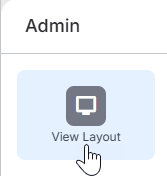
Go to Menu > Admin > View Layout
-
Then select:
-
The correct Private Label (if your company uses multiple labels), and
-
The Entity you want to edit (e.g., Candidate, Job, Company, Placement).
-
-
Select a layout tab across the top.

Configuring the Different Layout Areas
Each area of the View Layout allows you to tailor specific parts of the interface.
Default Columns
Default Columns (under the List tab) controls which default columns users see by default when viewing record lists.
For details and step-by-step instructions, see Changing the Default Columns on List Views.
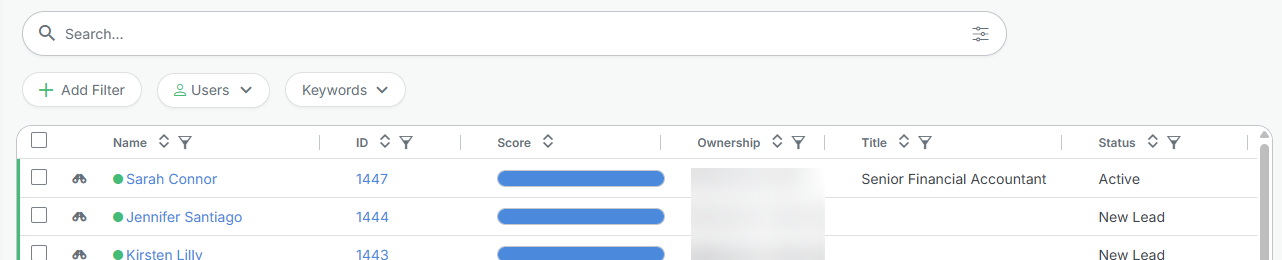
You can also update Tearsheet columns using Changing the Columns that Display on Tearsheets.
Slideout Details - Summary Card
Slideout Details - Summary Card section (on the List tab) controls which fields display in the right-hand preview panel.
Once the panel is open, you can use the ↑ and ↓ keys to navigate between records. If the arrows stop working, click the binocular icon again to refocus.
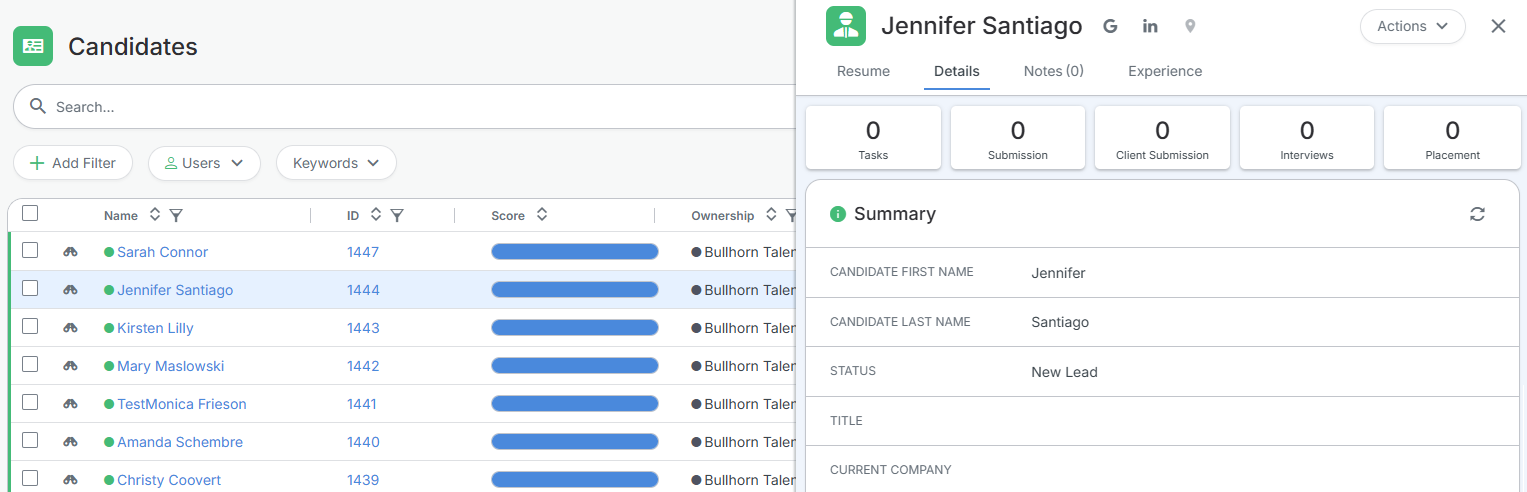
Certain field types (e.g., Text Block Large, DHTML Editor) can’t be displayed in the Preview Slideout.
For detailed steps by entity (e.g. Contacts) see Changing the Default Fields on the Preview Slideout.
Profile Record
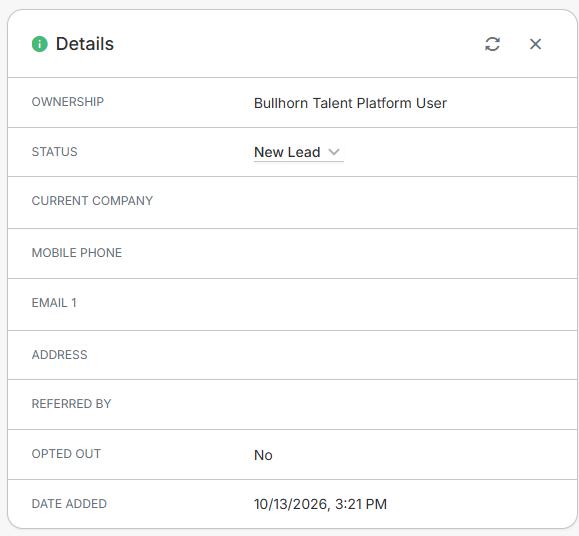
The Profile Record tab controls the fields that appear at the top of a record and in its Details card.
Profile - Header sets the fields in the header at the top of a record, such as a Candidate’s profile. The header stays visible on every tab of the record.

Profile - Details Card sets the fields in the Details card on the record’s Overview tab.
Overview Tab
The Overview Tab lets you configure up to four custom overview cards that appear on a record’s Overview tab.
Admins set the default cards and the fields they include. Individual users can rearrange the cards for their own view, and this doesn’t affect other users.
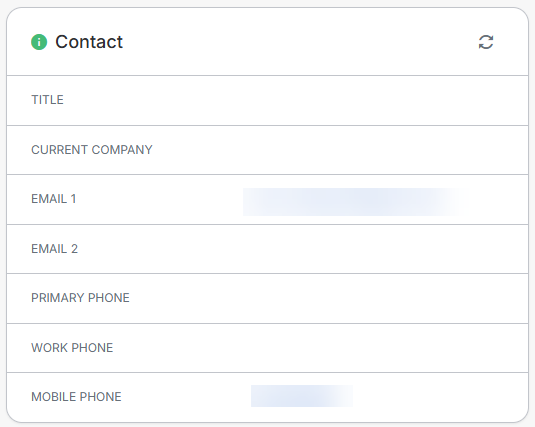
For setup steps, see Changing the Fields that Appear on Records.
Search
The Search tab controls which fields are available for search, filters, and visibility across the system.
If a field isn’t appearing in Advanced Search or list filters, verify that it’s correctly mapped and set as visible here.
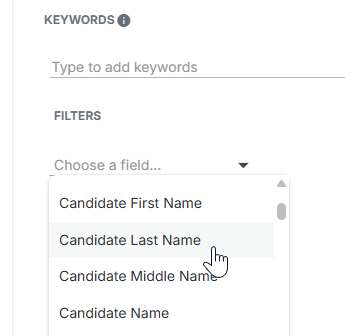
To learn more, see Changing Which Fields Can be Searched or Filtered.
Bullhorn for Mobile
Fields visible in mobile views are controlled from the same View Layout interface. You can specify which fields appear in mobile record views for each entity.

For instructions, see Changing the Default Fields in the Bullhorn Mobile App
Fast Find
The Fast Find section controls which column headers appear for each entity on the Find (Fast Find) results page.
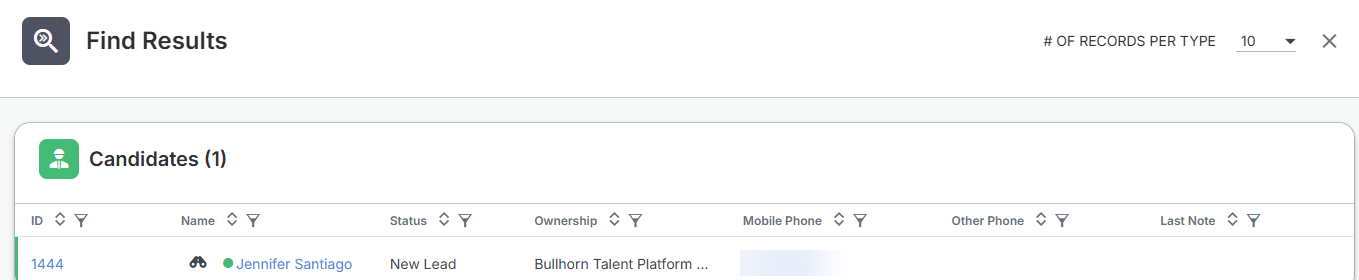
For a step-by-step guide, see Changing the Find Column Layout.
Moving and Reordering Fields
Move a field by doing one of the following:
-
Drag it to the other list.
-
Double-click it.
-
Select it and click the arrow button.
Reorder fields by dragging a field to a new position, or by selecting it and using the Move up, Move down, Move left, and Move right arrows.
Each list shows a field count and has its own search box. Use the search box to find a field quickly.
Keyboard shortcuts: After you select a field, press Enter to include it, Alt + Up or Down arrow to move it, and Delete to remove it.
Saving Your Changes
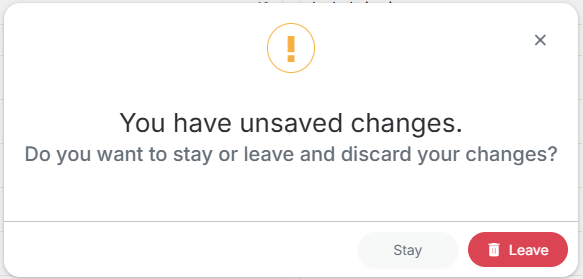
Save your changes on one layout tab before moving to another tab, entity, or private label. If you have unsaved changes, you're prompted to confirm before you switch entities, layout tabs, or private labels, or leave the page.
Managing Custom Tabs, Cards, Menu Actions, and List Buttons
You can add custom tabs, cards, menu actions, and list buttons that display content or actions from an external application. Manage them from the Custom Cards, Custom Tabs, Custom Menu Actions, and Custom List Buttons tabs. Not every entity has every tab.
Keep these rules in mind:
-
User types: Select at least one user type that should have access. A warning appears if none is selected, so you don't save items that nobody can see.
-
URLs: URLs must start with https://. If existing items use different addresses, you're prompted to update them before you save.
-
Names: Names can be up to 48 characters and can't contain < or >.
-
Card height: To set a custom card's height, add #bh-iframe-height=900px to the end of its URL. Replace 900 with your preferred height.
-
Errors: Error messages appear next to the items that need fixing.
Some older Job Submission custom menu actions might show a "location" error when you edit them. If this happens, contact Bullhorn Support.
Troubleshooting View Layout Issues
If your changes don’t appear or users report missing fields, use these checks:
| Issue | Possible Cause | How to Fix It |
|---|---|---|
|
Field not appearing after being added |
Field not mapped or “Hidden” in Field Mappings |
Go to Admin > Field Mappings, ensure “Hidden” is unchecked, and save. |
|
Layout changes not visible to users |
Browser cache or Private Label mismatch |
Clear cache and confirm the user is under the same Private Label you edited. |
|
Fields missing from Search filters |
Field not mapped as searchable |
Update the Search tab settings. |
|
Can't save a custom tab, card, menu action, or list button |
No user type selected, URL doesn't start with https://, or name is over 48 characters or contains < or > |
Fix the items flagged with error messages, then save again. |
If you continue to experience issues, contact Bullhorn Support and include:
-
Your environment (Production, Sandbox, NPE)
-
The entity affected
-
Example record name
-
Screenshots of your View Layout configuration
FAQs
Do View Layout changes affect all users?
Yes. Any update applies to all users under the same Private Label.
Why can’t I find my new custom field in the View Layout?
Check Field Mappings to ensure the field was added and set as visible. Fields won’t appear in View Layout until mapped.
Who can edit the View Layout?
Only administrators or users with View Layout permissions can edit layouts. Standard users can rearrange their card order but cannot change default fields.
Do I need to log out after making changes?
No, but changes may take about a minute to appear for other users.
Can I use View Layout to control Advanced Search fields?
Yes. Use the Search tab to define which fields are searchable or filterable.
Can I move several fields at once?
Not currently. Fields can only be moved one at a time. The ability to move all fields at once is coming in a future release.
Why am I prompted before I leave a layout tab?
You have unsaved changes. Save them before you switch entities, layout tabs, or private labels, or confirm that you want to discard them.