Setting Up Amplify Verify
Amplify Verify is currently in Early Access. For more information, speak to your Bullhorn representative.
To start using Amplify Verify, you just need to enable it in your Bullhorn account. Once enabled, Amplify Verify will begin scoring candidates as they submit applications, complete screenings, or fill out forms, using data from the ATS record to evaluate identity, consistency, and misrepresentation signals.
To get the full picture, including behavioral and session-level signals such as bot detection, human interaction patterns, and application velocity, you should install the Bullhorn JavaScript snippet on your job application website.
Install the JavaScript Snippet
Installing the Bullhorn JavaScript snippet on your job application website gives Amplify Verify access to behavioral and session-level signals. The snippet runs silently in the background as candidates complete their application, capturing data including mouse movement, typing patterns, device information, and network signals. Without it, Amplify Verify will still score candidates, but Behavioral signals will not be available.
For installation instructions, see Amplify Verify Snippet Integration Guide (Customers).
Amplify Verify does not integrate with external job boards such as Indeed or Dice and has no data-collection partnership with LinkedIn. Candidates who apply through these channels will not have session data available.
Enable and Configure Amplify Verify
To enable Amplify Verify, go to Menu > Admin > Amplify Admin and click the Labs tab. Toggle on Amplify Verify to enable data collection and link candidate records to session data collected across all monitored application paths.
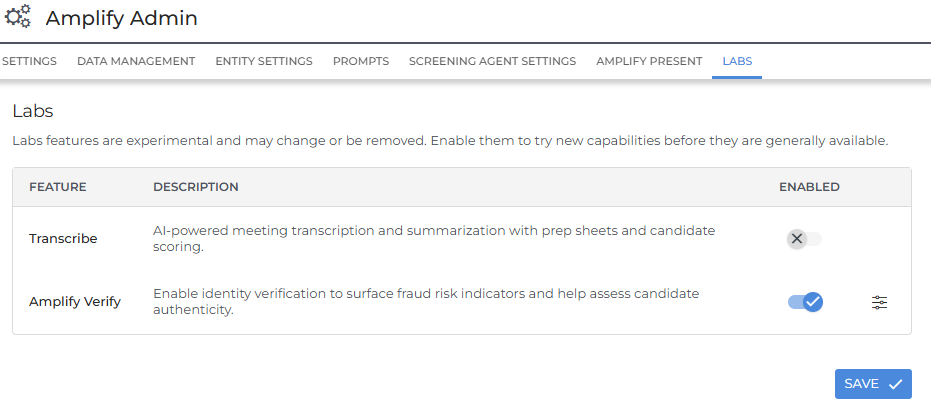
Once enabled, click the settings icon ( ) to configure how Amplify Verify appears on candidate records.
-
Display the Trust Card: Enables the Trust Level field to appear in the candidate record header and in list views.
-
Display contact verification status: When enabled, a verification icon appears next to phone number and email address fields on the candidate record and in list views. A green icon indicates the contact detail has been verified as valid; a red icon indicates it may be invalid.
-
Trust Card Title: Choose a title for the Verify slideout (for example, "Trust Level"). This displays at the top of the slideout when a user clicks the Trust Level field on a record.
-
Scoring guidance: Enter any additional instructions you want Amplify Verify to apply when analyzing applications — for example, which signals to treat as more or less significant. See Using Scoring Guidance with Amplify Verify for more details.
-
User for scheduled evaluation (Required): Select the user account Amplify Verify should use to make updates in the ATS. This can be any user who has access to edit candidate records, but we recommend using an API or system user such as the Automation user.
-
Restrict visibility to users: Limit which users can see the Trust Level field and slideout. If left blank, all users can see it.
Once Amplify Verify is set up, see Using Amplify Verify for details on viewing candidate results and signals.