| Edition:Growth, Corporate, Enterprise | Audience: IP Access Admin, User Admin |
IP Access Admin
IP Access enables you to specify a range of IP addresses that are allowed to access the account.
If an admin wants to restrict user access to a specific IP address, they must first use the IP Access Admin section to enter permitted IP addresses and then set individual user restrictions.
Managing these settings requires IP Access Admin permission. To enable this, an administrator must go to Users Admin > [User Profile] > Admin Permissions and select the IP Access Admin checkbox. For detailed instructions, see Setting App and Admin Permissions. Once the permission is active, log in to Bullhorn Analytics and go to Admin->IP Access.
IP Restrictions are not a necessity. Bullhorn Analytics is a cloud-based platform that can be used on smartphones and tablets, anywhere, at any time.
Adding IP Addresses
Go to Admin > IP Access.
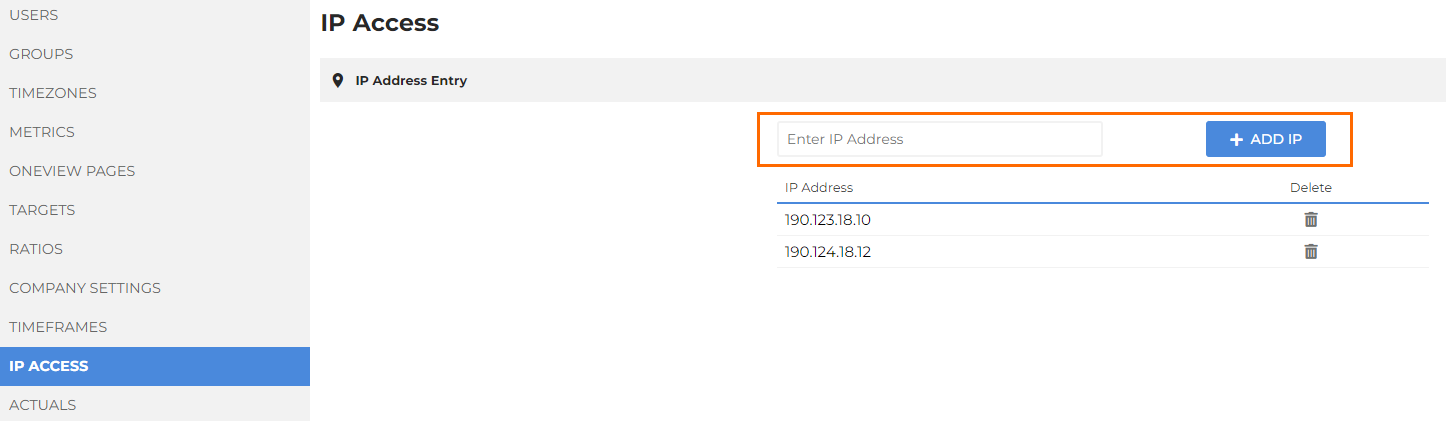
Enter the IP Address in the box and click the + ADD IP button to add it.
Applying IP Restricted Access to Users
IP address restrictions are browser-based must be applied individually for each user.
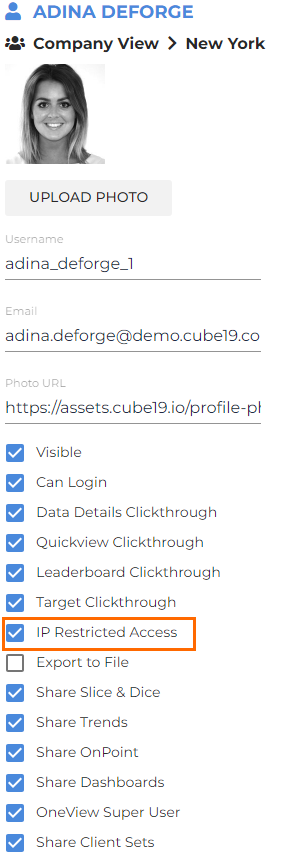
- Go to Admin > Users > Manage Activated Usersand click on a name to access the user’s profile.
- Check the IP Restricted Access box to apply the restriction.