| Edition: Growth, Corporate, Enterprise | Audience: All Users |
Jobs Pipeline Options Navigation
This article covers the available filtering and searching options on the Jobs Pipeline page. For help navigating the pipeline itself, see Jobs Pipeline Navigation.
Jobs Pipeline Options
At the top of the Jobs Pipeline page you'll see the following options:

Sales / Recruiting Slider

The Sales / Recruiting slider allows you to switch the view of the pipeline to focus on sales or recruiting activity. For further information on how this slider works, see Sales vs Recruiting Pipeline Views - Examples.
Job Metric Selector

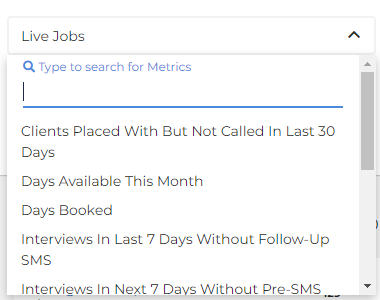
Use this dropdown to select a Job metric to view. In most cases, you’ll be using Live Jobs/Live Vacancies as your selected Job metric, as this will run the pipeline report over all currently live Jobs/Vacancies.
Timeframe Selector

If you select Live Jobs or any other "Live" metric from the Job Metric selector, the Timeframe selector will be greyed out and unselectable. If you select New Jobs/Jobs Added or any other non-live metric, the Timeframe selector will become available.
Select Jobs Added with a timeframe of This Year to view all of the Jobs/Vacancies that you have added this year, whether or not they are still open.
Load

The Load button is required to load your original selection. Reload any time you make changes to the Job Metric or Ownership selectors.
Freetext Search

Use the two search boxes to search for Jobs or Candidates. Results will refine dynamically as you type into these fields.
Preset Activity Filters and Activity Slider

Clicking the preset filters will show results for the displayed timeframe, e.g. Within the last 7 days, 8 to 30 days, etc. The slider allows you to select your own "from" and "to" parameters, e.g. 7 to 14 days.
Preset Result Filters

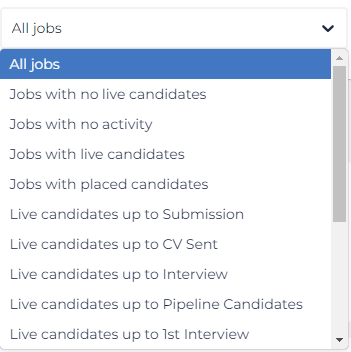
This dropdown is an easy way to refine the results in the pipeline.
If you want to view Jobs/Vacancies with no activity or all candidates up to the 1st Interview milestone, simply select these filters from the dropdown.