| Edition: Growth, Corporate, Enterprise | Audience: All Users |
Using OnPoint for Target Tracking
Based on your permissions, OnPoint reporting offers visibility over any number of Groups and Users and allows you to compare performance against targets set at those levels. This article details how to create and organise your report data to track the progress of user or group targets.
Sorting Columns to Track Progess
- Select all your OnPoint Report Options then click on Load Data to generate your report.
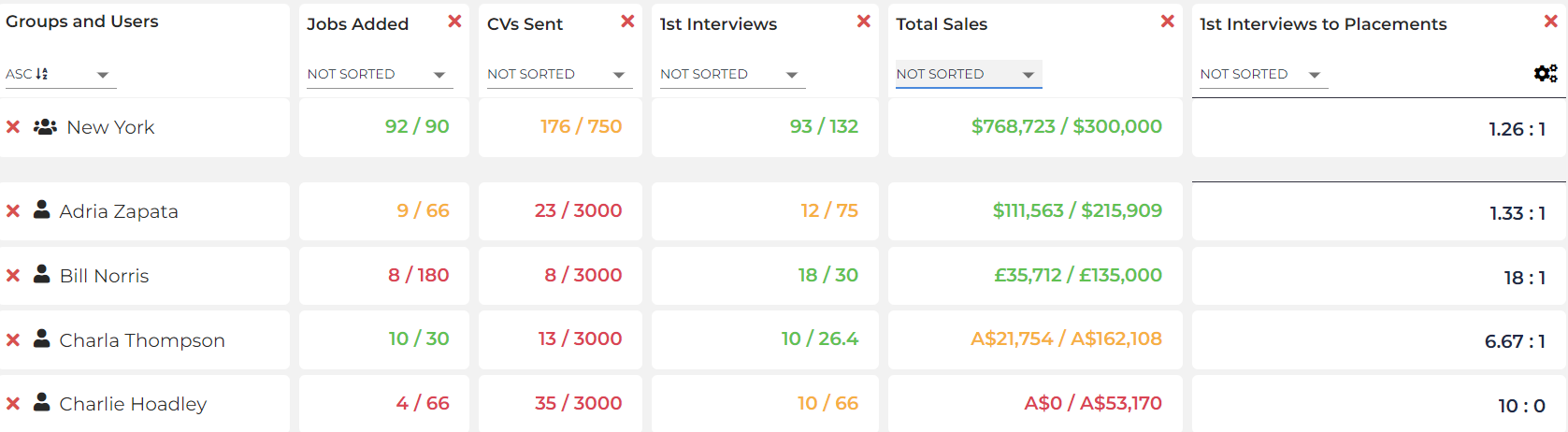
- Use the column sort function to order your column data by:
- Total (Descending or Ascending): Highest or lowest contributor by value.
- Target (Descending or Ascending): Highest or lowest contributor by those who had a target value.
- Target % (Descending or Ascending): Highest or lowest contributor against target.
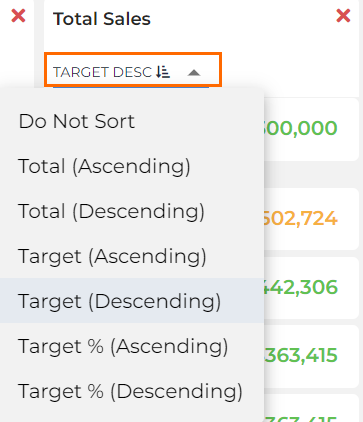
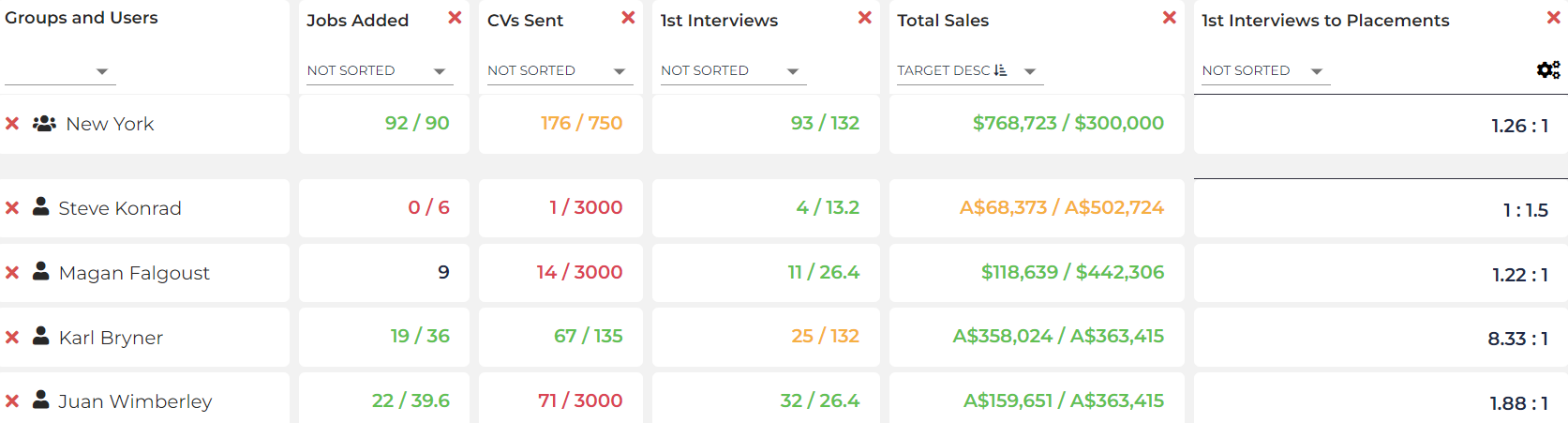
- Sort your OnPoint report by Target, Target % or Total. This allows you to easily see totals for groups or individuals against targets:
- Click on any cell value to see the underlying data details.
When you use the column sort function, the report will be divided into two separate lists - Groups and Users. So if you are running a report containing both groups and individual users, the sort function will order those results separately.
Remember to use the Load Data button to return your relevant results every time you make changes to any of the dropdown selectors.
Users / Groups Without Targets
Any number displayed in black (or in white if you are using dark theme), or where a value is missing in the target progress bar in Detailed View, indicates that no target has been applied.


Target Admins can set and amend targets in OnPoint. See Setting Targets in OnPoint for more information.