| Edition: Growth, Corporate, Enterprise | Audience: All Users |
OneView Navigation
This article explains how to navigate the different options, filters, and metrics on a OneView page.
General Navigation and Filters
OneView Page Selection
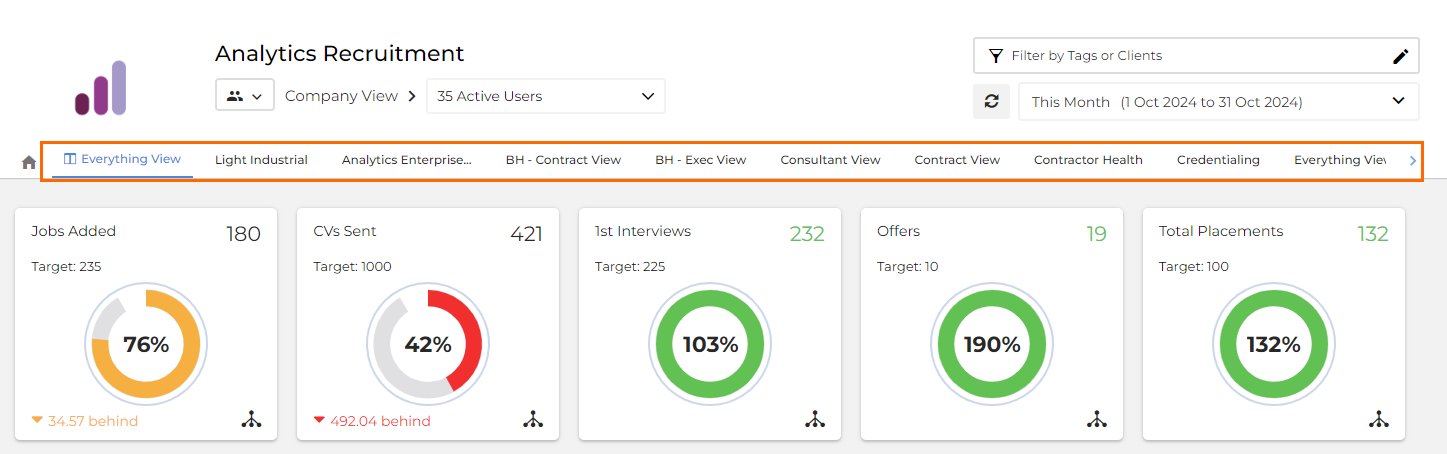
When you log into Bullhorn Analytics, you will either land on your personal OneView page, or that of your group (team or company). You can navigate between different OneView pages by clicking the tabs. Visibility of OneView pages depends upon your user permissions.
User / Group Navigation
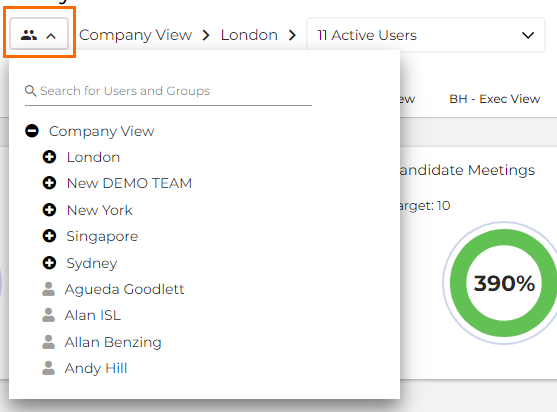
You can search for and view other teams' or users' OneView pages by selecting them from the Company dropdown.
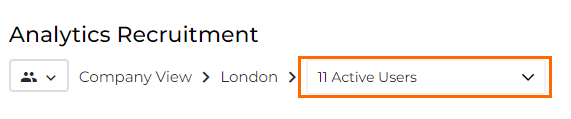
A count of all active users within the team can be found to the right. You can view a specific user by selecting them from this dropdown.
Filter by Tags or Clients
Click Filter by Tags or Clients to open the client and tag filters section.
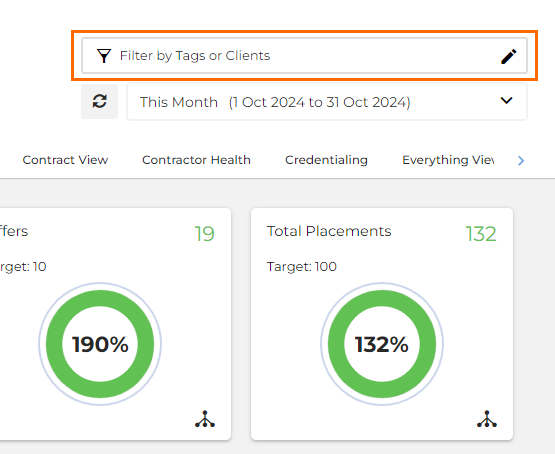
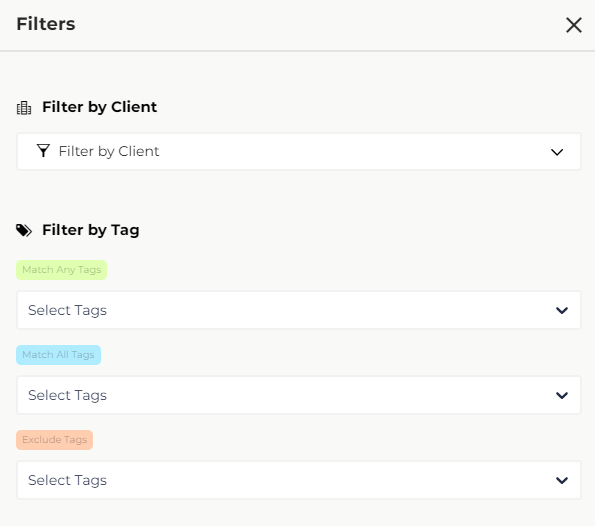
Here, you can use the tag filters to refine the data by tags applied to users and groups. This option may be limited by the level of tagging applied by your business or by your visibility permissions.
In this section you can also access the Client Filter to filter for specific clients or client sets.
Timeframe Selection
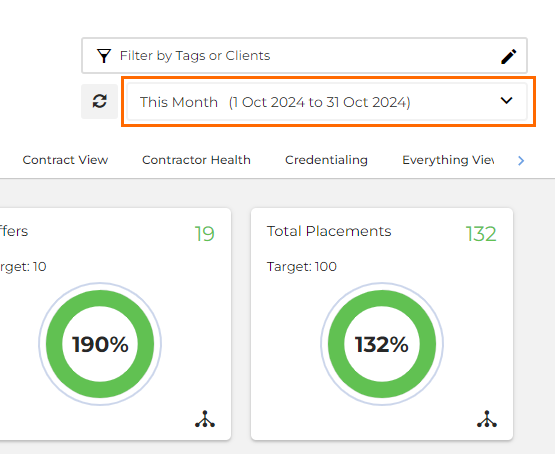
If you wish to view a timeframe other than the default you have landed on, the date picker has a range of preset options allowing you to navigate through current and historical data easily. Alternatively, you can use the date range picker to select a custom date range.
Refresh Page
Click the Refresh button to reload the metrics on the page with the most current data.
Metrics and Priority Metrics
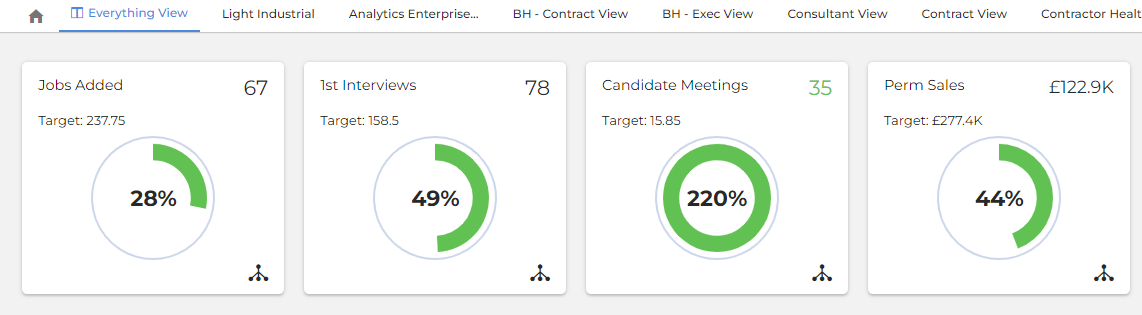
At the top of the OneView page you'll see Priority Metrics.
Priority Metrics are metrics with targets applied to them, and display at the top of the OneView page with dials to show what has been achieved against the defined target. For more information about Priority Metrics, see Priority Metrics and Targets.
All other metrics are divided into sections of related metrics for visiblity and ease of use. Metrics sections are fixed across the business, but only the data for the user profile or group you're currently viewing will be displayed. Click the MORE button to view all the metrics in a section.

Non-priority metrics are still targetable. Targeted metrics will show the target value next to the metric value, as shown below:

You can click on any Metric or Priority Metric to view the underlying data relating to the values presented and access an array of additional options. See OneView Metric Clickthroughs and Deeplinking for details.
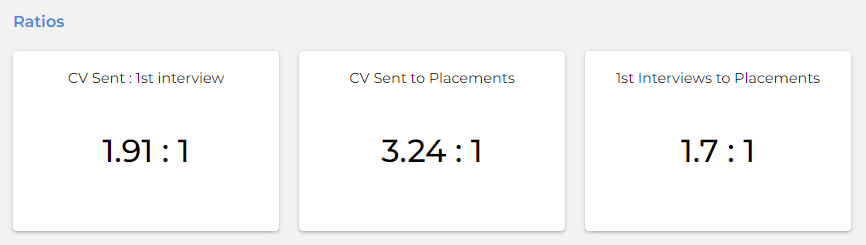
Ratios
Ratios are shown at the bottom of the OneView page. They look at the value of one metric divided by another to help measure performance. To learn more, see Ratios.