| Edition: Starter | Audience: All Users |
Starter OneView Page
The Starter edition of Analytics comes with a prebuilt OneView Page. This article explains how to navigate the different options, filters, and metrics on the Starter Edition OneView Page.
For details on the definition of each metric see Starter Edition Standard Metrics Dictionary.
General Navigation and Filters
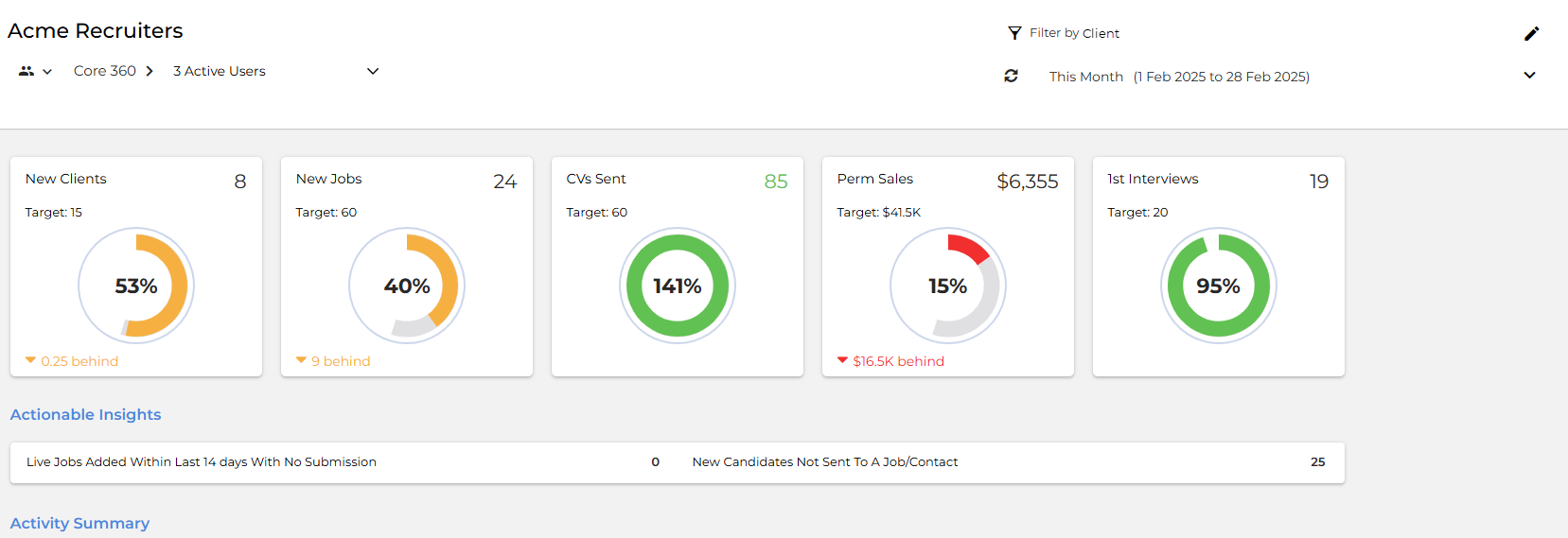
When you log into Bullhorn Analytics, you will land on the Starter edition OneView page.
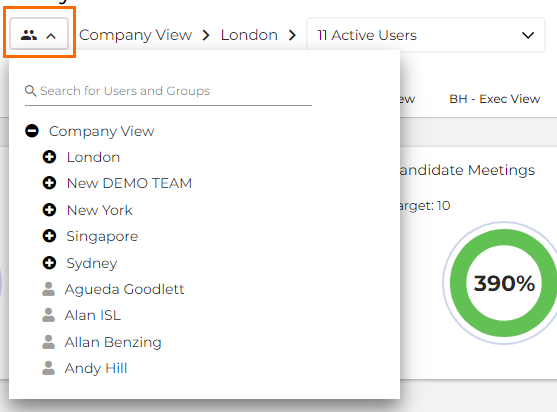
Users / Groups
Use the Company View dropdown to search or filter by user or group. Only the data for the user profile or group selected will be displayed.
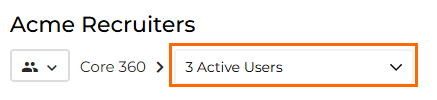
A count of all active users within the team can be found to the right. You can view a specific user by selecting them from this dropdown.
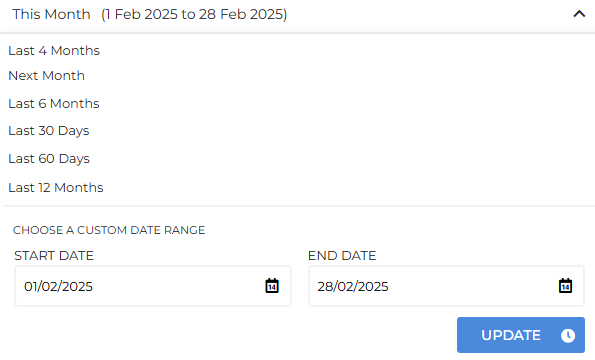
Timeframe Selection
Use the date picker to select a timeframe or choose a custom date range.
Refresh Page
Click the  icon in the top right corner to reload the metrics on the page with the latest data.
Metrics and Priority Metrics
Priority Metrics are metrics with targets applied to them, and display at the top of the OneView page with dials to show what has been achieved against the defined target. For more information about Priority Metrics, see Priority Metrics and Targets.
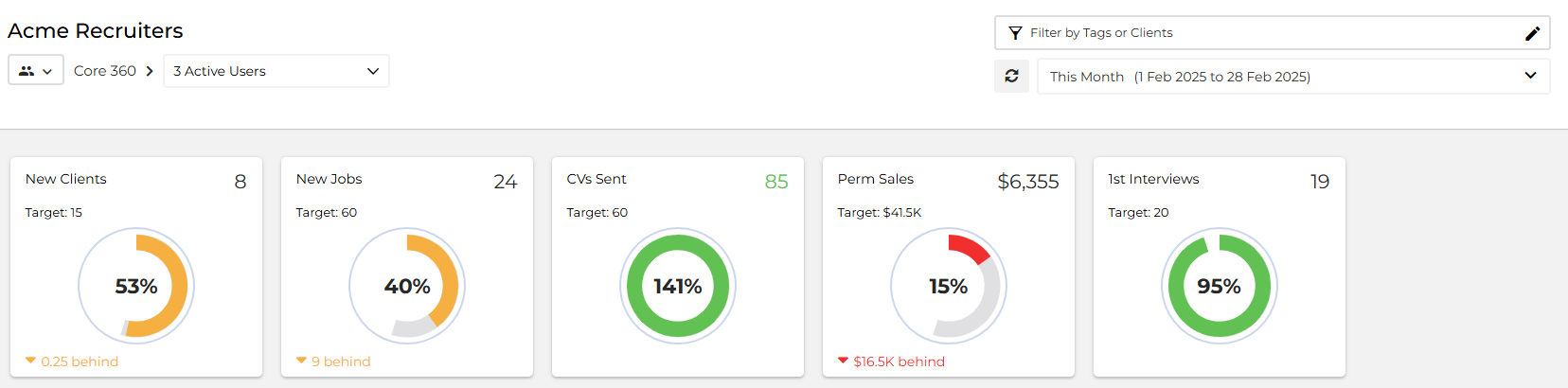
All other metrics are divided into sections of related metrics for visibility and ease of use. Click the MORE button to view all the metrics in a section.
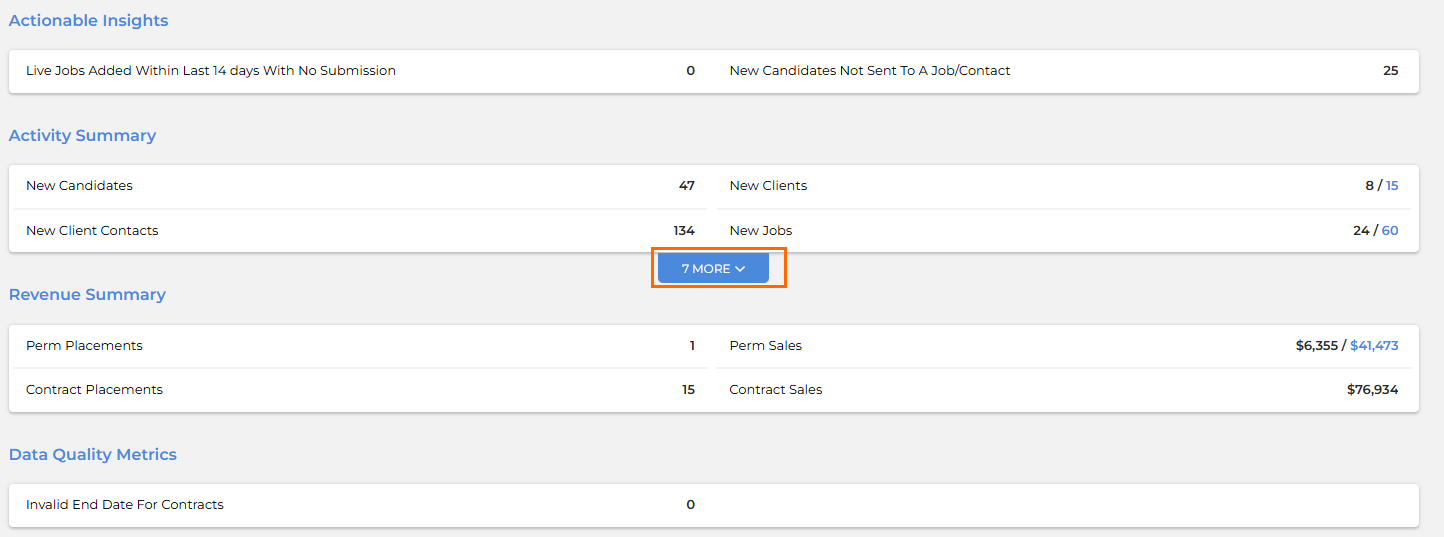
Non-priority metrics are still targetable. Targeted metrics will show the target value next to the metric value, as shown below:

Metric Clickthroughs
You can click on any single metric to view the underlying data details over the selected time period, e.g. This Month.
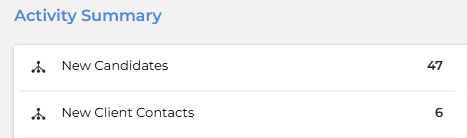
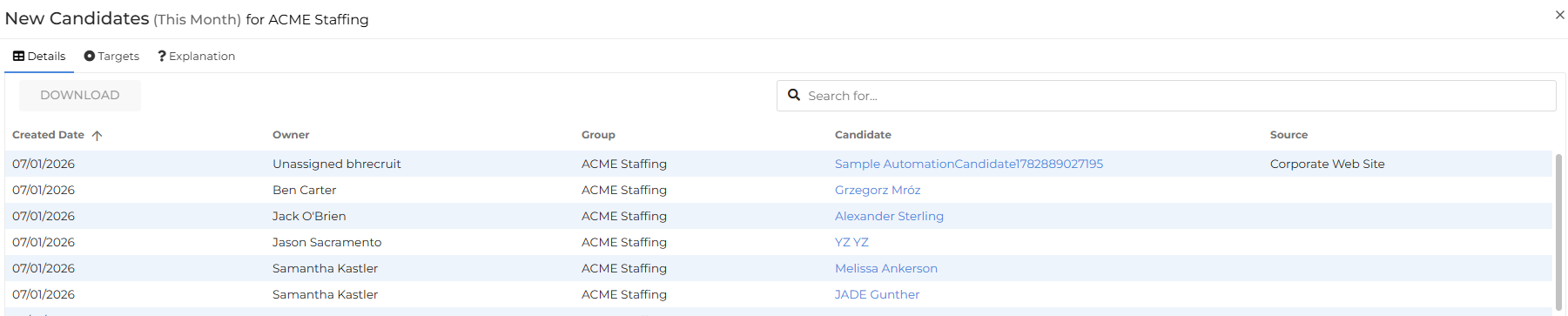
The data is presented as a set of predefined columns containing relevant information such as Created Date and Candidate Name. Every column is sortable, and there is a search bar at the top of the page.
Deeplinking
Once you access the data details in the Metric Clickthrough, you’ll see that some of the data in the columns presented are hyperlinked. Clicking these links will take you to the relevant record in your Bullhorn ATS in a new tab. In the example below, the link would take you to candidate record for Alexander Sterling:
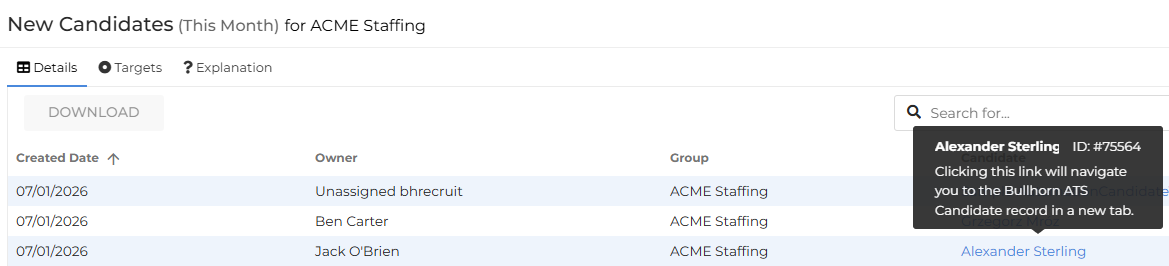
Using Targets
Targets enable you to see the target that has been set against any metric. You can also view any historic targets that have been set.
To access the Targets clickthrough feature, click into your desired OneView metric and select Targets along the top of the clickthrough window.
Target Clickthrough user permission is set in Applying Core Permissions by a User Admin.
An active target will either sit within a specified Start and End date or be left open ended, in which case it will say Onwards.
Target Values will either be weekly or monthly but will always aggregate into the time period you select to view in OneView. You will see notes that have been added by a manager or administrator who has set the target, or key audit notes that are generated automatically when key changes are made.
If you have the Target Admin permission, you’ll be able to set targets from here. SeeTargets Admin for more information.