Bulk Mail Process
In order to allow for large volumes of emails to be sent at once, the processing needs to happen asynchronously (tasks are run in the background). Parameters need to be configured and fine tuned to ensure that the processing of data is run in batches in the background and completed successfully.
The information below focuses on outlining the recommended baseline configuration for the bulk email process.
The performance of bulk actions depends heavily on the objects involved and actions triggered in the background, so it will vary from case to case, and from Org to Org.
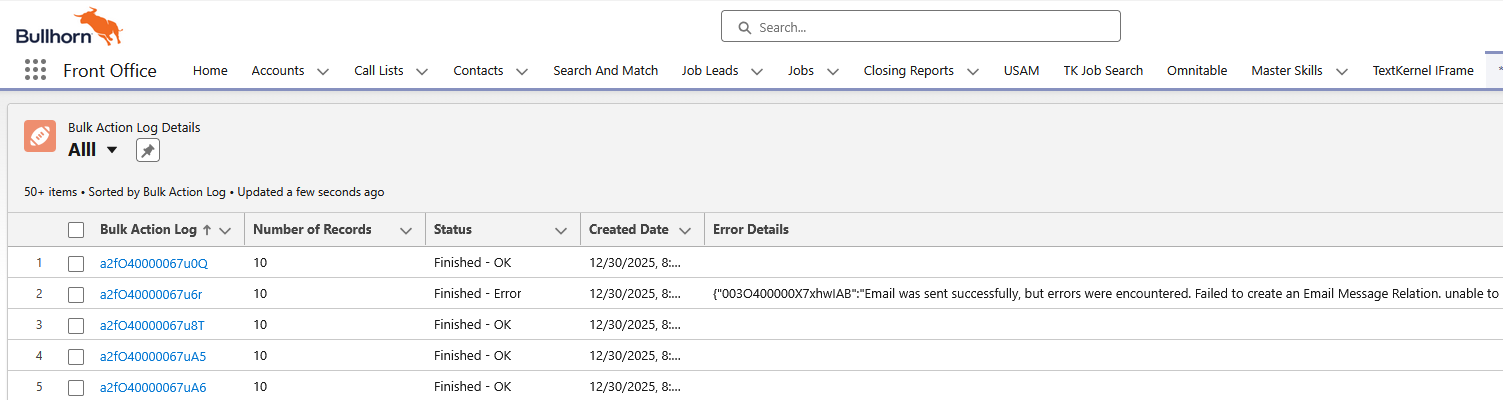
The main monitoring and reporting tools when performing bulk emailing are the Bulk Action Log (TR1__BHHV_Bulk_Action_Log__c) and Bulk Action Log Detail ( TR1__BHHV_Bulk_Action_Log_Detail__c) objects.
Understanding and Fine Tuning the Bulk Email Batch Sizes
With any batch processes, the batch size is key to maintaining an efficient and error free environment. Very small batch sizes increase overhead and result in slower performance, even in parallel systems. Very large batch sizes can result in slow running processes, slow feedback, and platform limits being exceeded. It’s important to monitor performance and tweak batch sizes to ensure an efficient process.
There are a few batch size settings that affect the bulk mail processes, but only two are key to controlling how many emails are sent in each batchedMailSend transaction. One controls the batch size when sending emails from ATS Actions, the other controls the batch size when sending via Async Flow Actions (used for example in the Kona integration).
Chunk Size
The Chunk Size value determines how many records are contained in each chunk (how many records will be updated in a single transaction).
-
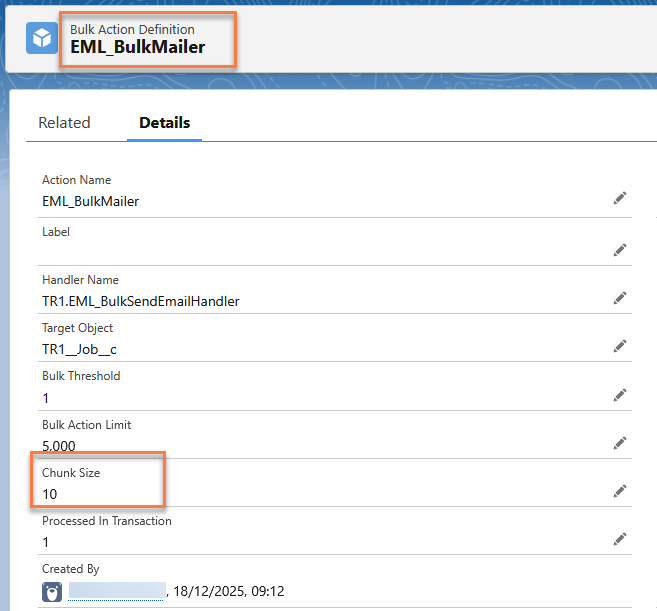
ATS Actions (ATSv2/Omnitable): Chunk Size field on the Bulk Action Definition record for EML_BulkMailer
-
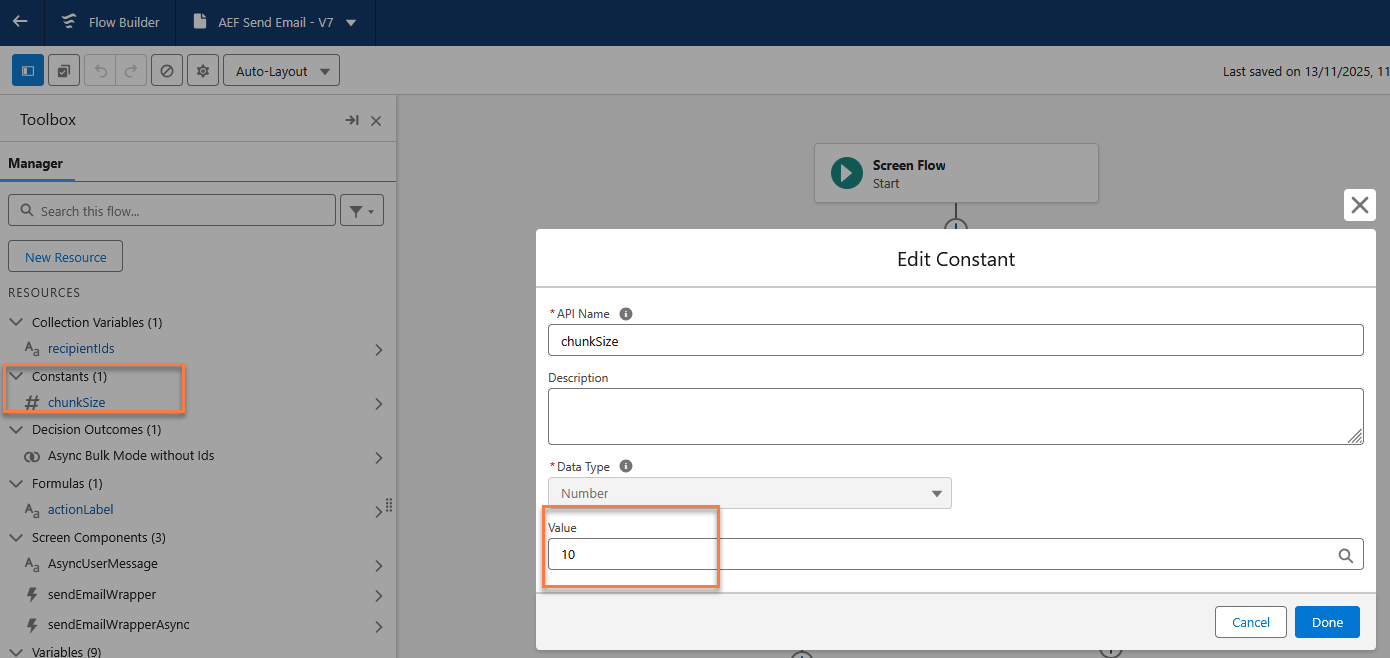
Async Flow Actions: ChunkSize constant in the AEF_Send_Email flow (Setup > Flows > AEF Send Email > Toolbox Manager > Constants > #chunkSize: you have to override the default value of 10)
It is advised that both these fields be set to the same value.
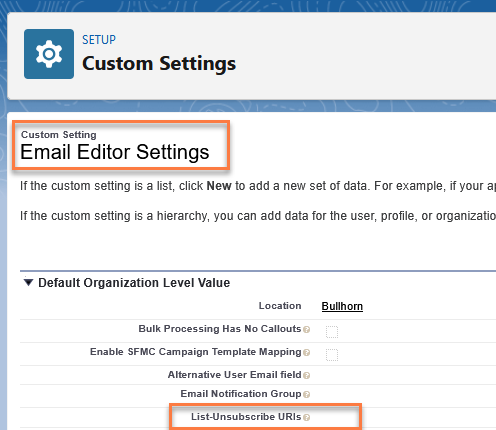
When setting a chunk size value, please be aware that there is a dependency on another email send related feature of the BHRC package, the List Unsubscribe feature. The following values should be used as a starting point, depending on the number of configured List-Unsubscribe URIs in the Email Editor settings (Setup > Custom Settings > Email Editor Settings > List-Unsubscribe URIs).
-
No URIs configured: 90
-
0-1 URIs configured: 60
-
2 URIs configured: 40
If the Bulk Action Log Detail records report that "Too many SOQL queries are being executed at once", the chunk size values should be lowered by 5 and the process re-run.

Additional Information
To provide further context on where these values come from, the following sections will take a deeper look at the various processes that make up bulk emailing, and how the various settings impact the batching and limits.
The Process
The following diagram shows the chunking for an ATS Send Email action.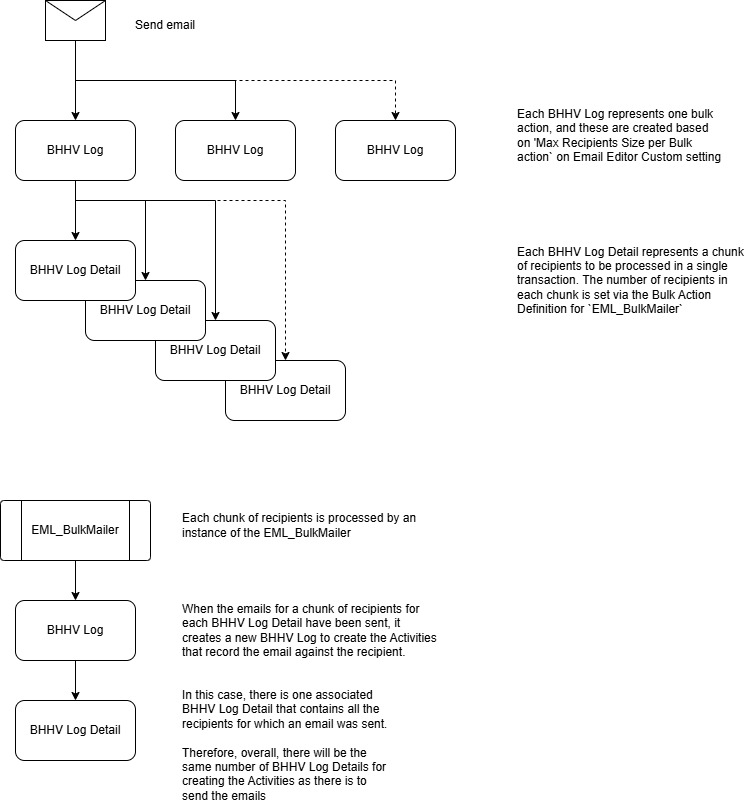
-
Bulk Action Log
-
The highest level of batching
-
Contains at least one Bulk Action Log Detail records
-
Limited by the size of the Parameters field. This field is as large as we can make it, but it's still possible, if sending hundreds of emails, for the total email data to exceed this field.
-
When run as an ATS Action, the parameters field contains the full emailData (email body and recipients list).
-
Batch size is set via Max Recipients Size per Bulk action on Email Editor Custom setting (defaults to 500) to limit how much data is added to this field
-
-
When run as an Async Flow Action, the parameters field contains only a reference to ActionFlowData__c records that contain the emailData
-
There is no batching at this level for Async Flow Actions. All recipients are added to a single Bulk Action Log record
-
-
-
Bulk Action Log Detail
-
When run as an ATS Action, Batch size is set via the Bulk Action Definition for EML_BulkMailer
-
When run as an Async Flow Action, Batch size set via the ChunkSize constant in the AEF_Send_Email flow
-
Splits a single Bulk Action Log into one or more batches
-
One single batchedMailSend Job will be invoked to handle all the emails in this record.
-
-
batchedMailSend Job
-
Performs mail merges on each email in the batch and sends the result to the email provider.
-
Once finished, enqueues a single Create Activities Job with all of the successful emails
-
Limited by the number of SOQL queries that can be invoked in a single async transaction - 200
-
Each mail merged text is a single SOQL query (i.e. one for email subject, one for email body, and one for each of the List Unsubscribe URIs configured in Email Editor Custom settings).
-
- Create Activities Job
-
Creates Activities (Task) records for each of the successful emails sent in the batchedMailSend Job
-
Understanding the Tuning
BatchedMailSend Job
Due to the 200 SOQL limit, the number of mail merges done in each batchedMailSend Job is the main concern. The job uses around 5 queries during its setup, and we must allow for merge fields in both the subject and the body, setting our hard limit at around 95. I.e. Two queries per email, means 190 queries, leaving 10 spare for setup etc.
If the organization has List Unsubscribe URIs configured, each URI will consume an additional SOQL query during mail merge. For example, if 2 are configured, we now need 4 queries per email, setting our batch limit at ~45
If the Bulk Action Log Detail records report that "Too many SOQL queries are being executed at once", the batch sizes should be lowered.
Max Recipients Size per Bulk Action
This value is defaulted to 500, and should be suitable for most installations. It may be possible to increase it in some environments, but it would not ultimately improve performance. This value should however be lowered if users are seeing errors in the UI when sending emails via ATS. This indicates that the total email data is too large to fit into the parameters field of the Bulk Action Log record.

Deep Dive Example
To tie this all together, here is a deep dive example of how the various settings interact for an email sent via ATS Actions.
This example assumes the following configuration values:
-
Max Recipients Size per Bulk action is 500
-
Bulk Action Definition for EML_BulkMailer batch size is 60
-
List Unsubscribe URIs contains 1 URI
We wish to send an email to 1600 recipients for a Job via ATS. We invoke the Mail Action with 1600 recipients selected, using a template containing merge fields in both the subject and the body.
First, the 1600 recipients are split up into 4 Bulk Action Log records. The first 3 of which contain 500 records, the last, containing the final 100.
Next, each of those Bulk Action Log records is split into batches of 60. The first 3 Bulk Action Log records (500 recipients each) will contain 9 batches; 8 batches of 60, and a final batch of 20. ((8 x 60) + 20 = 500)
The final Bulk Action Log record (the one that contains only 100 recipients) will contain only 2 batches; 1 of 60, and a second batch of 40.
In total we have 25 batches of 60, 3 batches of 20, and a single batch of 40 totaling our 1600 recipients. ((25 x 60) + (3 x 20) + 40 = 1600)
Each of those batches will then be processed by the batchedMailSend Job . This job consumes a few (~5) queries for set up purposes, the rest are available to be used by the email merging itself. As we used a template with merge fields in both the subject and the body, each recipient will need 2 SOQL queries per email content. In addition, we have configured a single List Unsubscribe, consuming a 3rd SOQL per recipient.
This means that 180 SOQL queries will be used in the mail merge process for our batches of 60; 120 queries for our batches of 40, and 60 queries for our batches of 20.
Finally, each of those batches now invokes a Create Activities Job for all successful emails sent whatever that number is.