Crediting & Reinstating Invoices
Invoices in are generated from Billable Charges once approved time and expenses are ready to bill. The invoicing workflow moves from creating invoices, to reviewing and finalizing them, to exporting them to your general ledger. Invoice presentation and timing are controlled by the client's Billing Profile and Invoice Terms.
You may need to Credit and Reinstate an Invoice if there is an issue with the original Invoice you created. Use this information below to learn when and how to Credit & Reinstate an Invoice with .
When to Credit & Reinstate an Invoice
You would Credit & Reinstate an Invoice when there's an issue with the invoice that you need to correct. For example, a Purchase Order is missing, the Invoice Terms are incorrect, Rate Information is wrong, etc. The Credit part of the Credit & Reinstate feature cancels out the Invoice you've finalized. The Reinstate part allows the Billable Charges to be reassigned to a new Invoice to be sent to the Client. They are bundled into a seamless Credit & Reinstate process.
How to Credit & Reinstate an Invoice
-
On the Invoice, click Actions > Credit & Reinstate.
-
Click the Credit & Reinstate button on the pop-up. You'll notice a banner at the top of the Invoice after clicking the button.
-
Navigate to the Billable Charges list.
-
Find the Billable Charges that were on your original Invoice.
Use the Status and Has Rebill? columns to filter for the correct charges.
-
Create a new Invoice by selecting Action/Selected > Create Invoice.
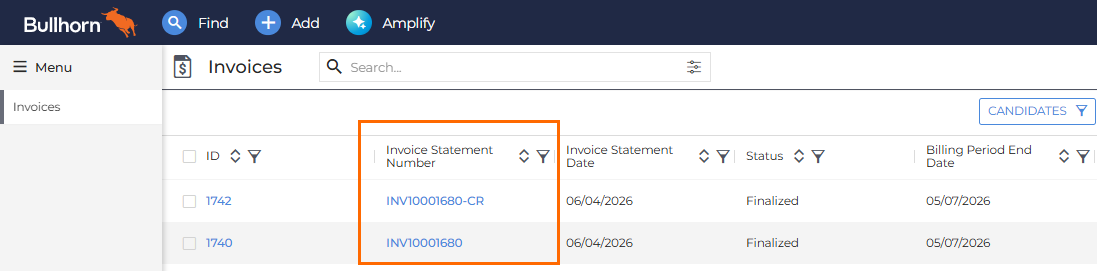
The new Invoice will be created with a specialized Invoice Statement Number and there will be a credit memo on the old/original Invoice. See Setting a Rebill Invoice Number to learn how to assign a new custom Rebill number for tracking and reporting purposes.