Merging Applicant Profiles in Talent Platform
Talent Platform allows customer administrators to merge duplicate applicant records into a single record. This article explains how to merge applicants manually, what data carries over after a merge, and how Talent Platform handles merges triggered automatically from Bullhorn ATS.
Common reasons you might need this article
- You need to consolidate two records for the same applicant into one.
- You want to understand what data carries over during a merge.
- An ATS-initiated merge did not update records in Talent Platform as expected.
- You need to give a non-administrator access to the Applicant
 (or Candidate or Talent) Customer talent - the person applying or hired for the job Merge tool.
 - You need to understand how I-9 Form I-9 to verify the identity and employment authorization of individuals hired for employment in the United States. and E-Verify An online system that confirms the eligibility of an Employee to work in the United States. The process compares information entered by an employer from an employee’s Form I-9, Employment Eligibility Verification, to records available to the U.S. Department of Homeland Security and the Social Security Administration to confirm employment eligibility. data is handled during a merge.
Before you begin
The following must be in place before you merge applicants:
- Ability to merge applicants permission: Your role must have the Ability to merge applicants permission enabled. By default, this permission is on for the Administrator role only. To enable it for other roles, contact Bullhorn Support.
- Same customer account: Both applicant records must belong to the same customer account. Merges across different accounts are not supported.
- Correct records identified: Identify the primary applicant (the record to keep) and the duplicate applicant (the record to remove) before starting. This action cannot be undone.
How applicant merge works
When you merge two applicant records, all associated data from the duplicate applicant moves to the primary applicant. The duplicate record is then permanently removed.
Merges can happen in two ways: you can trigger one manually using the Applicant Merge tool, or Talent Platform can process one automatically when it receives a candidate merge event from Bullhorn ATS.
Merge applicants manually
Use the Applicant Merge tool to find and consolidate duplicate applicant records. You must have the Ability to merge applicants permission to access this page.
-
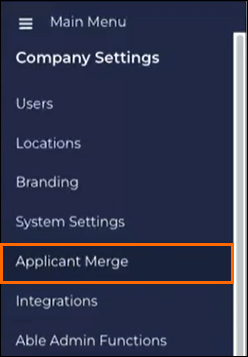
Go to .
-
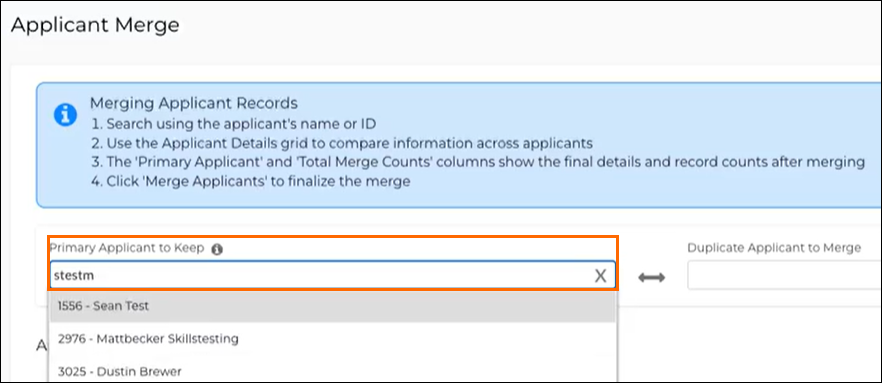
In the Primary Applicant to Keep field, search for and select the applicant record you want to keep.
-
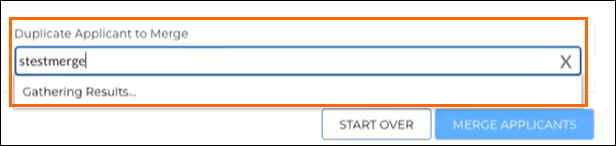
In the Duplicate Applicant to Merge field, search for and select the record you want to remove.
-
Review the Applicant Details section to confirm you have selected the correct applicants. Both records are shown side-by-side.
-
Select Merge Applicant, then select Merge in the confirmation window.
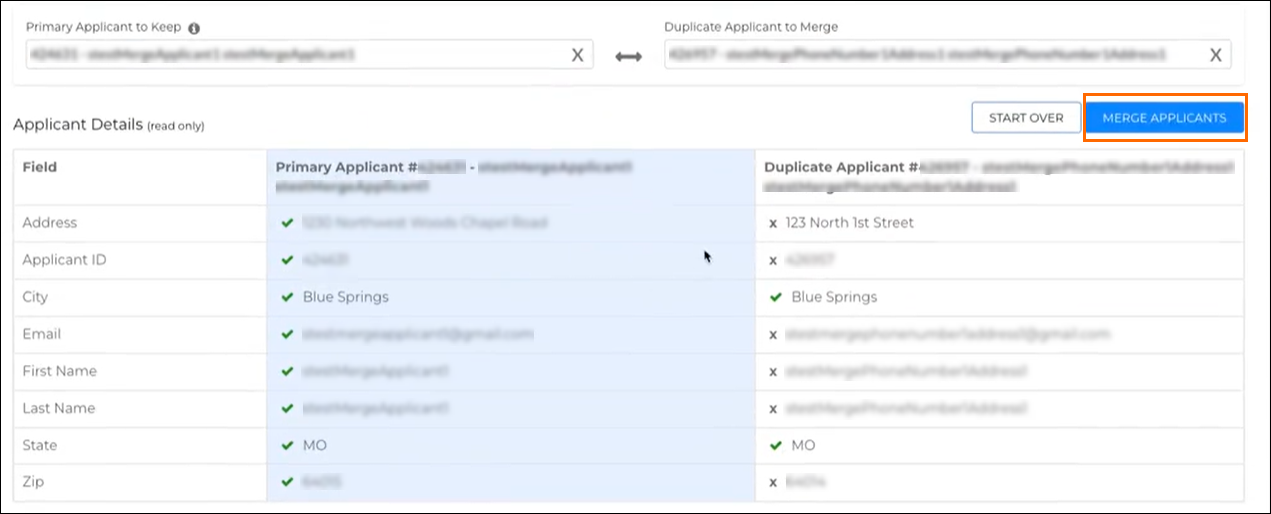
When the merge is complete, a confirmation message appears with a link to the primary applicant's profile. Select Start Over at any point before confirming to begin a different merge.
Important: A merge cannot be undone. The duplicate applicant record is permanently deleted after the merge completes. Note the duplicate applicant's ID before merging in case you need to reference it later.
What data is included in a merge
The following data moves from the duplicate applicant to the primary applicant when a merge runs. The table below lists each data type and any limitations that apply.
| Data | Notes |
|---|---|
| Credentials and credential requirements | All credential records transfer to the primary applicant. |
| Notes | All applicant notes transfer to the primary applicant. |
| Referrals | All referral records transfer to the primary applicant. |
| Surveys | All survey responses transfer to the primary applicant. |
| Interviews | All interview records transfer to the primary applicant. |
| Workflow history | Full workflow history transfers to the primary applicant. |
| Workflow notifications | All workflow notifications transfer to the primary applicant. |
| Skill Short, descriptive text identifying an area of expertise as related to a given job checklist answers |
All skill checklist answers transfer to the primary applicant. |
| I-9 detail records and I-9 audit trail | I-9 detail records and the full audit trail transfer. The primary I-9 record does not transfer because only one primary I-9 record is permitted per applicant. |
| E-Verify cases | Crimcheck E-Verify cases will be unavailable in Talent Platform after the merge. To view them, log in to Crimcheck or contact your company administrator. |
After the merge, all references to the duplicate applicant's ID update to point to the primary applicant's ID. The duplicate record is then deleted.
ATS-initiated merges
When a candidate is merged in Bullhorn ATS, Talent Platform receives the merge event automatically and processes it without any action required from you. Talent Platform handles three scenarios based on which records exist at the time of the merge.
| Scenario | What Talent Platform does |
|---|---|
| Both the primary and duplicate applicants exist in Talent Platform | Runs the full merge automatically. All data from the duplicate applicant moves to the primary applicant, and the duplicate record is removed. |
| Only the duplicate applicant exists in Talent Platform | Updates the duplicate applicant's ATS ID to match the primary applicant's ATS ID, then runs a sync to align the record with the primary applicant's data in the ATS. |
| Only the primary applicant exists in Talent Platform | No merge is needed. The record is already correct. Talent Platform logs the event and takes no further action. |
Troubleshooting
If the Applicant Merge page is not visible
The Applicant Merge page only appears for users with the Ability to merge applicants permission. By default, only the Administrator role has this permission. To enable it for another role, contact Bullhorn Support.
If the merge fails
If a merge fails, both records remain unchanged. Common causes:
- The primary and duplicate applicants belong to different customer accounts. Applicant merge only works within the same account.
- The same applicant was entered in both fields. The primary and duplicate applicants must be different records.
If I-9 or E-Verify data is missing after a merge
I-9 detail records transfer during a merge. However, the primary I-9 record does not transfer because only one primary I-9 is allowed per applicant. If the primary applicant did not already have a primary I-9 record, contact Bullhorn Support for assistance.
Crimcheck E-Verify cases will be unavailable in Talent Platform after the merge. To view them, log in to Crimcheck or contact your company administrator.
If an ATS-initiated merge did not update records as expected
Check whether both applicant records existed in Talent Platform at the time of the merge. If only the primary applicant existed in Talent Platform, no merge runs (see the ATS-initiated merges table above). If you believe a merge event was sent but neither record was updated, contact Bullhorn Support with the primary and duplicate applicant IDs.