Applying Agency Email Reminder Settings to Existing Branches - Apply Default
Email Reminders can be set up in BTE to automatically send on a schedule to employees and/or approvers. These emails prompt employees to enter and submit time via WTE or approvers to approve time or expenses for a specific time period.
These reminder settings can be set at the Agency, Branch, or Client Level. Follow the instructions below to apply the default Agency level Email Reminder Setting to existing Branches.
Use Apply Default if Branches exist in BTE prior to reminder changes made on the Agency and the setting changes should flow down to existing Branches.
-
Navigate to any Branch in the BTE TMC.
-
Select Maintenance > Administration.
-
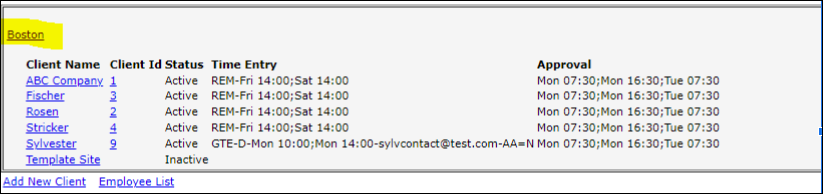
Click <branchname> Setup. This displays a list of clients for the branch and an overview of each client's the Reminder Times Settings.
-
Click the Branch name to open the settings.
-
Select the Set as Default option where ever the text displays.
-
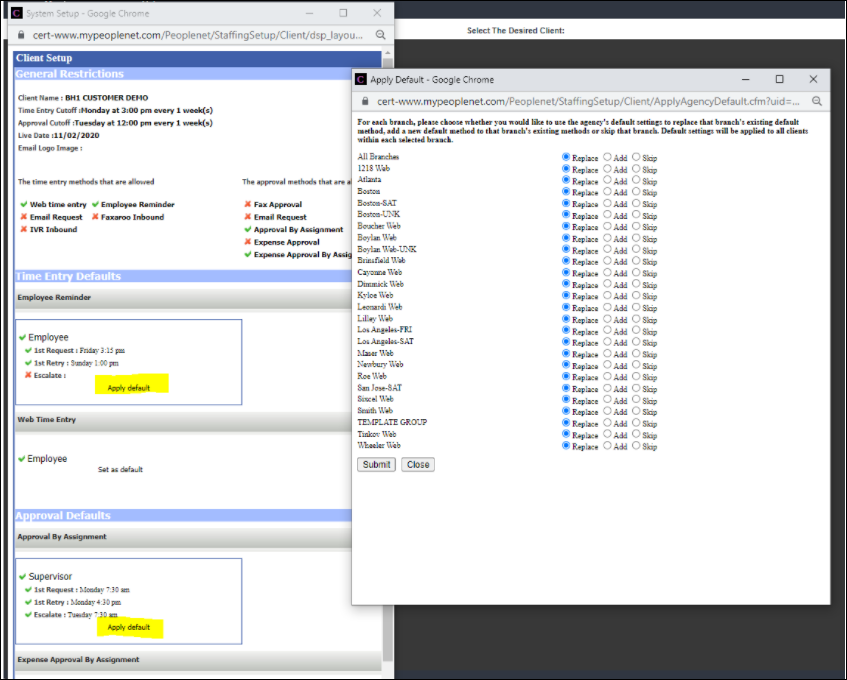
Select Apply Default in System Setup's Client Setup to open a list of branches for the agency.
-
If assigning agency settings to all branches, select the appropriate option at the top of the list for the All Branches line. Otherwise select the appropriate option for the majority of the branches and then adjust individual branches as necessary.
-
Replace: Select this option to apply the settings to the clients for each branch(es) and discard the current approval methods.
-
Add: Select this option to apply a new method to the clients for each branch(es) while retaining the existing methods.
-
Use this if when setting up a new method rather than modifying an existing one.
-
-
SkipSelect this option to not apply the selected method and schedule to the clients for each branch(es).
-
-
Click Submit .