Setting Up & Managing Email Reminders on the Client
Email Reminders can be set up in BTE to automatically send on a schedule to employees and/or approvers. These emails prompt employees to enter and submit time via WTE or approvers to approve time or expenses for a specific time period.
Follow the steps below to set up email reminder at the client level.
Changes made on the Client take precedence over the Branch or Agency settings.
-
In the BTE TMC, open the Branch.
-
Click Maintenance > Administration.
-
Select <branchname> Setup.
-
Click on the name of the client to modify.
-
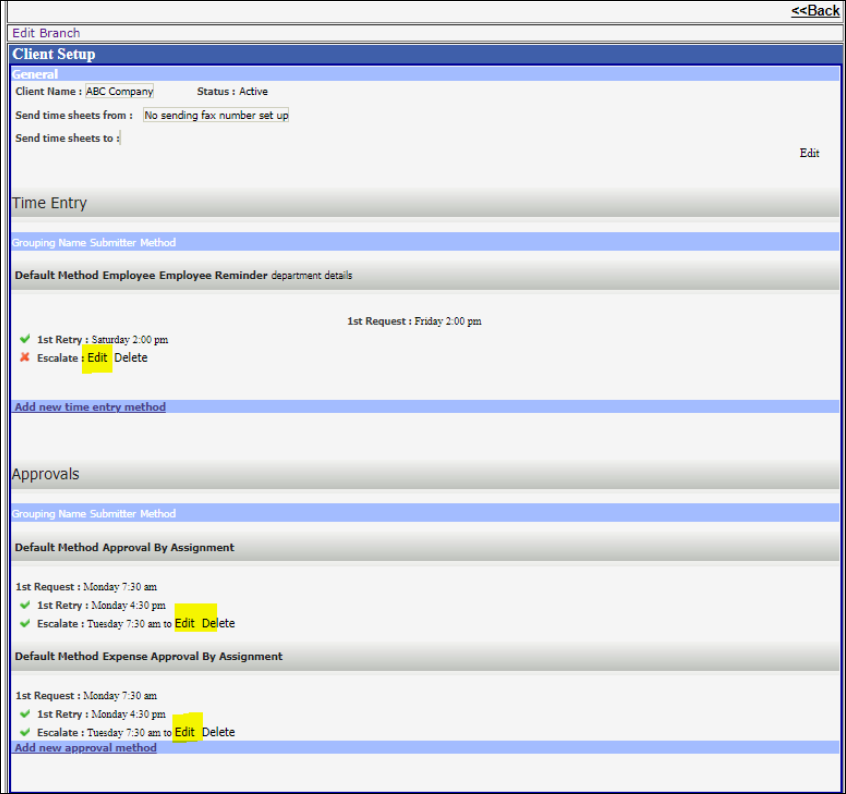
Using the small Edit button, open the reminder type to edit.
-
 Use the following information to make modifications to your reminders.
Agency Level Settings
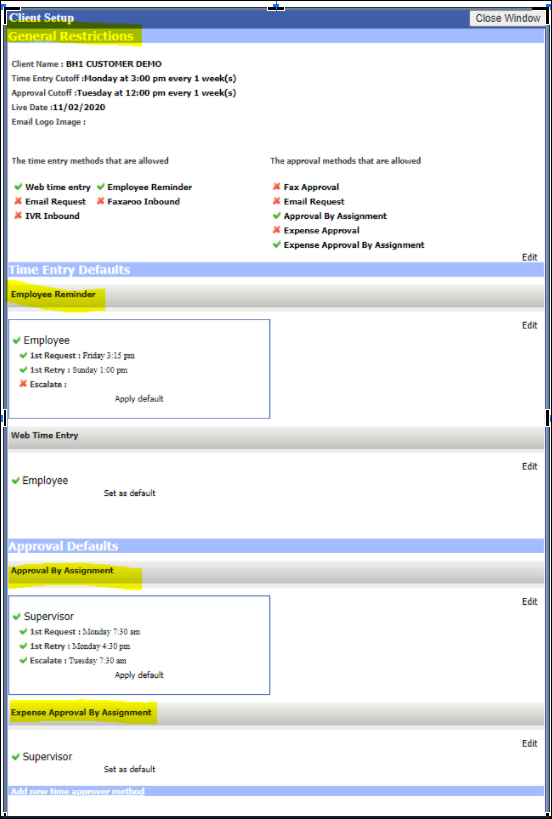
General Settings
-
Live Date: Set the live date to the first day employees are allowed to enter time in the system (not necessarily the same as the ATS go-live date). This must be set to a Monday.
-
Prevent LTE weeks before Live Date: Select this option to prevent creation of late timecard weeks prior to the live date for new branches.
-
Prevent assignments ended before Live Date: Select this option for the integration to ignore assignments with an end date less than the live date.
-
For clients with a staggered roll-out, set live dates on the Branch if needed.
-
- Verbiage for Reminders
-
Time Entry: The text for the Footer, Intro, and Terms and Conditions are set on the agency but are changeable on the branch.
-
Approval: The text for the Footer, Intro, Expense Intro, and Terms and Conditions are set on the agency but are changeable on the branch.
-
Time Entry Defaults
Employee Reminder
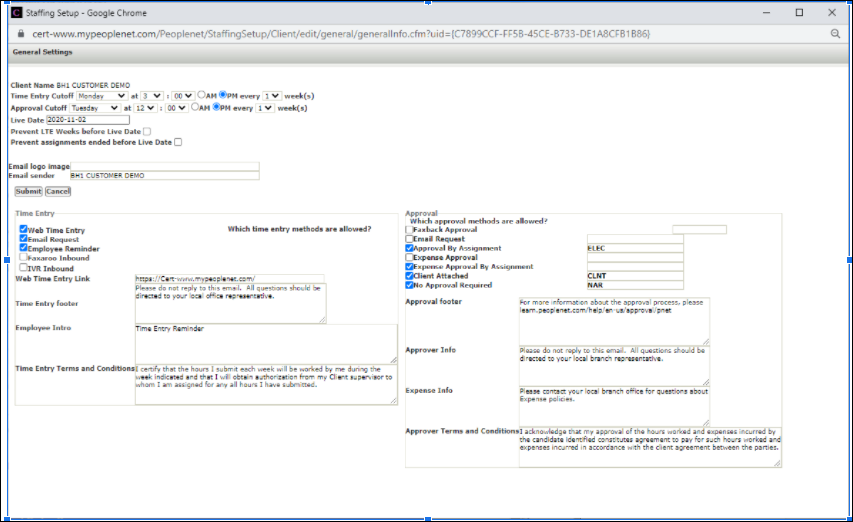
Time entry reminder emails are sent to all Web time entry users with email on file, active assignment for the current week, and no submitted time. Set these on the agency for inheritance when creating branches. To apply agency settings to previously created branches see bullet 5.
-
Send first Request on and First retry on: These settings allow up to two requests for time entry sent to the employee. Set these on the agency and modify on the branch as needed.
When setting request day and times, there can be a delay of up to an hour when sending the reminder.
-
Applies To: Determine whether the reminder is set for the last week (Previous Week) or this week (Current Week). The setting assumes the weekending day is Sunday and only references the original request date.
-
For example, if the first reminder is sent on Friday, Saturday, or Sunday, set field to Current Week to prompt the employee to enter time for this week. If the first reminder is sent on Monday set field to Previous Week to remind the employee time for last week is due.
-
-
Custom message: Set this text on the agency for inheritance on new branches.
-
Best Practice: During go-live, set the Status to inactive to prevent email notifications sending for the previous week and then set them to active after the last reminder time passed during go-live week.
-
Approval Defaults
Approval by Assignment Reminders
-
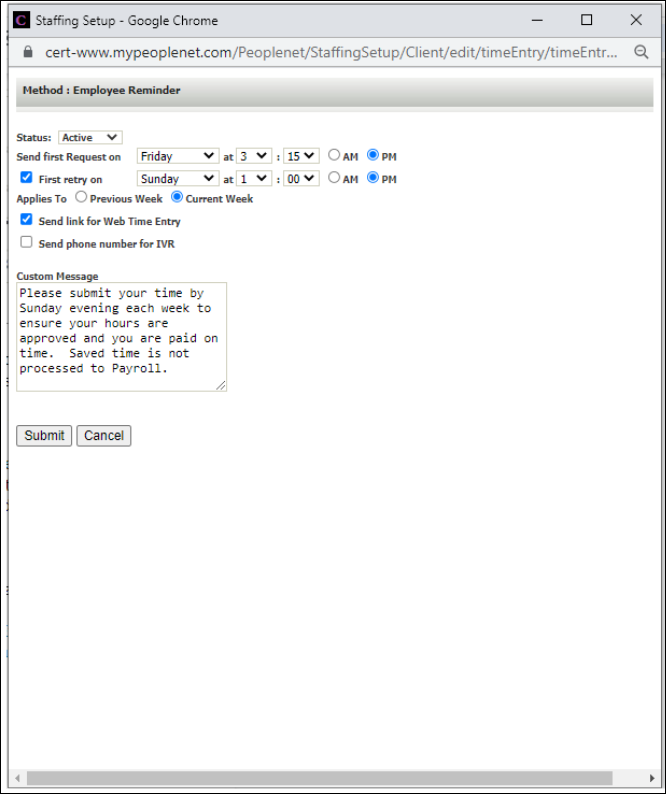
Timing: These settings allow up to three requests for approval sent to the employee. Set these on the agency and modify on the branch as needed.
When setting request day and times, there can be a delay of up to an hour when sending the reminder.
-
Escalate on: This setting sends a reminder to the backup approver if one is designated; the original approver can be mapped to the backup approver. If the same contact is mapped to the original and backup, three reminders are sent to the same person.
-
For: Determine whether the reminder is set for the last week (Previous Week) or this week (Current Week). The setting assumes the weekending day is Sunday and only references the original request date.
-
For example, if the first reminder is sent on Friday, Saturday, or Sunday, set field to Current Week to prompt the contact to approve time for this week. If the first reminder is sent on Monday set field to Previous Week to remind the contact approval for last week is due.
-
-
-
Notify Employee When: Select this to send the employee a notification when action is taken on their submitted time.
-
Hide Comments: Bars an approver from seeing comments submitted by the employee.
-
Notify Branch of Dispute: Currently, this feature is not functional without customization.
-
Prompt for Alternate approver: Select this option to allow an approver designate a different person to approve time, e.g., when out of office.
-
Include ...: Select these options to control the information the approver views: billable dollars, payable dollars, time approval.
-
Welcome Email: Allows modifying the verbiage and timing for the welcome email sent to the approver. If selecting Both or Refresh the email is sent as soon as the approver is entered into BTE.
-
Note the approver does not have to confirm their email address to receive approval emails.
-
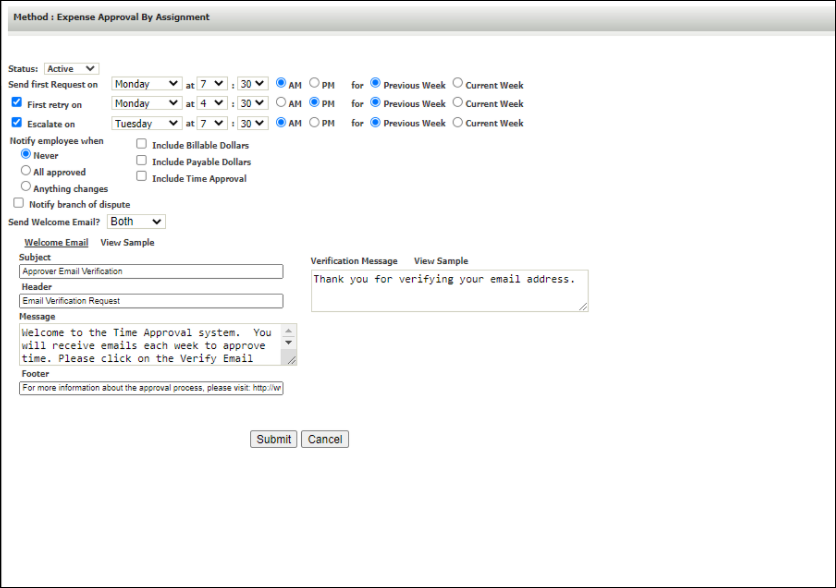
Expense Approval by Assignment Reminders
Expense approvals work the same as time approvals, resulting in a separate email and link.
-
They are sent to the designated expense and backup expense approver(s).
-
It's possible to map the time approver to the expense approver in the F01 mapping.
-
A separate field for a non-billable expense approver can be exposed in BH1 and used to approve non-billable expenses. This is typically for an agency user rather than a contact.
-
Include Billable and Payable Dollars - select these options to include this information in the approver email.
-
Include Time Approval - future functionality.
-