Emailing Expense Receipts to BTE (V2)
The following functionality is for Expenses V2. If you are unable to complete the steps below you may be set up with Expense V1. See Expenses (V1) for V1 documentation.
To enable Expenses V2 contact your Account Manager.
Your agency may require you to submit on the job expenses through a Web Time Entry (WTE) Expense Report. Expense Reports can be created, edited, and tracked through the WTE Expense Dashboard.
Receipts in your Expense Dashboard can be attached to individual Expense Reports. One way to add receipts to your Expense Dashboard is through emailing them in. Follow the steps below to learn how to email your expense receipts to BTE.
The most common way to upload receipt images is directly through the Expense Dashboard. See Uploading Receipts to your Expense Dashboard (V2) for more information.
-
Log into your email on your device and create a new email.
-
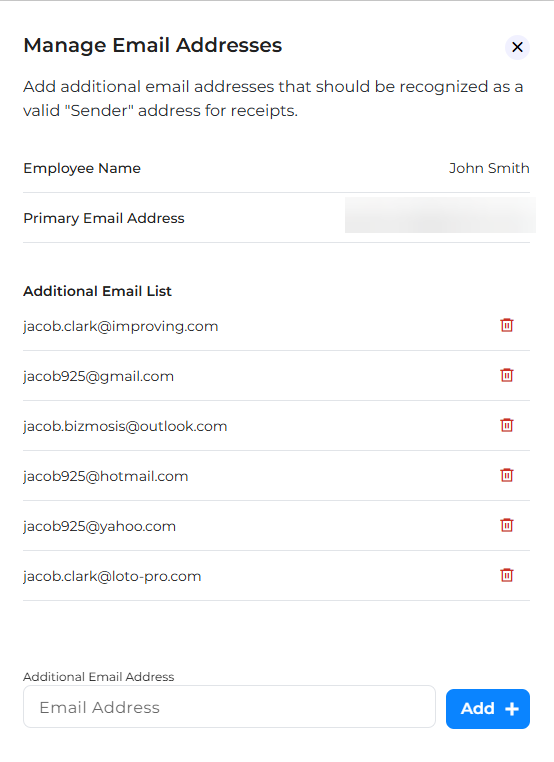
Ensure the email address you are using is included in the list of recognized "Sender" addresses for receipts on your Expense Dashboard. For more information, see Managing Sender Email Addresses for Expense Receipts (V2).
-
-
Enter expenses@peoplenet-us.com in the To field.
-
Attach your receipt file to the email.
All receipt files must adhere to the following guidelines:
- Acceptable file types: .jpg, .jpeg, .png, .gif, .tif, .pdf
- Maximum Image size: 4MB
-
Send the email.
Your receipt file will appear in your dashboard within a few minutes. You can then use the receipt to attach to an Expense Report. See Creating an Expense Report (V2) to create your own Expense Report.