Tracking Expense Reports (V2)
The following functionality is for Expenses V2. If you are unable to complete the steps below you may be set up with Expense V1. See Expenses (V1) for V1 documentation.
To enable Expenses V2 contact your Account Manager.
Your agency may require you to submit on the job expenses through a Web Time Entry (WTE) Expense Report. Expense Reports can be created, edited, and tracked through the WTE Expense Dashboard.
After you've saved or submitted your report you can track its status. Follow the steps below to track your Expense Reports.
-
From your Web Time Entry Dashboard, select the Expenses tab.
-
Under the Expense Reports section, you can see the dollar amount per status: Rejected, Saved, and Pending Approval statuses. Select the blue arrow next to View Reports for more information.
-
You'll now see a list of all your Active Expense Reports. Statuses are displaying next to each report amount. It’s possible to have any of the following statuses.
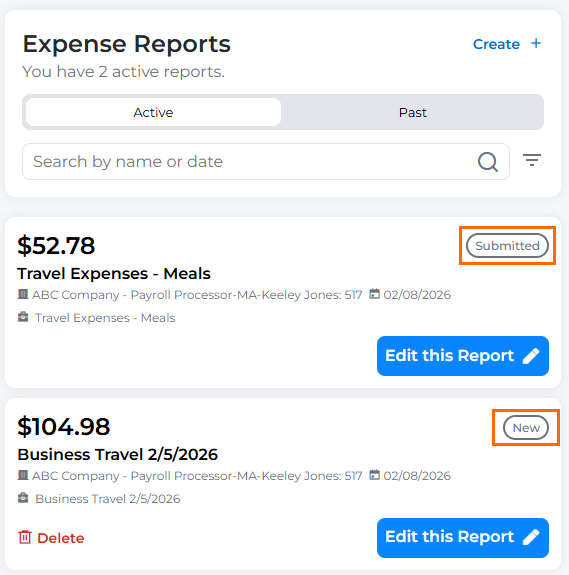
- New: The expense report has been saved but not submitted for approval. You are able to edit or cancel the expense report if necessary.
- Pending: The Expense Report is pending approval. You are unable to edit the report at this point.
- Approved: The Expense Report has been approved. No additional information is needed.
- Rejected: The Expense Report has been rejected by the approver and additional modifications may be required before approval.
- Rejected by Auditor: This status will only appear if your Staffing Firm audits Expense Reports for missing receipts.
- Sent: The Expense Report has been sent from to your Staffing Firm’s payroll for processing.
If you find you need to edit a report while tracking your statuses, follow the steps in Editing Expense Reports (V2).