Managing Sender Email Addresses for Expense Receipts (V2)
The following functionality is for Expenses V2. If you are unable to complete the steps below you may be set up with Expense V1. See Expenses (V1) for V1 documentation.
To enable Expenses V2 contact your Account Manager.
Your agency may require you to submit on the job expenses through a Web Time Entry (WTE) Expense Report. Expense Reports can be created, edited, and tracked through the WTE Expense Dashboard.
Expense receipts need to be added to your dashboard in order to attach them to Expense Reports. One way to add receipts to your Expense Dashboard is through emailing them in. However, receipts must be emailed from a valid "Sender" email address. Follow the steps below to view and update your valid "Sender" email list.
-
From your Web Time Entry Dashboard, select the Expenses tab.
-
Next to View Receipts, select the blue arrow.
-
In the Need Help? section under Email Images, select Manage Email Addresses.
-
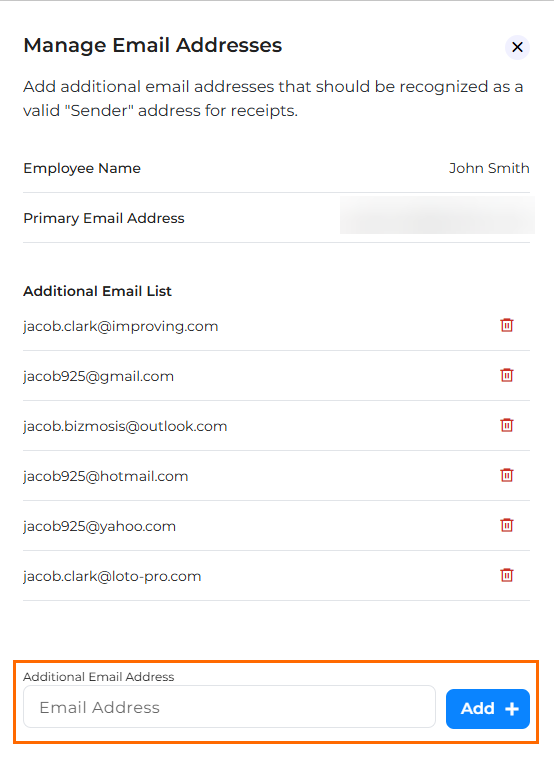
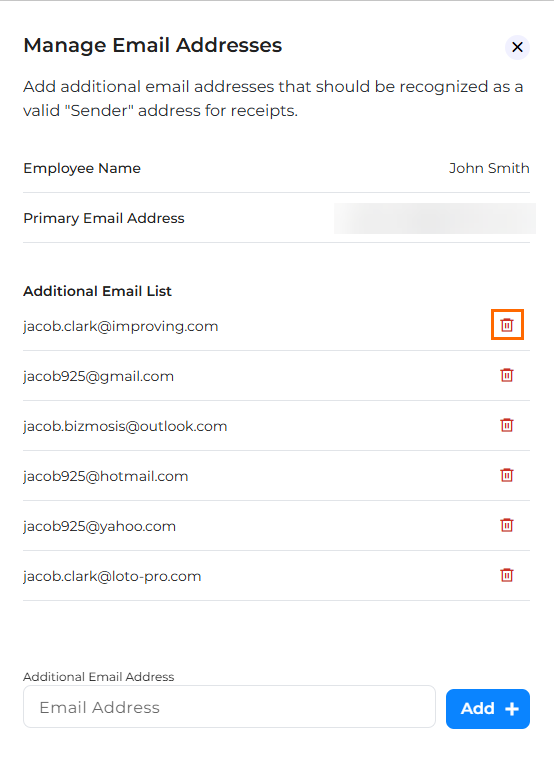
The Manage Email Addresses slide out will open. You can take the following actions:
-
Add additional valid Sender email addresses: Type the new email address into the Additional Email Address field and click Add.
-
Remove additional email addresses: Click the red trash can icon next to any email address you want to remove from the list.
-
To learn about emailing in receipts, see Emailing Expense Receipts to BTE (V2).