Submitting a Ticket or Case to Bullhorn Support
As a Support/Account contact, you can get help from Bullhorn Support through live chat, by submitting a ticket (also called a case) through Bullhorn Hub, or by phone. From Bullhorn Hub, you can view your open and closed cases, add information to cases, and close cases. You may also be able to view all cases submitted by users in your company.
You must be an account / support contact to connect with Support.
If you have access to Sophia, our AI-powered support assistant, try asking her your question first. Sophia can instantly provide answers, troubleshooting guidance, and help you resolve issues without waiting in line. If you don't have access to Sophia in ATS of the Hub or need additional support, you can use live chat or create a support case.
Creating a Case
If you cannot log in to your Bullhorn account, contact your Account Manager. They can submit a case on your behalf. If they are unavailable, they can call Bullhorn Support and an analyst can submit the case for you. For more information, see Technical Support Options.
-
Navigate to the Cases section in Bullhorn Hub:
-
From ATS: At the top right of the Bullhorn toolbar, select Help.
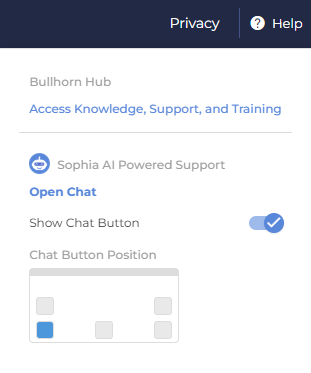
Then choose Access Knowledge, Support, and Training. -
From Bullhorn Hub directly: At the top left of the screen, select Cases.

-
-
On the right side of the screen, select Create New Case.
-
Enter the subject, a description, and a product related to your issue.
The Hub searches for information and resources to help solve your case as you enter a subject and displays them on the right panel.
-
Specify the business impact and preferred contact method. The contact options are based on information entered in your profile. If you have added phone numbers, you can select a phone number or your email for contact.
-
Select Create Case.
A Success pop-up window appears, confirming the case is created. It appears at the top of the Cases screen.
Viewing Your Existing Cases
-
From within Bullhorn Hub, at the top left of the screen, select Cases.
-
Select All to review open and resolved cases. You can check the status of your cases (for example, Open or Closed) and filter.
All your existing cases appear on the screen.
Adding Information to a Case
-
From within Bullhorn Hub, at the top left of the screen, select Cases.
-
Locate the case you want to update, then select it.
-
On the right side of the screen, in the Write a case comment box, enter any additional details, then select Post Comment.
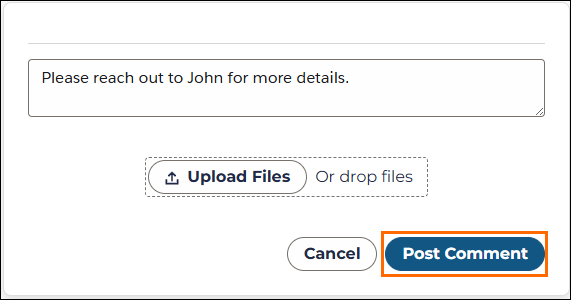
The comment is added to the case.
Closing a Case
-
From within Bullhorn Hub, at the top left of the screen, select Cases.
-
Locate the case you want to close, then select it.
-
On the right side of the screen, in the Write a case comment box, leave a comment stating why you are closing the case, then select Post Comment.
-
Select Close Case.
A Success pop-up window appears, confirming the case is closed.
Best Practices
Regardless of how you contact Bullhorn Support, provide as much detail as possible. The more context you include, the faster we can help. The following table shows the types of information that are most useful.
| Category | Information to include |
|---|---|
| Examples |
|
| Steps to reproduce |
|
| Timeline |
|